The customer orders a product marked as available, and the supplier replies: “the last item has already been sold.” Updating stock levels in PrestaShop from a CSV file helps transfer availability from an external listing to the store. For this to make sense, you need to determine what the numbers in the file mean, how to identify variants, and when the supplier’s data already includes your orders.
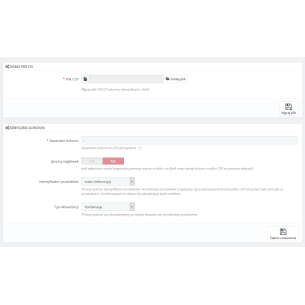
CSV Stock Update Pro for PrestaShop allows you to import quantities for existing products and combinations, simulate changes, control limits, and periodically download files. Below, we show how to organize this process and avoid errors that simply running the import more often will not fix.
Full stock level or new delivery? Choose the right import mode
“Set stock” replaces the current quantity. “Add to stock” increases it by the quantity from the file. Both modes are available in the module, but they address different needs.
| What does the CSV contain? |
Mode |
Example result |
Current quantity available for sale:
12 units |
Set stock |
There were 5 units in the store.
After import, there will be 12. |
New delivery:
12 additional units |
Add to stock |
There were 5 units in the store.
After import, there will be 17. |
The example assumes order subtraction is disabled and there is no blocking by limits. If the supplier’s daily file contains full availability, using add mode will inflate the stock level with subsequent imports. On the other hand, setting stock based only on a new delivery will replace the quantity of goods that were already in the store.
In add mode, make sure the document has not already been processed. The module has control over reusing the file name, but changing the name does not mean a new delivery. If you allow the same quantities to be imported again as a separate run, you may count them a second time.
How to prepare a CSV file for quantity updates?
In the basic file, two columns are enough: identifier and quantity. Example for product references:
reference;quantity
MUG-001;12
BAG-002;0
TOW-003;24
In this file, the separator is a semicolon, and the first row is a header. In the module, choose reference as the identifier, map the quantity column to quantity, and set header skipping. In “set stock” mode, without order subtraction, the target quantities will be 12, 0, and 24 respectively, provided the safeguards allow it.
Column mapping allows you to use a file with a different layout — for example, with the code in the third column and stock in the seventh. The remaining columns can be ignored. It is worth checking the header-based mapping suggestion on a few rows before saving.
The identifier must refer to the same product in the file and in the store. The supplier’s code does not automatically become the PrestaShop reference. The module supports, among others, reference, EAN, and product or combination ID. Check the uniqueness of codes and preserve leading zeros. Export the XLSX file to CSV, preferably in UTF-8. Prepare quantities as whole numbers: the module truncates the fractional part, so 3,7 will be read as 3.
PrestaShop also has a standard CSV importer with field mapping. For a one-time update, it is worth checking its capabilities. A separate module is mainly useful when you need repeatable settings, simulation, safeguards, history, and automatic file downloading.
Does the product have sizes or colors? Update combination stock levels
Five units of a product do not tell you which variants can be sold. A T-shirt may have five units in total, but all of them in size L. Entering a general stock level will not replenish the missing sizes S and M.
For products with combinations, choose combination update mode and the identifier of the specific variant, for example its reference, EAN, or combination ID. The module recalculates the total product stock based on the stock levels of its combinations. In product update mode, it skips the parent that has combinations and records the reason in the report.
Also check for repeated identifiers. If several variants share the same code, one row does not clearly indicate which of them the quantity should be assigned to. The option to update multiple matches requires deliberate use; it does not automatically split one pool of goods among variants.
The supplier has 20 units, but three have already been sold. What should be imported?
Physical stock and quantity available for sale may differ. Goods intended for order fulfillment may still be sitting on the shelf. PrestaShop distinguishes between available, physical, and reserved quantity, as explained in the stock management documentation.
The module can subtract from the CSV quantity the products ordered in selected statuses. If the file shows 20 units, and matching order items include three, then 17 will be used for further calculations. In “set stock” mode, this will be the target quantity, unless blocked by limits.
Enable this feature only if the file does not already include those orders. If the supplier’s system has already reduced availability from 20 to 17, subtracting three units again will give 14. That will not be the correct availability.
Match the statuses to your own fulfillment process. The mechanism sums quantities from order items currently in the selected statuses; it is not a full reservation settlement in an ERP. It also works before adding quantities in “add to stock” mode, so for a standard new delivery document, check whether such subtraction is needed at all.
Zero, an empty cell, and a missing product in the file are three different situations
- Quantity 0: in “set stock” mode, with order subtraction disabled, means the intention to zero out the indicated product or variant. The save may be stopped by a configured safeguard.
- Empty or invalid quantity: the row is skipped and described in the report. It does not automatically become zero.
- No product row: the module does not zero out its stock just because the product does not appear in the CSV.
This is especially important when the supplier sends only available products. An item that disappeared from such a file may keep its previous quantity in the store. If you want to reflect stock depletion, agree with the supplier on exporting items with zero quantity, or separately prepare the missing zero rows. Do not assume that absence means withdrawal: the reason may be a filter or an incomplete export.
How to carry out a stock import without guessing the result?
- Determine the source and meaning of the data. Check the export date, full or partial file scope, unit, and whether these are final stock levels or quantities from a new delivery.
- Select the store and mode. Set products or combinations, identifier, and “set” or “add.” In multistore, check whether the stores share stock.
- Preserve current quantities. Export stock levels and enable saving values from before the run. Before the first large import, also prepare a copy of the store database.
- Set safeguards. The module provides percentage increase and decrease limits, zeroing block from a specified number of units, negative quantity policy, and an unmatched row threshold. Adjust them to the nature of the catalog.
- Run a simulation. Compare quantities before and after the change, unmatched codes, skipped parents with combinations, and blocked rows. The simulation does not save stock levels in the catalog.
- Perform the import and check the store. Verify the report, a few specific variants, a product with zero stock, and the ability to place an order. If sales are ongoing, take into account orders created after the import.
The response to limit violations may be skipping the row or stopping the run after preliminary analysis. Blocking a large decrease helps catch a suspicious file, but it may also stop correct information about stock depletion. That is why the report of blocked items requires verification.
Automatic stock updates: how often should CRON run?
Adjust the import frequency to how often new data is generated. If the supplier generates the file once a day, downloading it every five minutes will not refresh information about their warehouse. The time needed to complete the import in your store also matters.
The module downloads CSV via HTTP/HTTPS, FTP/FTPS, or SFTP, depending on the configuration and protocol support on the server. Supplier profiles allow you to save settings for subsequent imports. Cyclic operation is started by an external CRON calling the module URL; simply saving the file source does not create a working schedule.
After configuration, check the last call and completion of the run in the history. You can enable email summaries. With several sources, determine which products each of them updates: another full listing in “set stock” mode may replace the result of the previous one.
Periodic import reflects the received stock level at the time of the update. It does not reserve goods with the supplier during customer purchases. In a shared warehouse serving many sellers, a CSV update alone does not guarantee that the last item will still be available when the order is fulfilled.
Availability in the store and in Google should match
After changing stock levels, check the data sent to Google Merchant Center. Google requires availability to match in the data source, on the product page, and during checkout. Compare the same variant: available size L does not confirm availability of size M.
In practice, it is worth generating the feed after the quantity import is completed. CSV Stock Update Pro does not manage a separate Merchant Center integration. Also check whether the store allows ordering goods without stock — saving zero alone does not determine all sales rules.
Importing stock levels into PrestaShop — frequently asked questions
Does stock level 0 automatically block adding to cart?
Not always. The settings for ordering products without available stock and the settings of the specific product also matter. The module updates the quantity; check the store behavior separately after setting it to zero.
Can the stock level from before the import be restored?
Yes, if the module saved the previous quantities for that run. The “Restore” function saves those values again. Before using it, compare later orders, deliveries, and manual adjustments: restoring an old number may overwrite their impact. The importer history is not a complete record of stock movements.
Does the module work with shared stock in multistore?
It supports stock levels of an individual store and of a group sharing stock. With shared stock, the change affects availability in that group. Order quantity subtraction, however, applies to the selected store, so do not treat it as an automatic sum of orders from the entire group.
Will the import trigger notifications and integrations that react to stock changes?
This should not be assumed. Batch import does not trigger the actionUpdateQuantity hook and does not create standard stock_mvt entries. If another extension uses these mechanisms, separate integration verification is needed. The module keeps its own import history.
CSV Stock Update Pro is used for quantities of existing products and combinations. It does not create new products or update their descriptions or prices. You can read about a separate pricing process in the article Price Update in PrestaShop from CSV. For stock levels, start with one verified file and a simulation, and only then set up regular imports.

Comments (0)