


• -15%
Updating prices from a CSV file for PrestaShop 1.5.x and 1.6.x
Price Update from CSV in PrestaShop – Pro import | PrestaDev

Price Update from CSV File Pro module for PrestaShop

Module version: 1.5.0

PrestaShop compatibility: 1.7.x 8.x 9.x

Module file updated: 09/9/2026 08:26:46

Product data updated: 09/8/2026 05:19:18


1 Reviews

CSV Price Import Pro is a PrestaShop module for bulk updating the prices of existing products and the price impact of combinations based on CSV files. It allows you to upload a price list manually or download it from a supplier via HTTP, HTTPS, FTP, FTPS or SFTP, depending on the configuration and server capabilities. Column mapping makes it possible to indicate the identifier, price and optional purchase cost in a file with any field order. For base products, the module can calculate prices using a markup on cost, a percentage discount, rounding and rules assigned to specific product groups. Simulation, change limits, a difference report and remembering previous prices help control the import before saving and verify its result. Price list export, supplier profiles and support for CRON calls make it easier to repeat updates according to saved settings.

License type / update
zł 85.00
zł 69.11no tax zł 100.00 -15%
Lowest price in last 30 days before discount: zł 100.00

Description

Key features and benefits

  • Bulk price updates: a single CSV file can indicate many products, which reduces the need to open and edit their pages separately.
  • Adaptation to the supplier's price list: separator selection, header support, and column mapping make it possible to use different data layouts without manually rearranging each column.
  • Repeatable price calculation: saved markup, discount, and rounding settings are used in subsequent imports of base products.
  • Control before updating: simulation shows the planned decisions without saving prices in the catalog.
  • Result transparency: the summary and report make it possible to distinguish changes, skipped items, unknown identifiers, and rows stopped by limits.
  • Ability to restore saved values: history provides rollback for runs for which the appropriate restoration data has been preserved.
  • Support for regular price list deliveries: file download and import can be triggered by an external CRON schedule.

CSV import and product matching

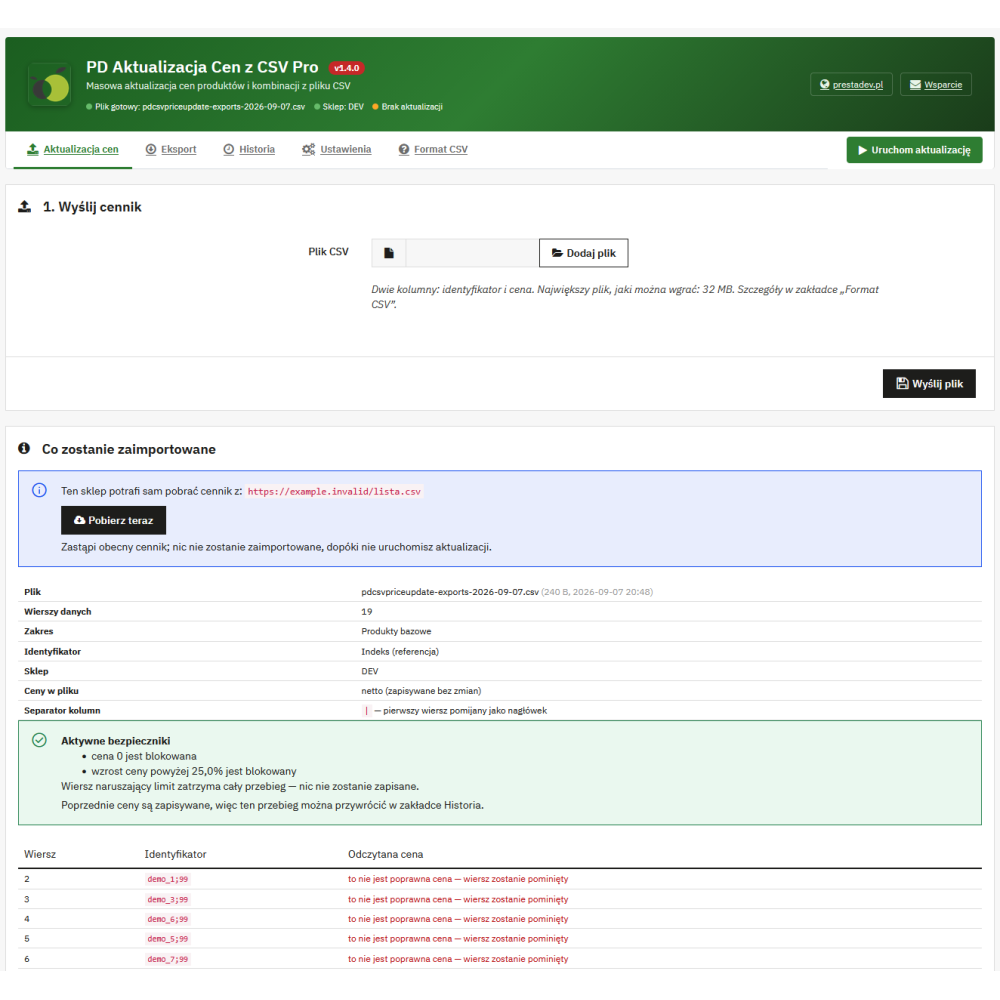
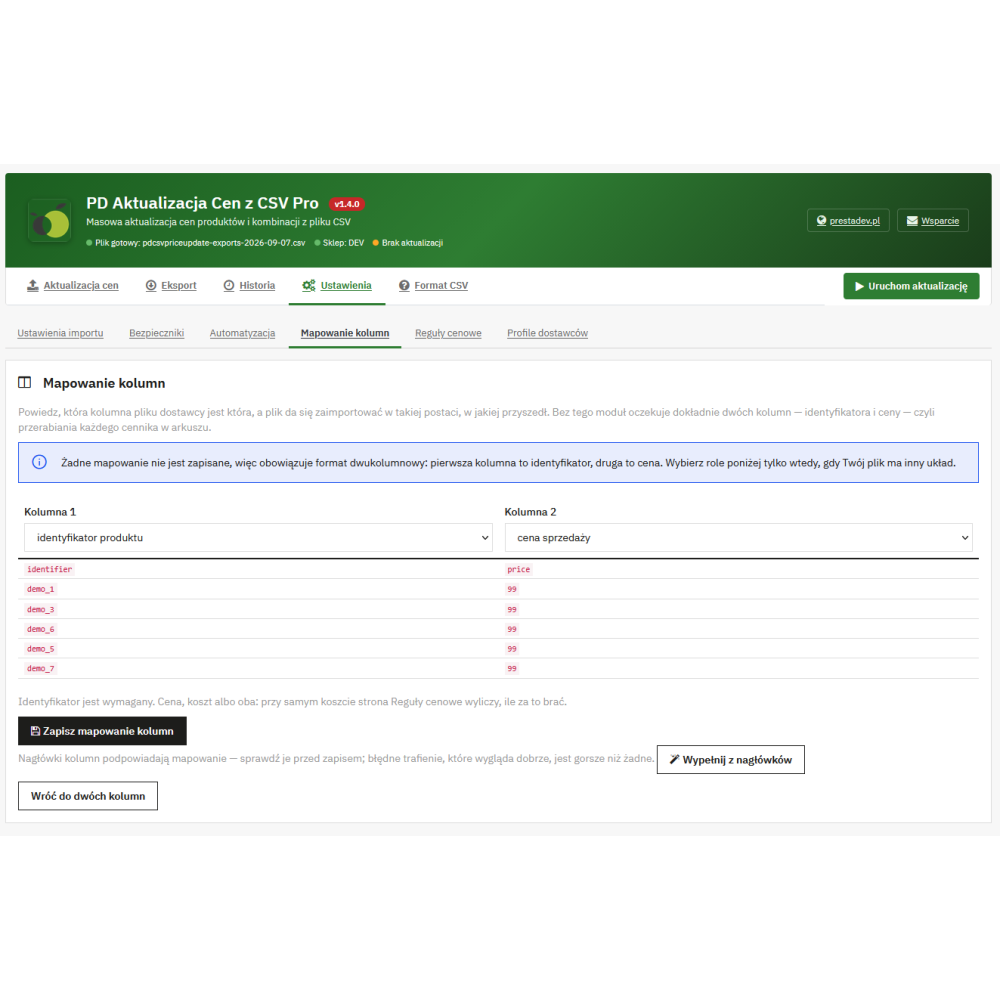
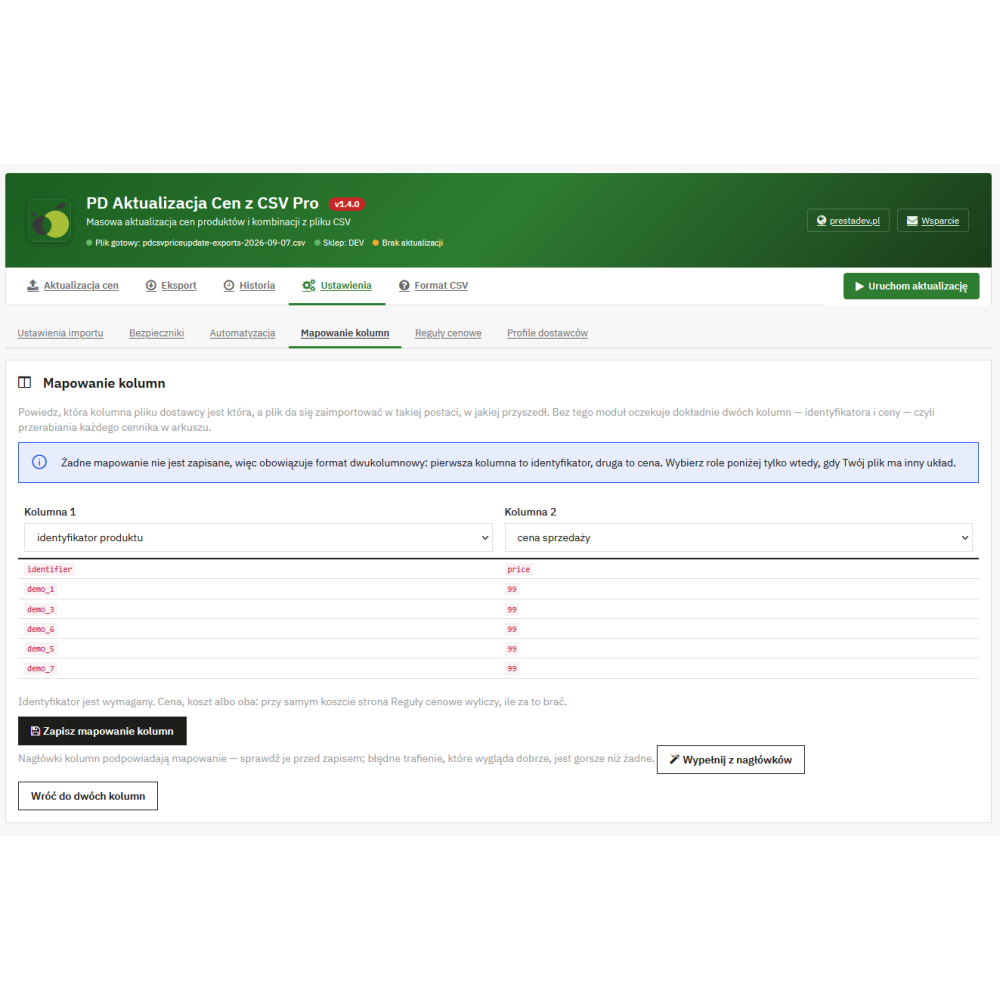
The default format includes two columns: identifier and price. On the mapping page, other column positions can be assigned to the identifier, selling price, and purchase cost, while the remaining fields can be skipped. The module shows a sample of the uploaded file and can suggest assignments based on recognized headers; the suggestion requires verification and saving.

  • Identifiers: product reference, i.e. SKU code, EAN13, UPC, product ID, and combination ID in combination mode. MPN is available if the relevant field exists in the database of the given installation.
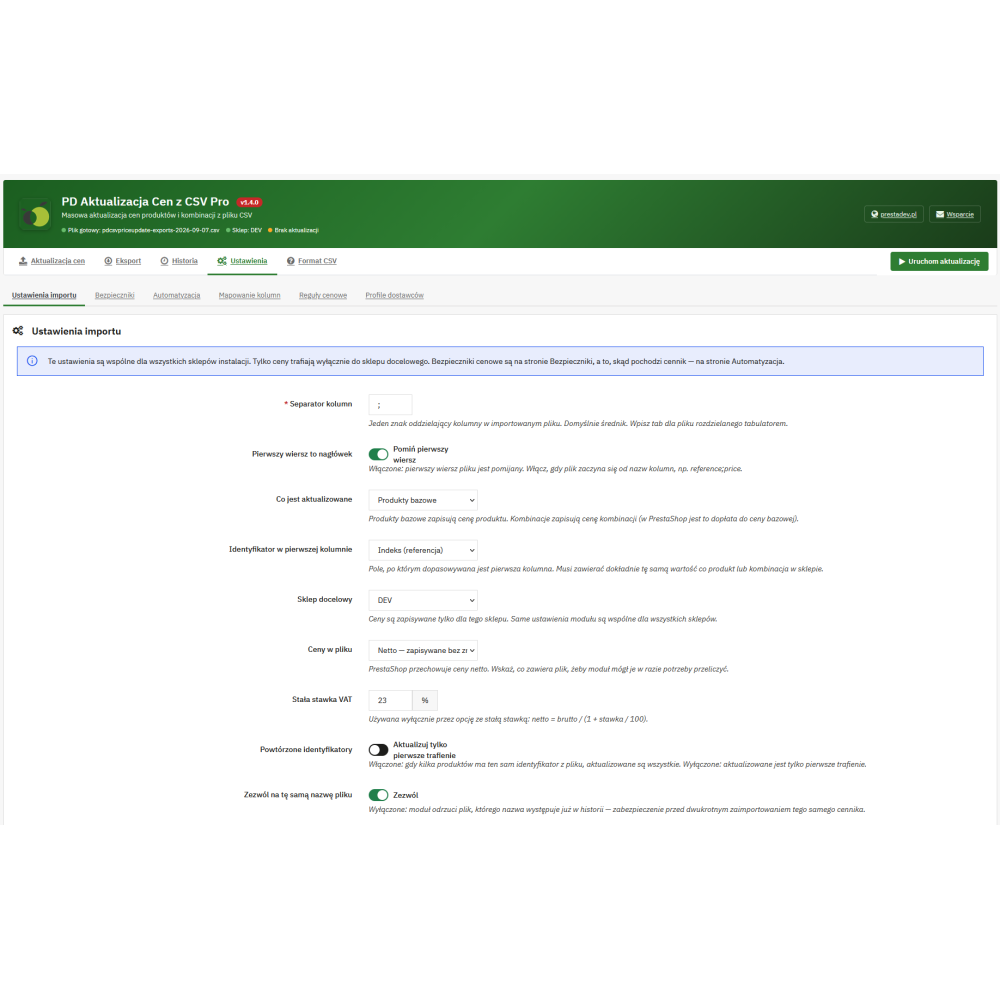
  • Repeated codes in the catalog: the setting allows updating the first match or all records with the same identifier.
  • Number format: comma or dot decimal separators, spaces in amounts, and currency symbols next to the number are supported. Removing the currency symbol does not mean exchange rate conversion.
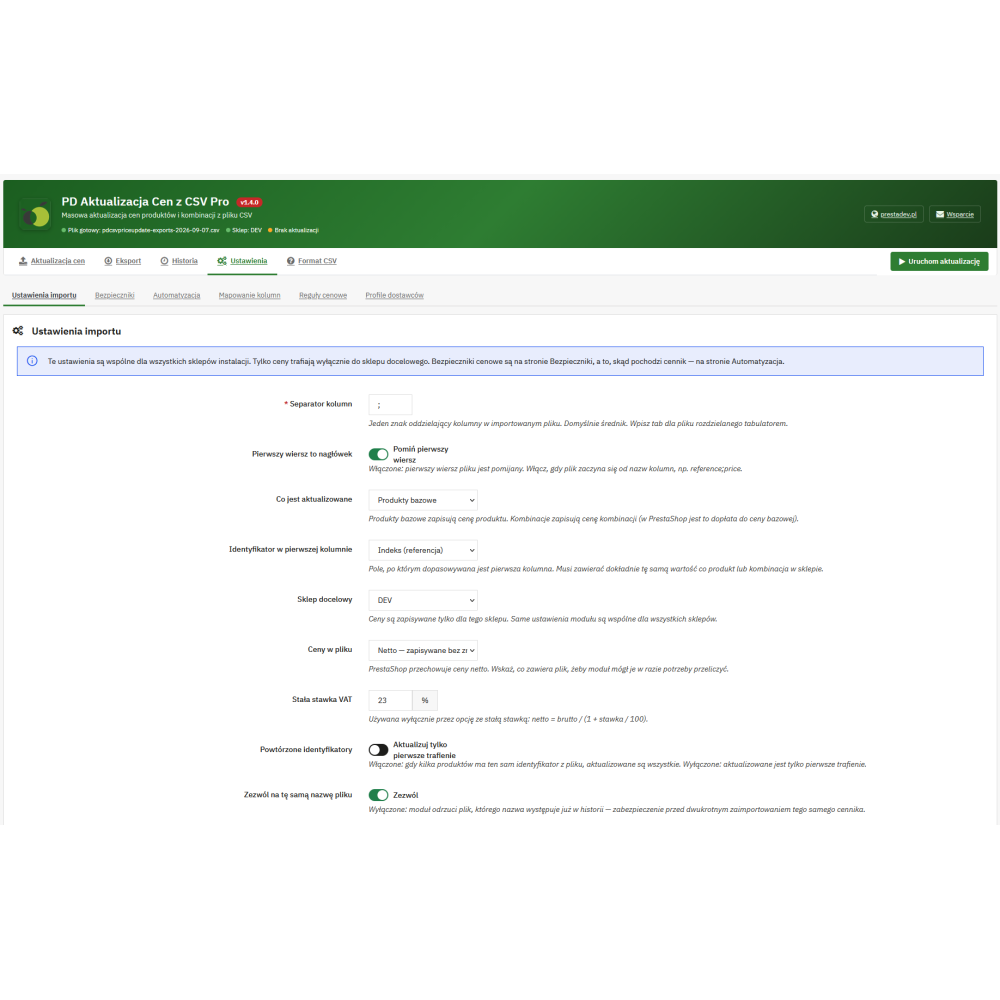
  • File format: configurable separator, including tab, optional header row, quoted fields, and removal of the BOM marker from a UTF-8 file.
  • Manual re-import control: you can block the use of a file name previously recorded in the history of applied manual imports for a given store. Simulations and CRON runs are not included in this control.

Example of a basic CSV price list

reference;price
PROD-001;99.90
PROD-002;149,50
PROD-003;219.00

For this example, select reference as the identifier, semicolon as the separator, and enable skipping the first row as a header. The first column is the identifier, and the second is the price. The way amounts are interpreted as net or gross is set separately.

Selling price calculation and pricing rules

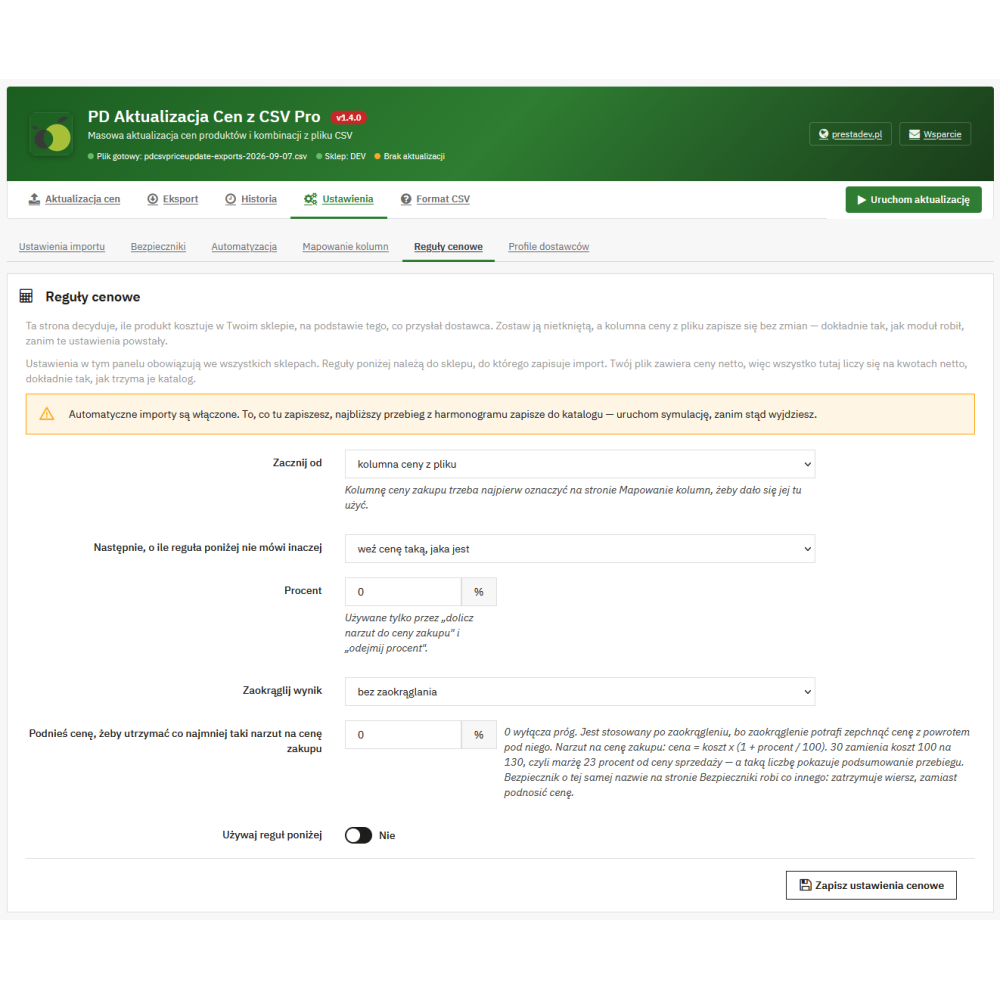
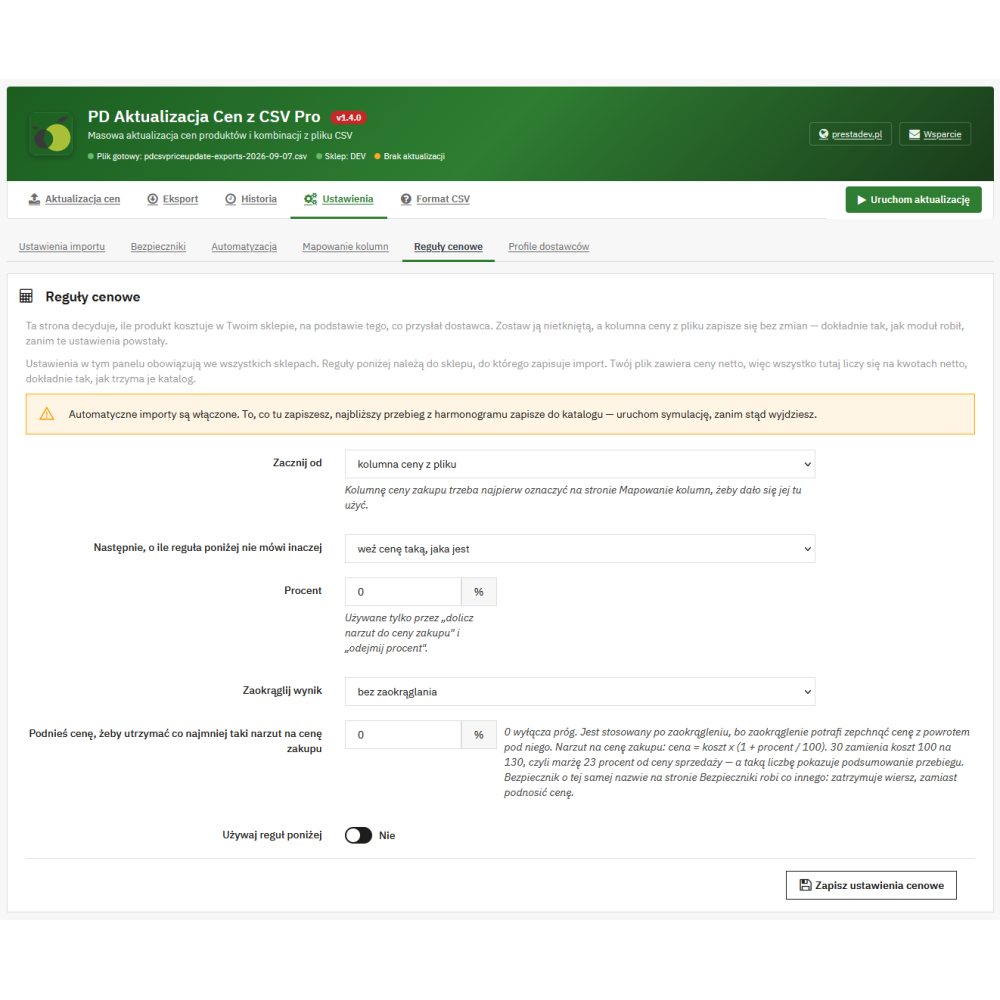
For base products, the starting point may be the price from the CSV, the purchase cost from the assigned CSV column, or the purchase price already saved in the catalog. The cost read from the file is used for calculations; the module does not save it as the product's new purchase price.

  • Markup on cost: the price is calculated according to the formula: cost × (1 + percentage / 100). For example, a cost of PLN 100 and a markup of 30% give a price of PLN 130 before any rounding.
  • Percentage discount: the module subtracts the selected percentage from the value indicated as the starting point.
  • Rounding: available options are two decimal places, ending with .99, full units up, nearest full unit, and leaving the result without additional rounding.
  • Minimum markup on cost: after rounding, the price can be raised to the level resulting from the set minimum markup, provided that a positive purchase cost is available.
  • Conditional rules: you can define separate behavior for the manufacturer, supplier indicated in the product, default category, input value range, or all products covered by the import. A rule can also exclude items from the update.
  • Rule order: the first matching active rule decides. When none matches, the default settings are applied. The rule list is assigned to the target store.

Markup and margin mean different calculations here. A 30% markup on a cost of PLN 100 gives PLN 130, which means a margin of about 23.08% of the selling price. In the summary, the module calculates margin according to the formula: (net selling price − net cost) / net selling price. The statement applies to items for which the cost required for the calculation is available.

Net prices, gross prices, and product combinations

Importing net prices saves values without tax conversion. For gross prices, you can choose a fixed VAT rate or conversion according to the product's tax rule for the default country of the target store. For a gross file, pricing rules and rounding operate on gross amounts, and only the result is then converted to net. The absence of the rate required for conversion is shown in the summary.

In combination mode, the file specifies the variant's impact on the product's base price. With a base price of PLN 100 and a combination impact of PLN 20, the total is PLN 120 net before tax and other store pricing mechanisms. You can also enable resetting the base price of products whose combinations have been updated; such a change affects the other variants of the same product. Markup, percentage discount, and rounding rules, as well as creating discounts as specific prices, apply to base product imports.

Simulation, change limits, and discounts as reductions

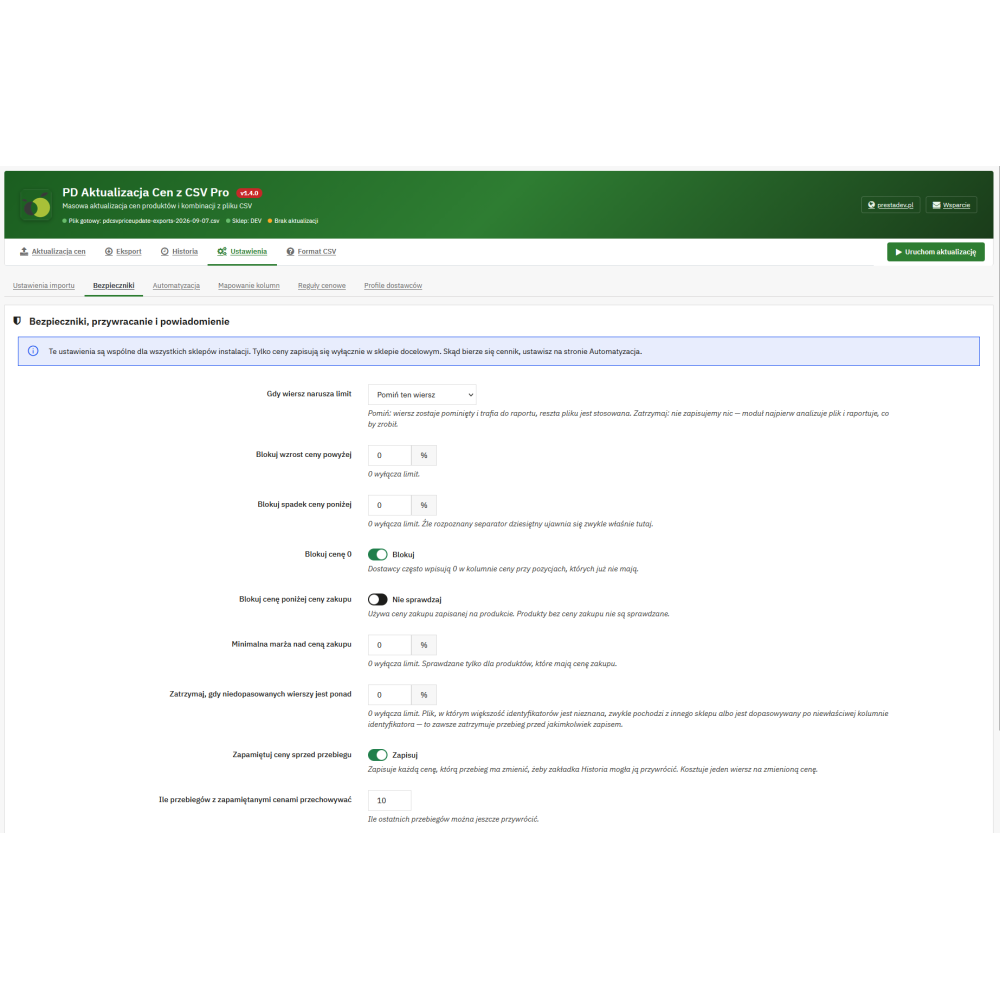
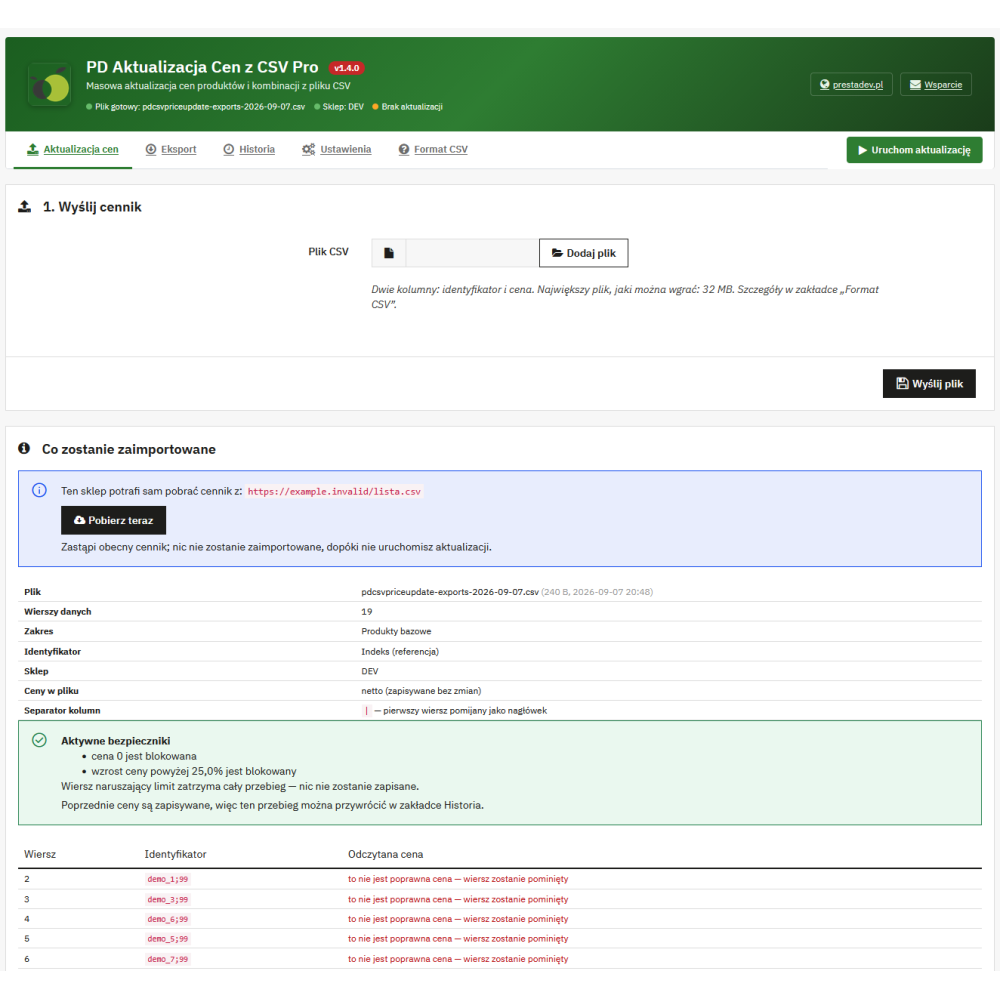
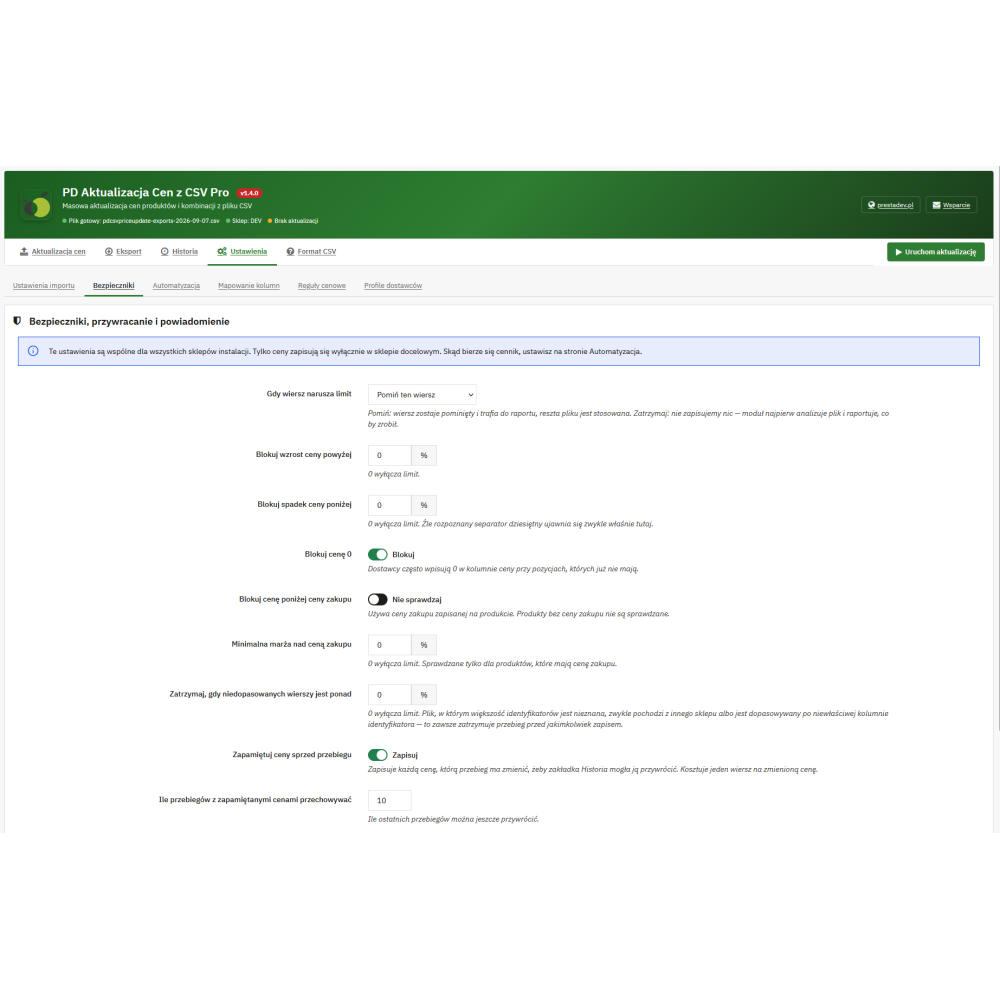
Simulation lets you check how the module will read the price list and what decisions it will make, without saving product prices. In the limit settings, you can control the maximum percentage increase and decrease, zero price, and for base products with a saved purchase price also selling below cost and the minimum markup above the catalog cost.

  • Skipping a row: an item that violates a limit goes to the report, while the remaining items can be updated.
  • Stopping the entire run: the analysis preceding the save checks active limits; their violation causes the import to be rejected before prices are changed.
  • Unmatched item limit: reaching the set threshold for the share of unmatched rows stops the run before saving.
  • Handling invalid data: missing required columns, an empty identifier, or an invalid required price are reported as skipped items.

The discounts-as-reductions option keeps the base product's catalog price, and the difference between it and the lower resulting price is saved as a PrestaShop specific amount price. Subsequent imports manage the reductions saved by the module. In installations updated from the 1.1.x line, the mechanism for cleaning up older reductions may also include a former unconditional amount reduction added manually for this store.

Reports, history, and rollback of updates

The summary shows the number of rows read, changed products and combinations, unchanged prices, skips, mismatches, and blocks. It also includes information about price increases and decreases, the largest changes, and the results of applying pricing rules.

  • CSV report: contains the decision for the item, the reason, row number, identifier, product or combination ID, and available values before and after the change.
  • Difference preview in the panel: allows filtering by result, change direction, and minimum percentage change. The full report can be downloaded to a file.
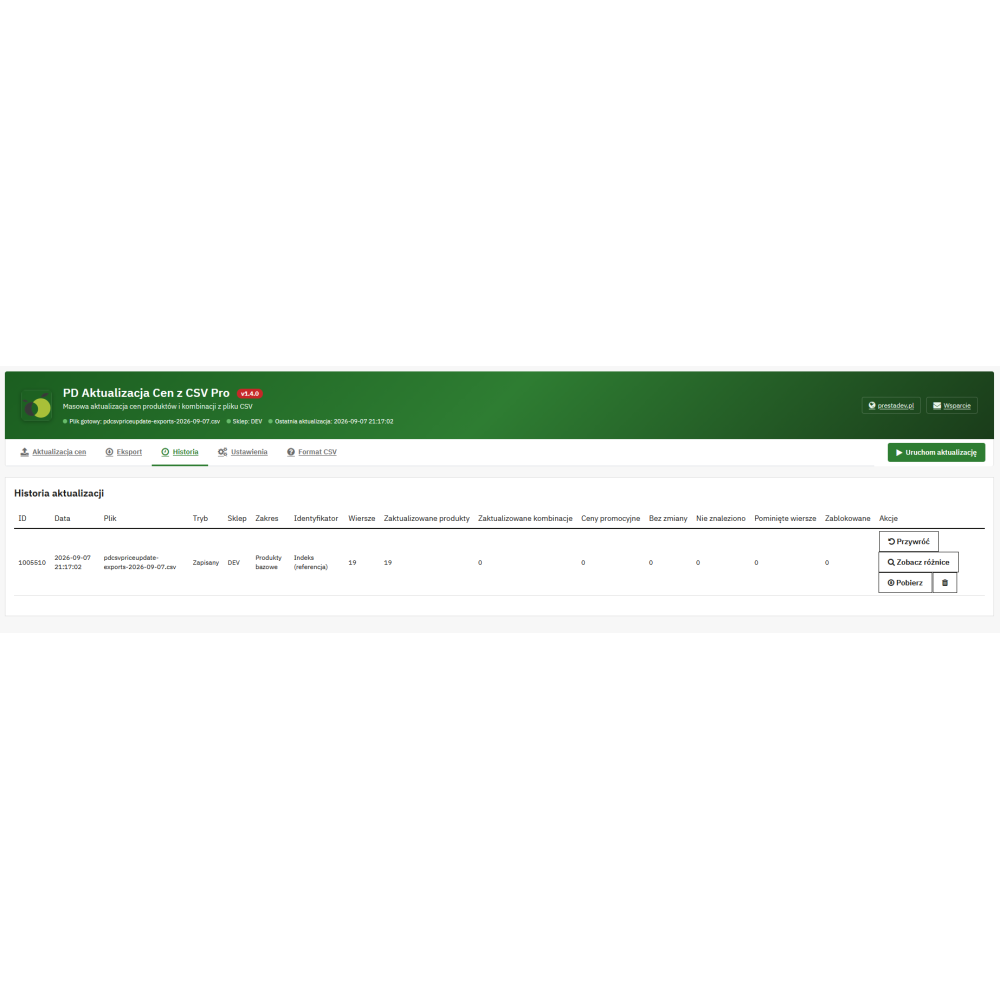
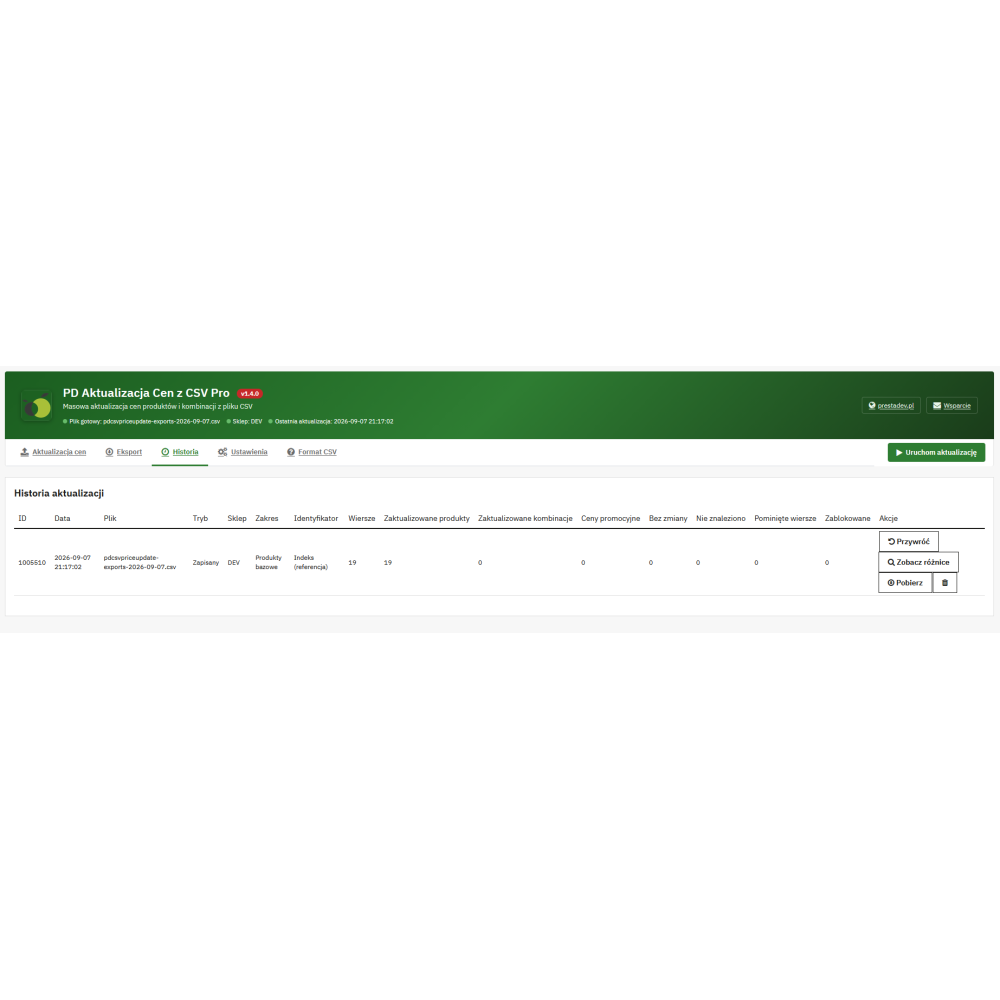
  • Run history: provides saved results of imports and simulations, reports, and actions for restoring and deleting entries.
  • Remembering previous prices: after enabling this option, you can restore the values saved before a given run. By default, rollback data for the last 10 runs is stored separately for each store.
  • Email summary: after an applied update, a message can be sent to the specified address. A report smaller than 2 MiB is attached to the message; a larger one remains available for download in the panel.

Rollback can also remove reductions created by the run and restore deleted reductions if their record has been preserved. Restoring an earlier price may overwrite a later edit of the same field. The availability of this operation depends on the preserved history data and does not replace a store database backup.

Downloading price lists, supplier profiles, and CRON

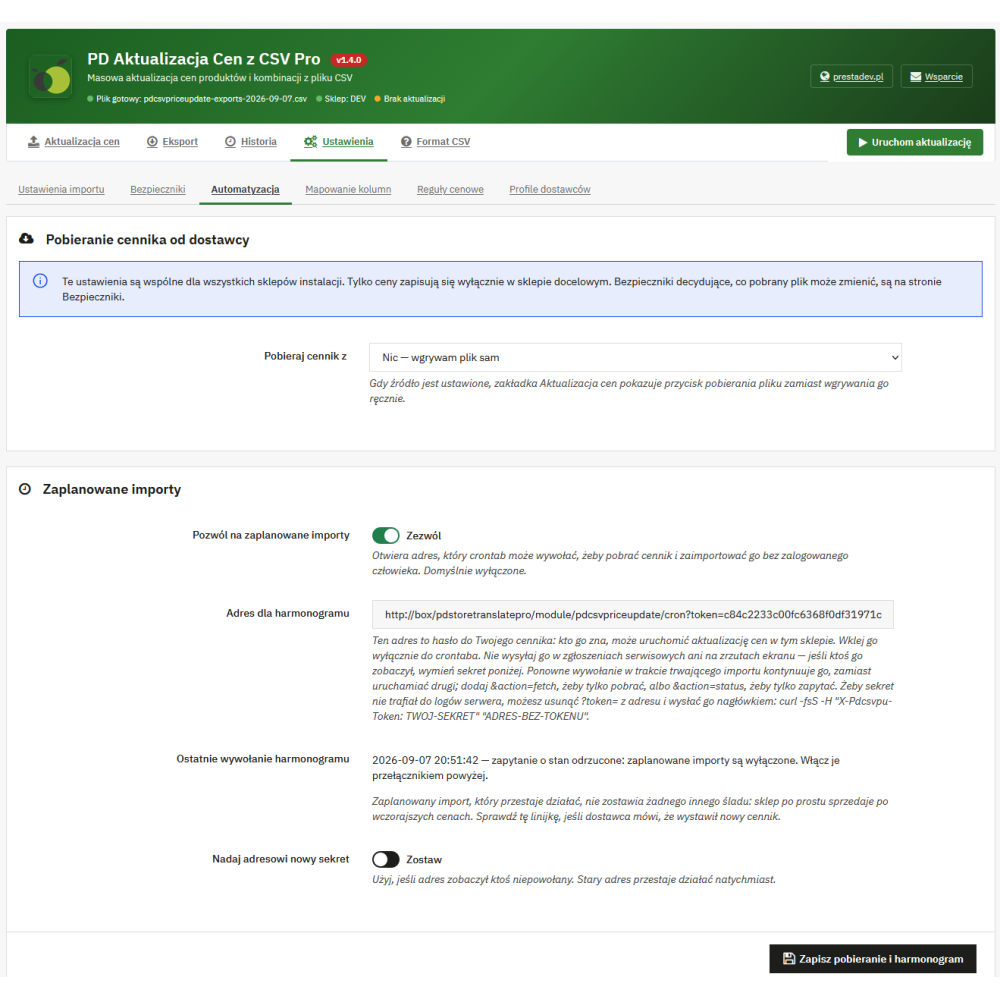
The source of the price list can be a file uploaded from a computer or a supplier address. Remote download supports HTTP/HTTPS, FTP with optional FTPS, and SFTP if the cURL library on the server provides this protocol. Connection data includes, respectively, address, host, port, path, login, and password.

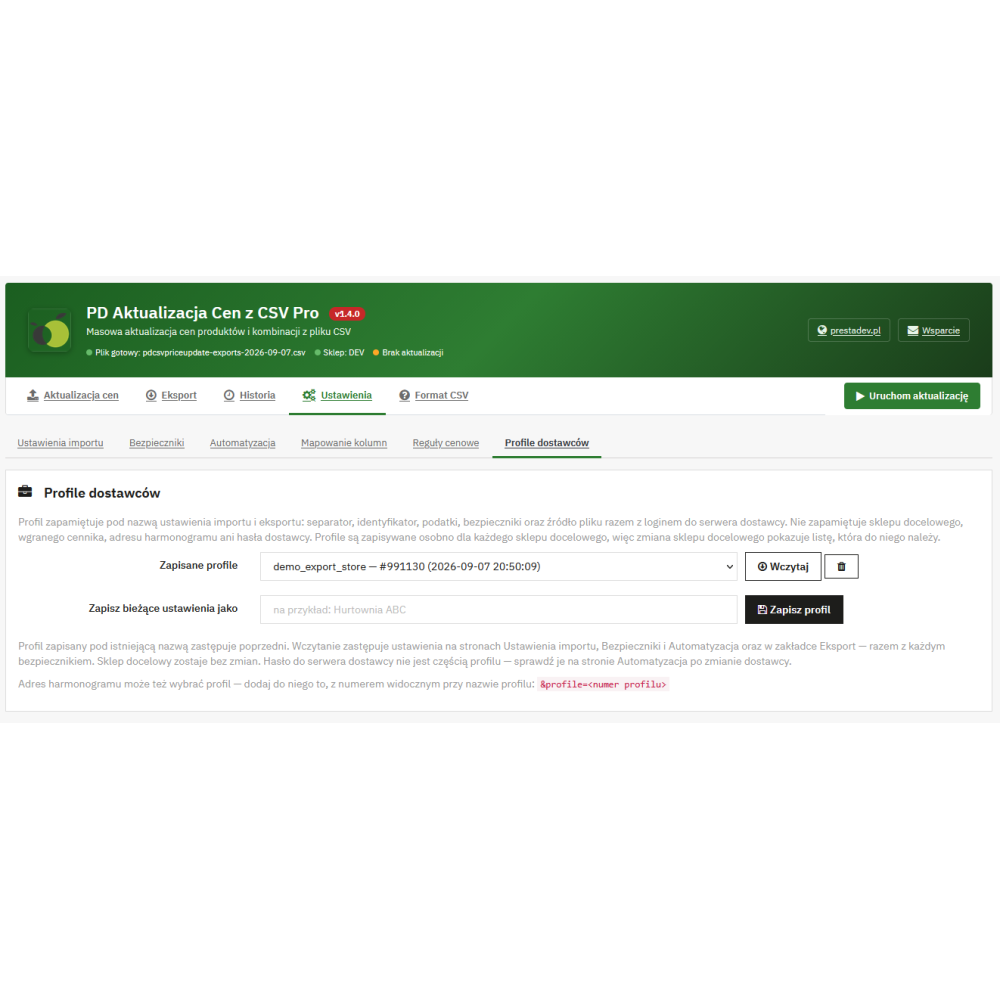
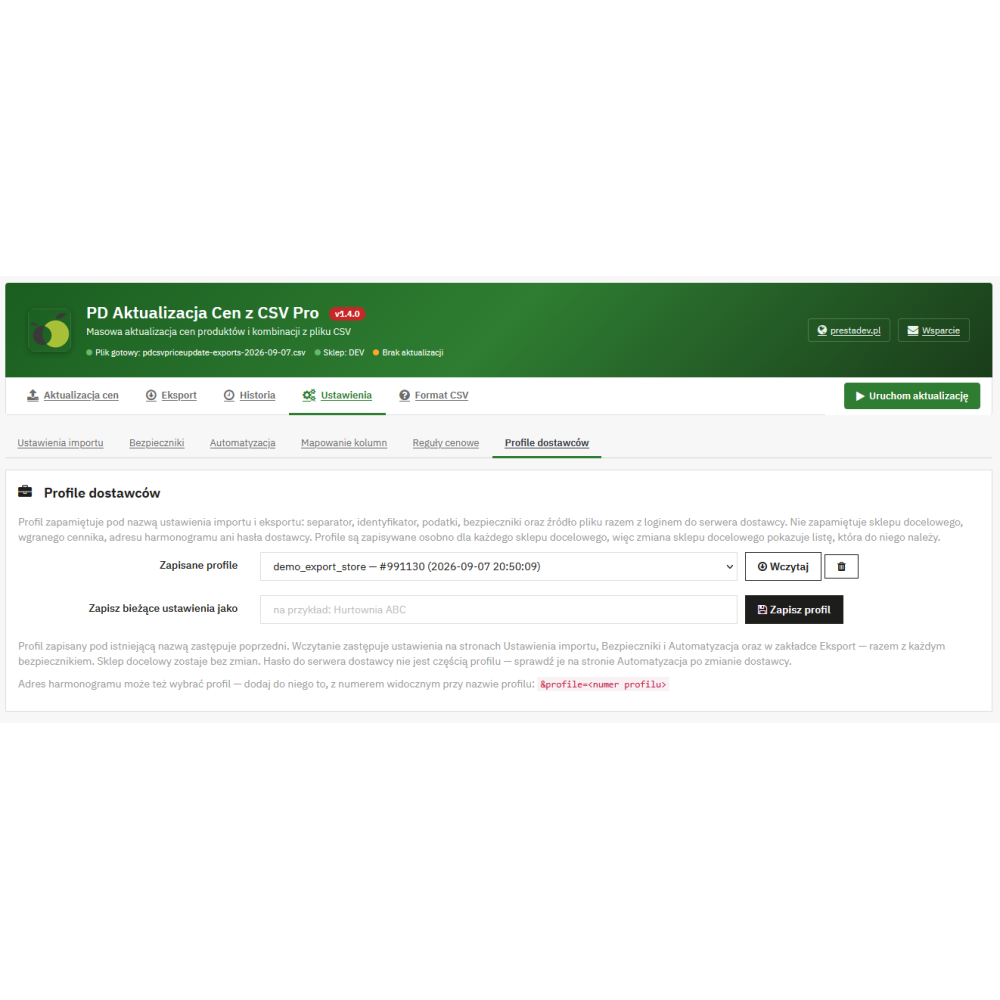
A supplier profile saves import and export settings, column mapping, default price calculation settings, limits, and the file source under a name. Profiles belong to the target store, but do not store its selection, the uploaded file, the CRON secret, or the supplier password. The list of conditional rules remains assigned to the store. After changing the supplier, authentication data must be checked.

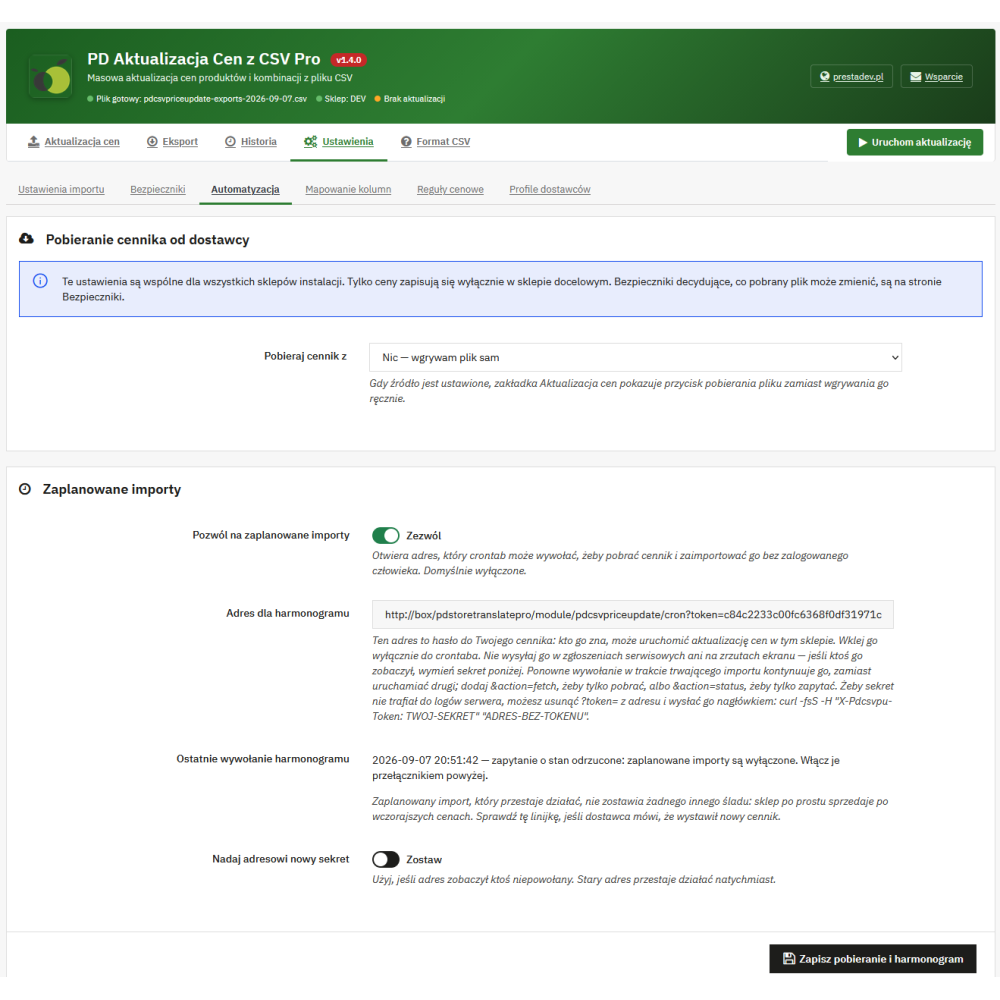
The module provides a secret-protected CRON address and operations for file download, import, download combined with import, and status reading. The schedule is set on the server or in a service that calls the address periodically. The call can indicate a profile, and subsequent calls continue the started import. Profiles do not serve as storage for separate passwords for multiple suppliers; compliance of the current password with the profile is checked during an automatic call requiring authentication.

Price export, larger files, and multistore

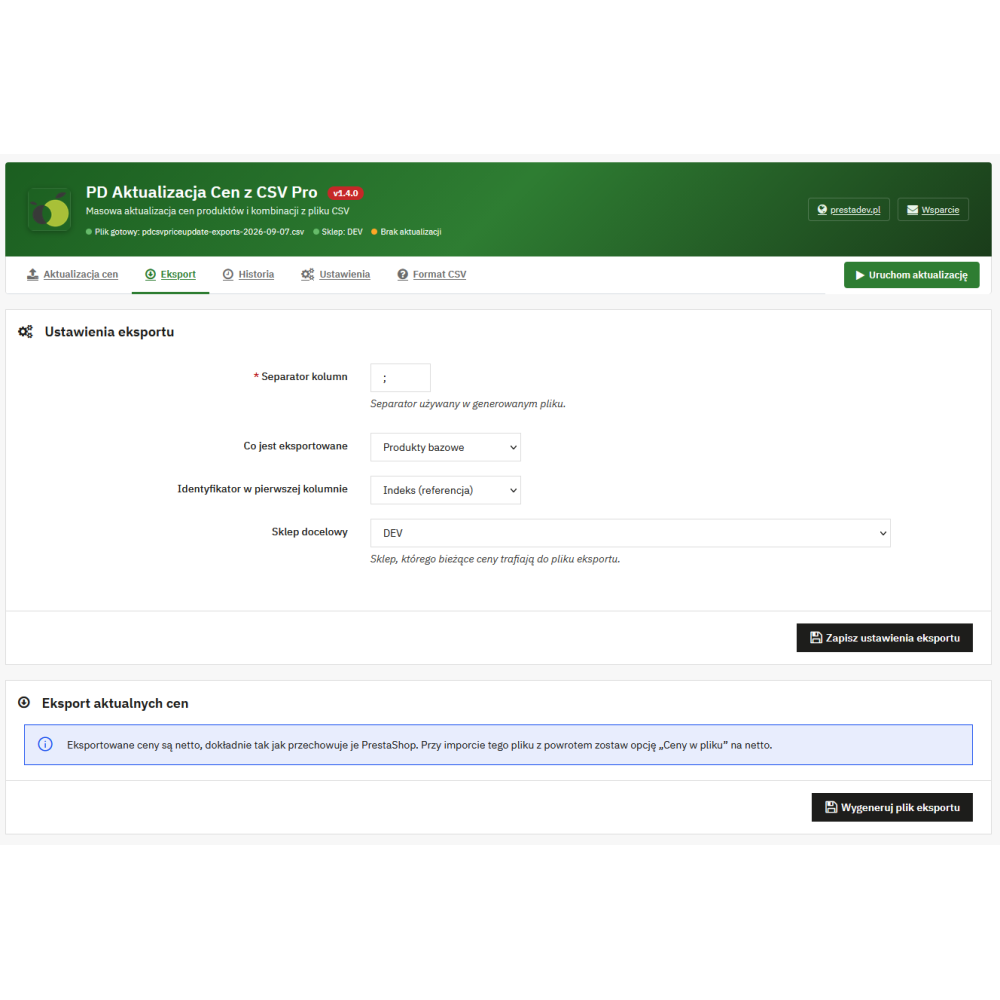
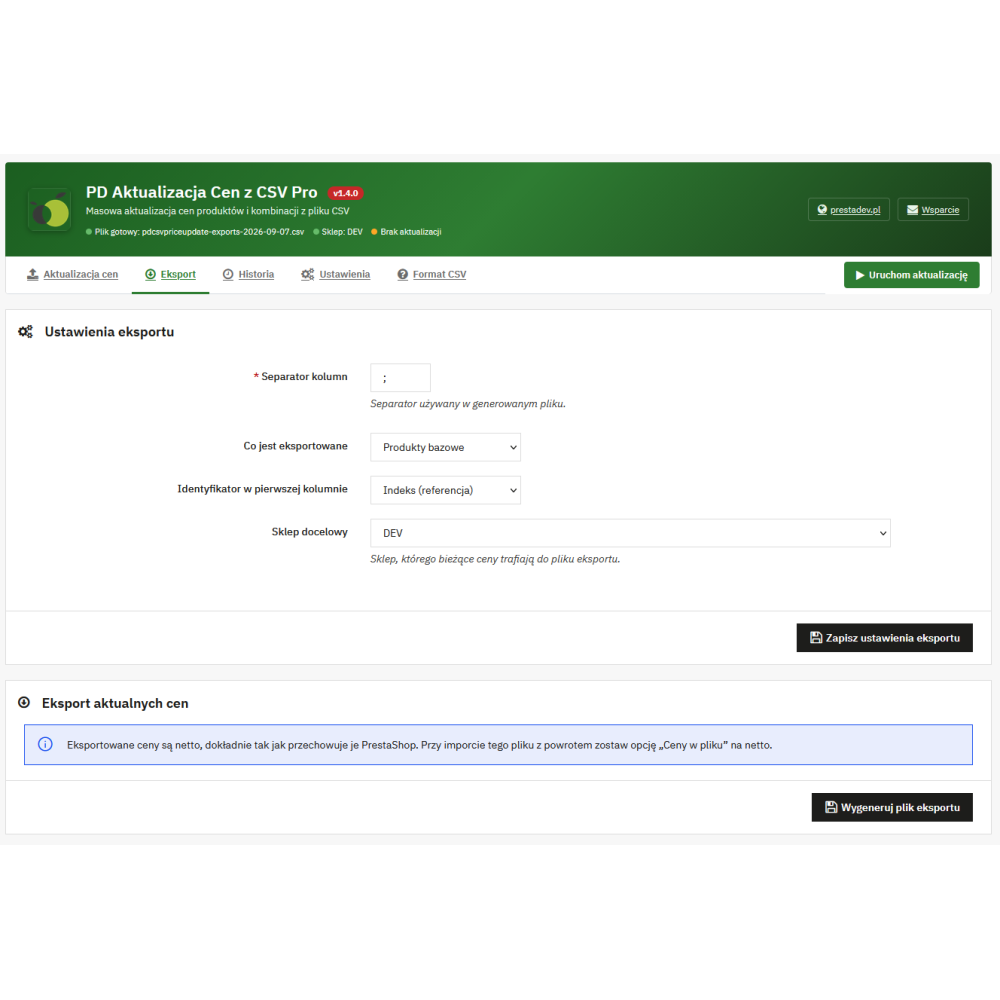
The export generates a CSV with identifiers and current net prices of the selected store. You can choose base products or combinations, the identifier type, and the separator. For combinations, the impact on the base price is exported. Re-import requires checking the mapping, selecting net prices, and rule settings so as not to recalculate already prepared amounts.

Files of at least 512 KiB launched in the panel are processed in stages with progress information. After closing the tab, subsequent stages are not executed by the browser; returning to the import page allows continuation from the saved point. The file limit in the module is 32 MiB, and PHP settings may additionally limit the size of the uploaded file.

In a multistore installation, the target import store and the export store are selected. Prices are updated in the selected store, while the basic module settings are shared across the installation. Profiles, conditional rules, and history data are linked to the store.

How to prepare a price update?

  1. Select the target store, update scope, and an identifier consistent with the catalog data.
  2. Upload or download the file, check the preview, separator, header, and column mapping.
  3. Set net or gross, the required pricing rules, change limits, and remembering previous prices.
  4. Run a simulation and check the summary and difference report.
  5. Run the update with simulation disabled, and then check its result in history.

Scope of operation and requirements

CSV Price Import Pro updates the price data of existing products and combinations. It does not create new products or import stock levels, descriptions, images, weights, or identification codes into product pages. Excel and other spreadsheets can be used to prepare the price list, but the file must be saved in CSV format; the module does not directly import XLSX or XML.

For version 1.4.0, the module declares support for PrestaShop from 1.7.6 to 9.x. The documentation specifies a PHP range of 7.0–8.5, with the PHP version also having to meet the requirements of the PrestaShop version in use. Remote download requires cURL, and scheduled updates require a configured external CRON.


Link to the module demo:

Admin panel demo:
https://moduly-prestashop.eu/masowa-aktualizacja-csv-cen/admin-dev

Front office demo:
https://moduly-prestashop.eu/masowa-aktualizacja-csv-cen

Product Details

Prestashop 9.x support
Yes
Support for Prestashop 8.x
Yes
Prestashop 1.7.x support
Yes
Prestashop 1.6.x support
Yes
PrestaShop 1.5x support
Yes
Module translations
EN, ENG
Free updates (1 year)
Yes
Easy Installation
Yes
PDCPU-FULL

Changelog

Release history for this product. Expand an entry to see what changed.

  • moduł został kompletnie przepisany + dodano masę nowych opcji

FAQ

Find answers to the most common questions about this product.

CSV Price Import Pro updates the prices of existing products and the impact of combinations on price in PrestaShop based on a CSV file. It supports manual price list upload, downloading from the supplier, simulation, base product price calculation rules, change limits, reports, and history. It does not create new products or update stock levels, descriptions, or images.

By default, the file has two columns: identifier and price, separated by a semicolon. You can change the separator, use a tab, enable header skipping, and assign different column positions. Fields in quotation marks, UTF-8, and BOM marker removal are supported. Upload accepts CSV and TXT extensions, but the content must have a CSV structure. XLSX or XML files are not imported directly.

Yes. After uploading the file, the mapping page displays a data sample and allows you to indicate the identifier column, the selling price column, and the optional purchase cost column. The remaining columns can be skipped. The module may suggest mapping based on the recognized headers, but the data is only saved after confirmation. For base products, you can also use a file with the identifier and purchase cost, and calculate the selling price in the rule settings.

Available identifiers include the product reference, i.e. SKU, EAN13, UPC, and product ID, and in combination mode also the combination ID. The MPN option appears when the corresponding field exists in the database of the given installation. You should select the identifier type that matches the values in the file. The identifier is used to find the product or combination; the import does not save a new reference or a new code to the product card.

The setting for handling duplicate identifiers allows you to update the first match or all matches. When updating the first match, additional records are listed as skipped in the report. Before saving, it is worth reviewing the simulation, especially when one code appears in several products or combinations.

In the separate combinations mode, the amount from the CSV means the impact of the variant on the product's base price. For example, a base price of PLN 100 net and an impact of PLN 20 give a total of PLN 120 net before tax and other store pricing mechanisms. There is an option to reset the base price of products whose combinations have been updated; changing the base also affects the remaining variants of those products. The markup, percentage reduction and rounding rules, as well as creating reductions as specific prices, apply to base products, not combinations.

Yes. You can choose net prices, gross prices calculated according to a fixed VAT rate, or gross prices calculated according to the product's tax rule for the default country of the target shop. In PrestaShop, the net result is saved. For a gross file, price rules and rounding are applied to gross amounts before converting the result to net. If there is no rate required for the conversion, the amount remains unconverted, and the module reports this in the summary.

Price reading supports a comma or decimal point and removes spaces and currency symbols from the amount. For example, the notation 1 234,56 is read as 1234.56. The module does not convert currency exchange rates: the EUR or PLN designation next to the number is ignored, so amounts must be prepared in advance in the currency corresponding to the store's catalog prices. Scientific notation, such as 1e3, is rejected.

No. The assigned purchase cost column is used to calculate the selling price and the relevant summary data. The module does not update the product purchase price field. For base products, you can also choose the purchase price already saved in the catalog as the starting point. With markup, the cost from the file takes precedence over the catalog cost, if available.

For the import of base products, specify the data source and select adding a markup to the purchase cost. The price is calculated as cost × (1 + percentage / 100). A cost of PLN 100 and a 30% markup give PLN 130 before any rounding. This is a markup on cost, not a 30% margin on the selling price. When the cost required for such a calculation is missing, the item is skipped with the appropriate reason.

Yes. Base product rules may apply to the manufacturer, the supplier indicated in the product, the default category, a range of input values, or all products covered by the import. A rule may apply a markup, a percentage discount, rounding, a minimum markup, or exclude items from the update. The category selection applies only to the product's default category, without searching subcategories. The value range is compared with the selected reference point, so with a cost-based source it applies to the cost, not the selling price.

Rules are checked according to their order in the list. The first matching active rule determines the action for the product; subsequent matching rules do not override it. If no rule matches or the rule list is disabled, the module uses the default price calculation settings. Conditional rules are saved separately for the target store.

For base products, you can leave the result without additional rounding, apply two decimal places, use the .99 ending, round up to a whole unit, or round to the nearest whole unit. The .99 ending mode preserves the integer part and sets the cents to .99. A value of 19.20 therefore becomes 19.99. The minimum markup on cost, if it is set and can be calculated, is checked after rounding.

The minimum markup in the rules can raise the calculated price to the required level after rounding. It uses the positive cost from the file or catalog. The limit in the safety settings checks the price against the purchase cost stored in the catalog and blocks the item instead of raising its price. Both mechanisms apply to base products. Missing cost prevents proper control; the summary shows cases in which the minimum from the rules could not be checked.

Yes. The simulation reads the file, matches the items, and calculates the decisions without saving list prices or discounts. The result includes a summary and a differences report to review in the panel or download as a CSV file. To actually apply the update, you need to run the import with the simulation disabled. The simulation may leave a history entry and a report file.

You can set the allowed percentage increase and decrease in price, as well as a zero-price lock. For base products with a recorded purchase price, a below-cost price lock and a minimum markup above that cost are also available. The response is either to skip the item or to stop the entire run after the analysis preceding the save. A separate threshold for the share of unmatched rows always stops the run before saving when it is reached. The zero-price lock is enabled by default.

Rows with missing required columns, an empty identifier, or a price that cannot be read correctly are skipped and listed in the report. Unknown identifiers do not result in product creation. Records found in the catalogue but not assigned to the target shop are indicated separately. When the price is calculated from the cost, the columns required by the saved mapping and the selected calculation source are relevant.

Yes, for base products. When this option is enabled, the lower resulting price does not replace the catalog price: the difference is saved as a fixed specific price in PrestaShop. Discounts saved by the module are replaced during subsequent updates. When the result confirms the catalog price, increases it, or the import runs without discount mode, the module removes its previous discounts for the products covered by the entry. The final price visible to the customer also depends on the store's other pricing mechanisms.

The current mechanism tracks discounts created by the module and manages them. It does not cover promotions limited by dates, customer group, currency, or country. There is an exception for installations upgraded from the 1.1.x line: cleaning up older discounts may also include a former, unconditional specific price created manually for the same shop. Therefore, the discount mode should not be treated as a guarantee of preserving every historical promotion.

The CSV report records the decision for the item, its reason, row number, identifier, product or combination ID, as well as the available prices before and after the change and the percentage change. The preview in the panel allows filtering the result by decision, increase or decrease, and the minimum percentage of change. The summary includes counters and the largest price changes. For items with an available cost, it also presents margin calculations. A large report may exceed the scope of the on-screen preview; the full file remains available for download.

Yes, if the data needed to restore a given run has been preserved. Enabling the saving of previous prices makes it possible to recreate them from the history; by default, data from the last 10 runs is stored separately for each shop. Reverting may also remove discounts created by the run and restore deleted discounts, if they were saved. Restoring an earlier price may overwrite a later manual edit of the same field. Deleting rollback data limits the availability of the operation, which does not replace a database backup.

Yes. The export includes the selected shop and base products or combinations. You can specify the type of identifier and the separator. Amounts are exported as net, and for combinations they indicate the impact on the base price. The export is used to obtain the current price list, which can be edited in a spreadsheet. Before re-importing, you need to check the column mapping, select net prices, and choose rule settings appropriate for the prepared file.

In addition to uploading a file from your computer, downloading via HTTP or HTTPS, via FTP with the FTPS encryption option, and via SFTP is also available. Remote downloading requires cURL, and SFTP additionally requires support for this protocol in the server's cURL library. The configuration allows you to provide the appropriate connection details and separate login and password fields. The module rejects sources leading to private or local network addresses. File download can be initiated using a button in the panel.

Automatic calls must be enabled in the module and an external scheduler must be configured to periodically call the provided address protected by a secret. Available operations include file download, import, download with import, and status check. The secret can be passed in the address or in a dedicated request header. The module does not run its own scheduler. If the import does not finish within a single call, subsequent calls continue the started run instead of opening a second one.

The profile saves the name of the import and export settings, column mapping, the price calculation source and its default settings, limits, and the file source with login. It does not store the target shop selection, the current file, the CRON secret, or the supplier password. Profiles are assigned to the target shop, and the list of conditional rules remains shared for the profiles of that shop. The CRON call may indicate a profile. For an authenticated source, the module checks whether the current password matches the profile, so profiles do not provide automatic switching between different supplier passwords.

In the settings, you specify the target shop for the update and the shop from which prices will be exported. The import saves prices for the selected shop. The basic module settings are shared across the entire installation, so changing them affects the configuration of subsequent runs. Supplier profiles, conditional rules, and history entries are linked to the shop. Employee access to the selected shop is checked during the relevant operations.

The file limit in the module is 32 MiB, i.e. 33,554,432 bytes. When uploading manually, additional limitations may result from the PHP configuration. Files of at least 512 KiB launched from the panel are processed in stages with progress information. The execution time depends on the number of items, matches, active settings, and the server; the module does not guarantee a fixed import time.

With staged import in the panel, closing the tab stops the browser from sending subsequent requests. Completed stages remain saved, and returning to the update page allows you to continue from the saved point. With JavaScript disabled, manual continuation of the import is available. Simply closing the tab does not mean that the entire file will be processed in the background; further processing must be resumed in the panel or through scheduled task calls.

It is possible to enable sending a summary after the applied update. The message is sent to the specified address, and if the field is left empty, the store's email address is used. A report smaller than 2 MiB is added as an attachment, while a larger one remains available for download in the panel. Simulation does not send such a notification. Sending uses the PrestaShop mail configuration.

Price list, report, and export files older than 30 days are deleted by the cleanup mechanism triggered during module operations, except for the currently selected import file. Rollback data is stored according to a separate run count limit, defaulting to 10 for the store. History and file availability are therefore not the same: an entry may remain after the report has been deleted. Uninstallation removes the module's files and history, but does not restore previous product prices.

Yes, when working in the panel, you can disable allowing the same file name. The module compares it with the history of manual imports used for the given store. Simulations and CRON runs are not taken into account in this check. This is a file name check, not a comparison of the entire file content. Automatic CRON calls can re-download and import a price list published under the same name.

Version 1.4.0 declares support for PrestaShop from 1.7.6 to 9.x. The module documentation states PHP 7.0–8.5, but the selected PHP version must also meet the requirements of the specific PrestaShop version. This does not mean that every PrestaShop version works with every PHP version within this range. Remote fetching requires cURL, SFTP depends on protocol support on the server, and automatic execution requires an external CRON scheduler.

Reviews (1)

1 Reviews

Aktualizacja stanóe od
naszego dostawcy przebiegła bez problemowo po indeksach produktów!!!
By on 10/27/2022