Shopping Cart
- dodano obsługę multi-store kompletną

Module version:
2.2.1
PrestaShop compatibility: 1.7.x 8.x 9.x
Module file updated: 09/8/2026 21:51:09
Product data updated: 09/8/2026 22:04:17
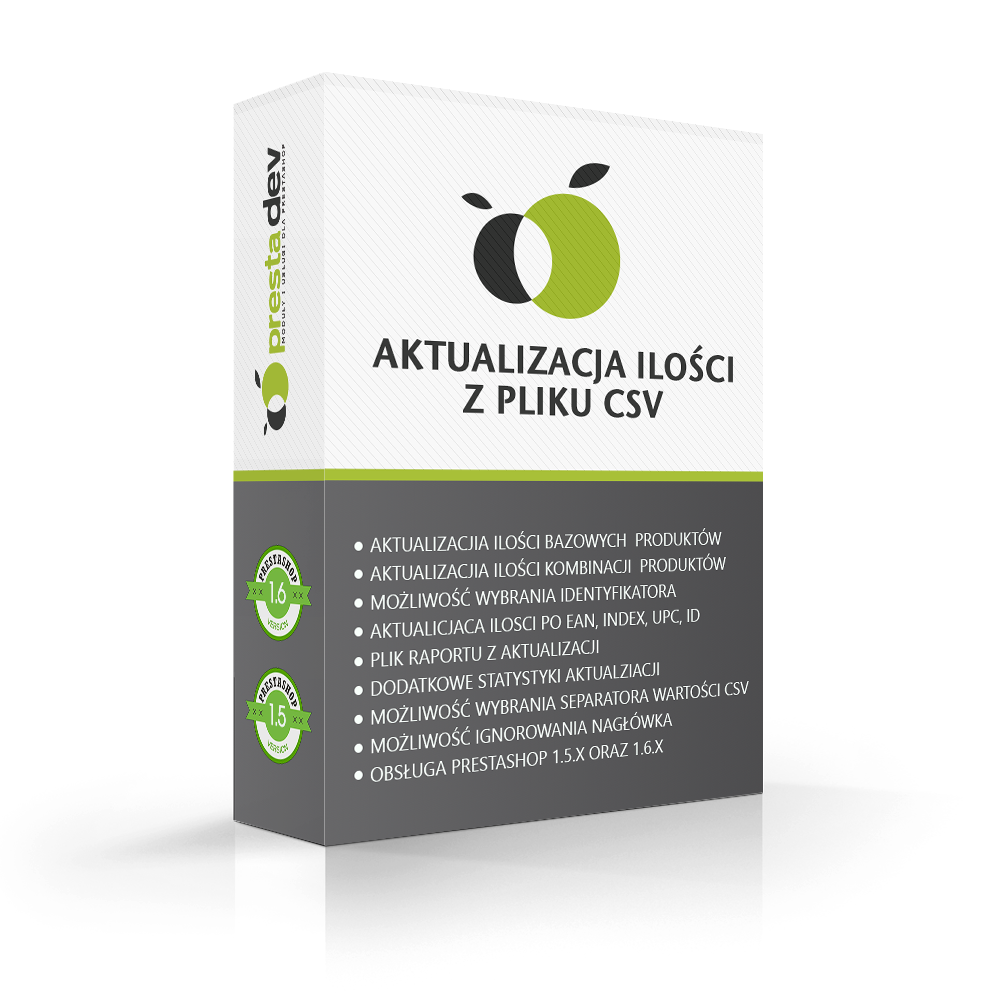
CSV Stock Update Pro is a PrestaShop module for bulk updating the stock levels of existing products and their combinations based on a CSV file. It allows you to replace current quantities with values from the file or add them to the current stock. Column mapping makes it possible to use datasets with different data layouts, and the selected identifier links file rows with the store catalog. Simulation, change limits, and a report with quantities before and after the update help verify the prepared import. Optional subtraction of quantities from orders in selected statuses takes them into account when calculating the result. The module also provides stock export, history with a function to restore saved quantities, as well as file downloading and import execution triggered by an external CRON.
Product mode is used to update items without combinations. A product that has combinations is skipped in this mode and receives an appropriate entry in the report. To change variant quantities, select combination mode and match the identifiers from the file to the correct variants. After saving, the module recalculates the total product stock as the sum of the quantities of its combinations.
The examples assume correct matching and no blocking by limits; in the first two, order subtraction is disabled. The subtraction option uses orders from the target store and does not support matching by MPN. With shared catalog codes, you can update the first match or all matched items.
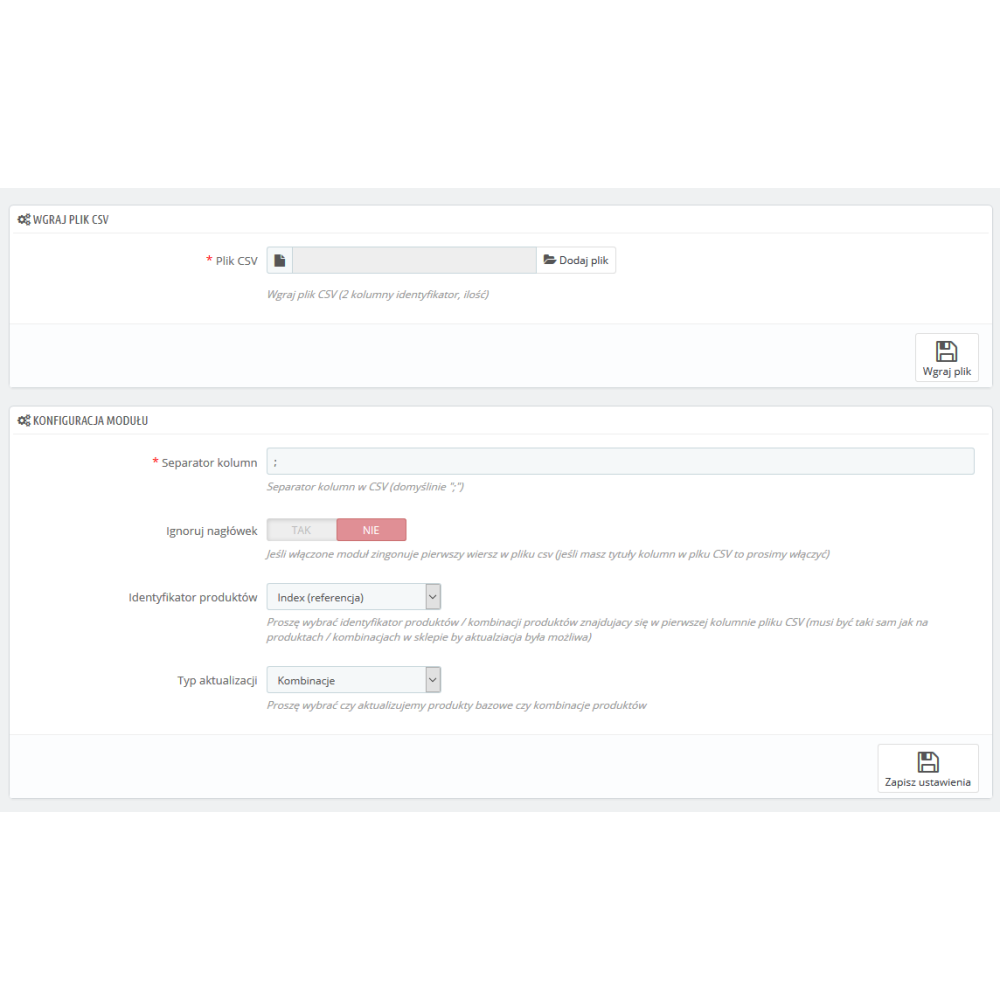
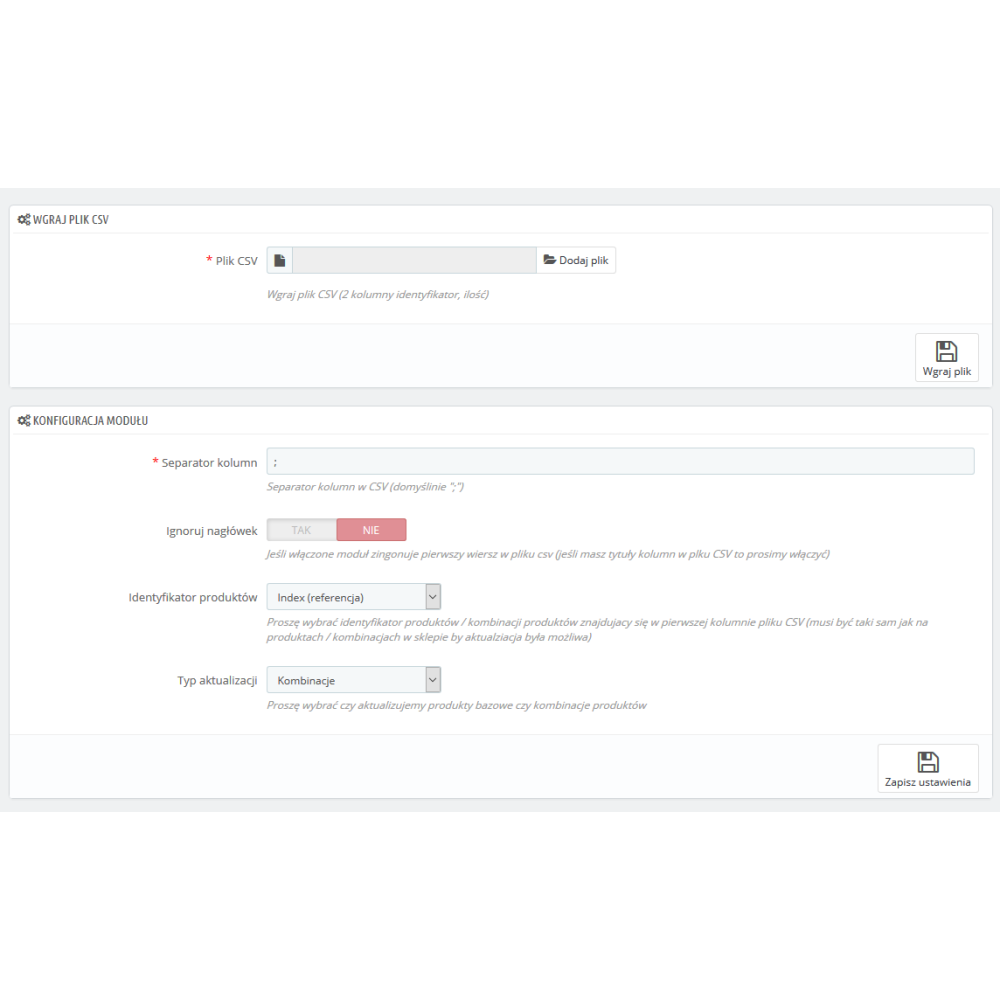
The basic layout contains an identifier and a quantity. You can set the separator, including a tab, specify whether a header is present, and assign other column positions. The data preview makes it easier to verify the mapping, and a suggestion recognized from headers requires confirmation. The file should be prepared in UTF-8; the reader removes the BOM marker and supports fields in quotation marks.
Example for a semicolon separator, identification by reference, and header skipping enabled:
code;quantity
SKU-001;25
SKU-002;0
SKU-003;8
Quantities are saved as integers. A value of 3,9 or 3.9 will be read as 3, and -3,9 as -3. Empty or non-numeric values are skipped with information in the report. A valid value of 0 means a proposal to set zero in stock-setting mode and is still subject to the configured limits.
Simulation is enabled by default in the update launch form. Limits allow you to skip a blocked item or reject the import after analysis performed before saving. Percentage increase and decrease are evaluated against the positive stock level currently existing in the store. A separate threshold can stop the import when the share of correctly read rows without a useful match in the store reaches the configured value.
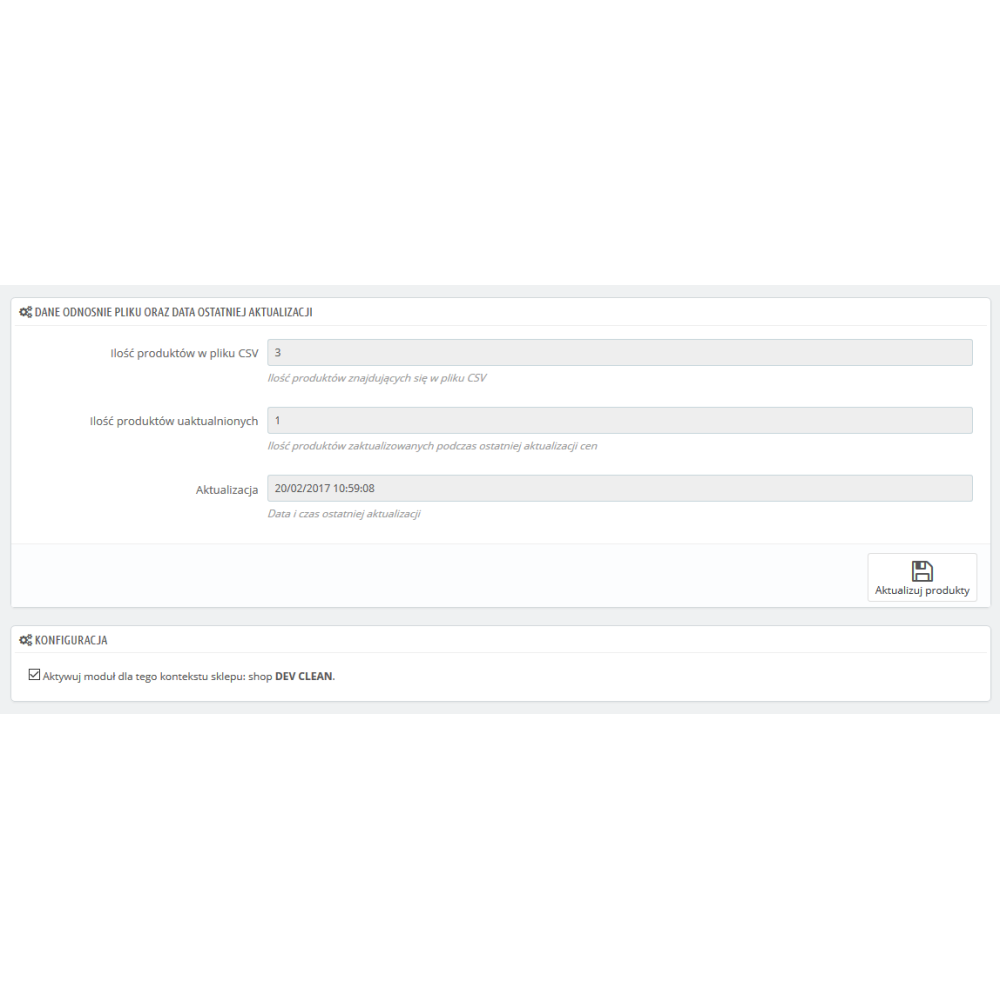
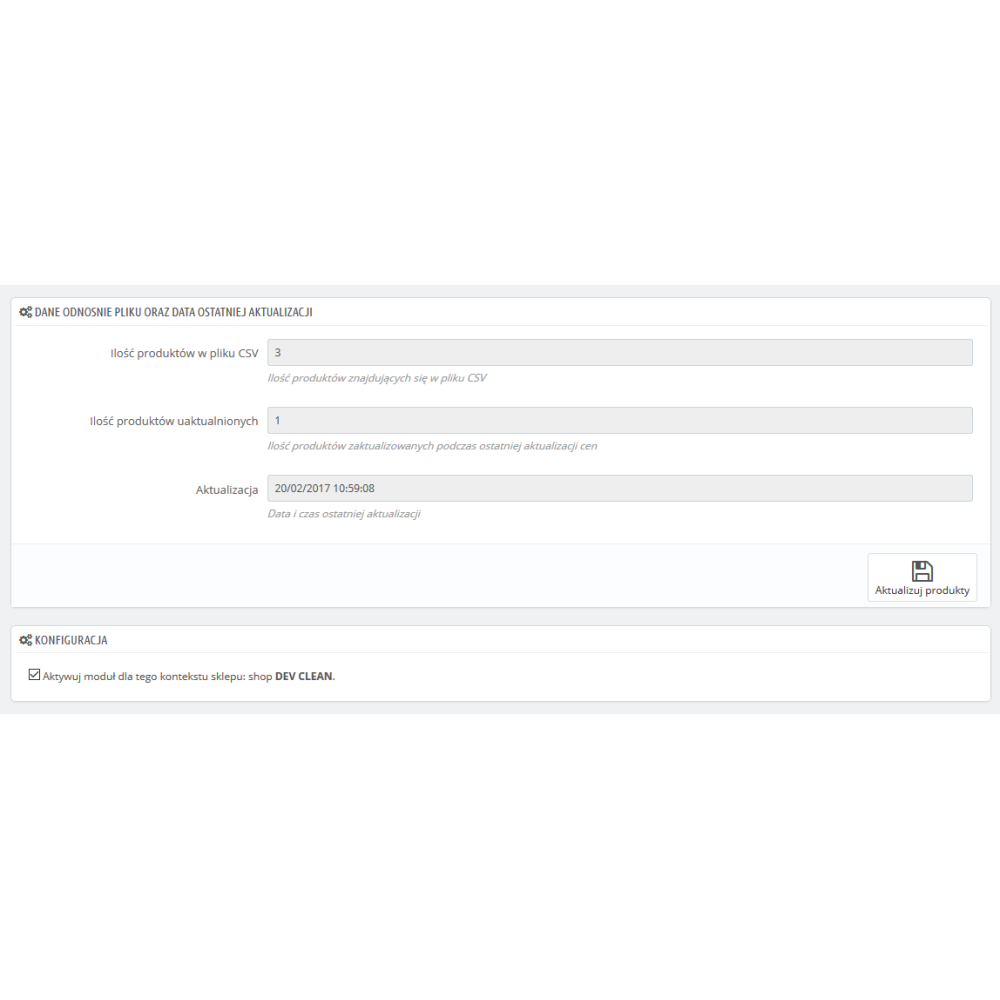
The report shows decisions regarding the data, and the history stores information about the file, store, mode, and run results. With snapshot saving enabled, the restore function recreates previous quantities for items covered by the snapshot. The number of preserved runs can be configured; by default, it is 10. Restoring writes the quantities from before the import, so it may overwrite later changes resulting from orders, manual edits, or subsequent updates.
The file can be uploaded manually or downloaded from a public HTTP/HTTPS address or an FTP/FTPS server. SFTP is available if it is supported by the cURL library on the store server. Downloading requires the cURL extension and a source available at a public address; private network addresses are rejected.
After automation is enabled, the module provides an address secured with a secret token. The call frequency is set in an external CRON schedule. The next call continues an active import; if no run has been started, you can download a new file and perform the update, only download the file, or start importing an already saved file. Status checking is also available.
Supplier profiles save, among other things, the separator, mapping, identifier, quantity mode, limits, and download source. They are stored separately for the target store. They do not include the supplier password or the CRON token, so changing a profile requires checking the current password in the automation settings.
actionUpdateQuantity hook and does not create stock_mvt stock movement entries. Add-ons that require these events need separate compatibility verification.Admin panel demo:
https://moduly-prestashop.eu/csvquantityupd/admin-dev
Front office demo:
https://moduly-prestashop.eu/csvquantityupd
Release history for this product. Expand an entry to see what changed.
Find answers to the most common questions about this product.