
Shopping Cart

Features of the notification module for PrestaShop
Preparing and managing messages
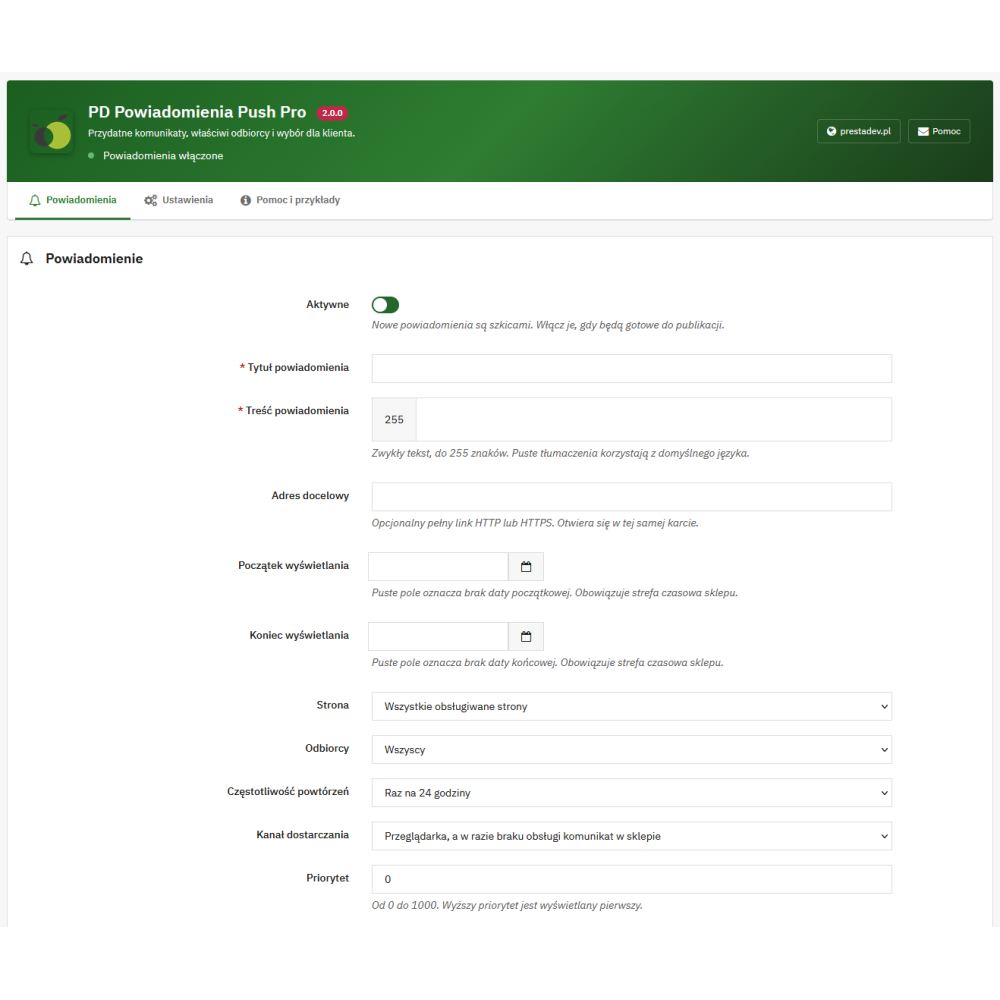
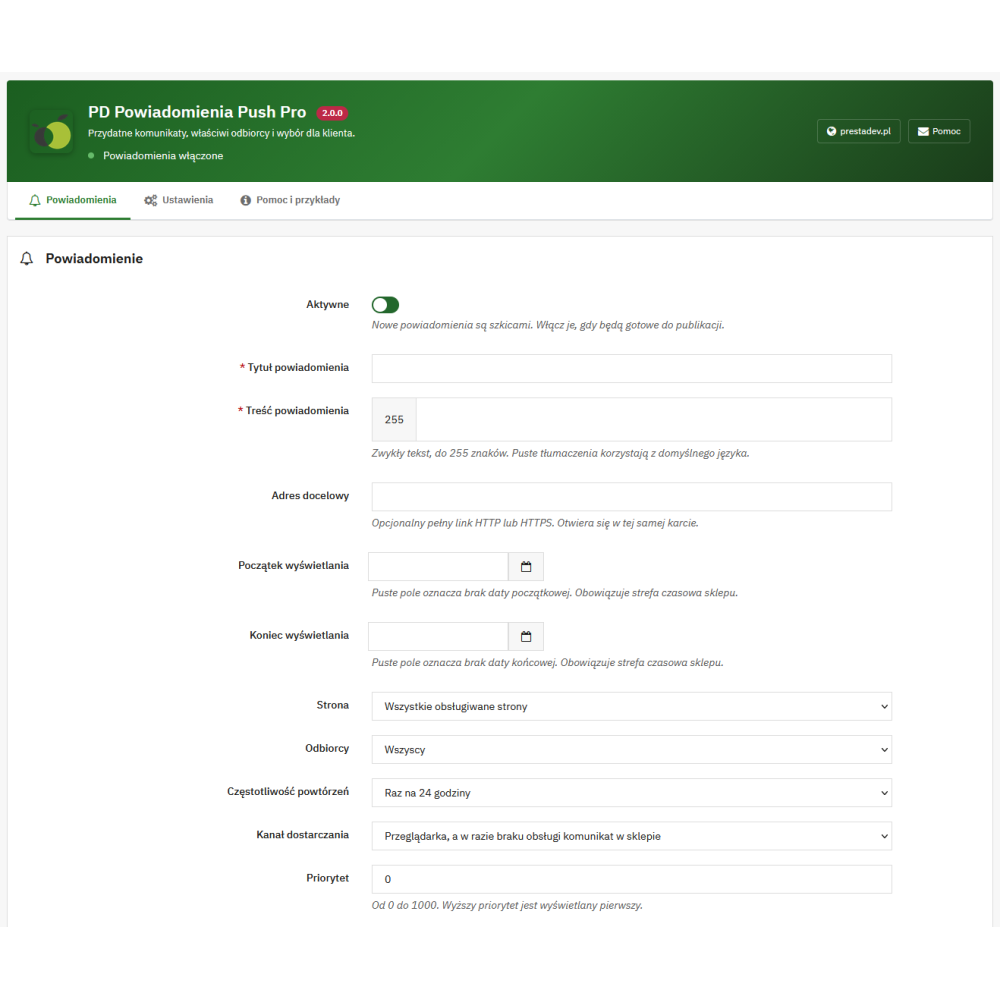
- Title and message: title up to 128 characters and content up to 255 characters, entered as plain text.
- Optional link: full HTTP or HTTPS address leading to a product, category, offer, or information page; the link may be different for each language.
- Drafts: new messages are inactive by default, so you can prepare them before publication.
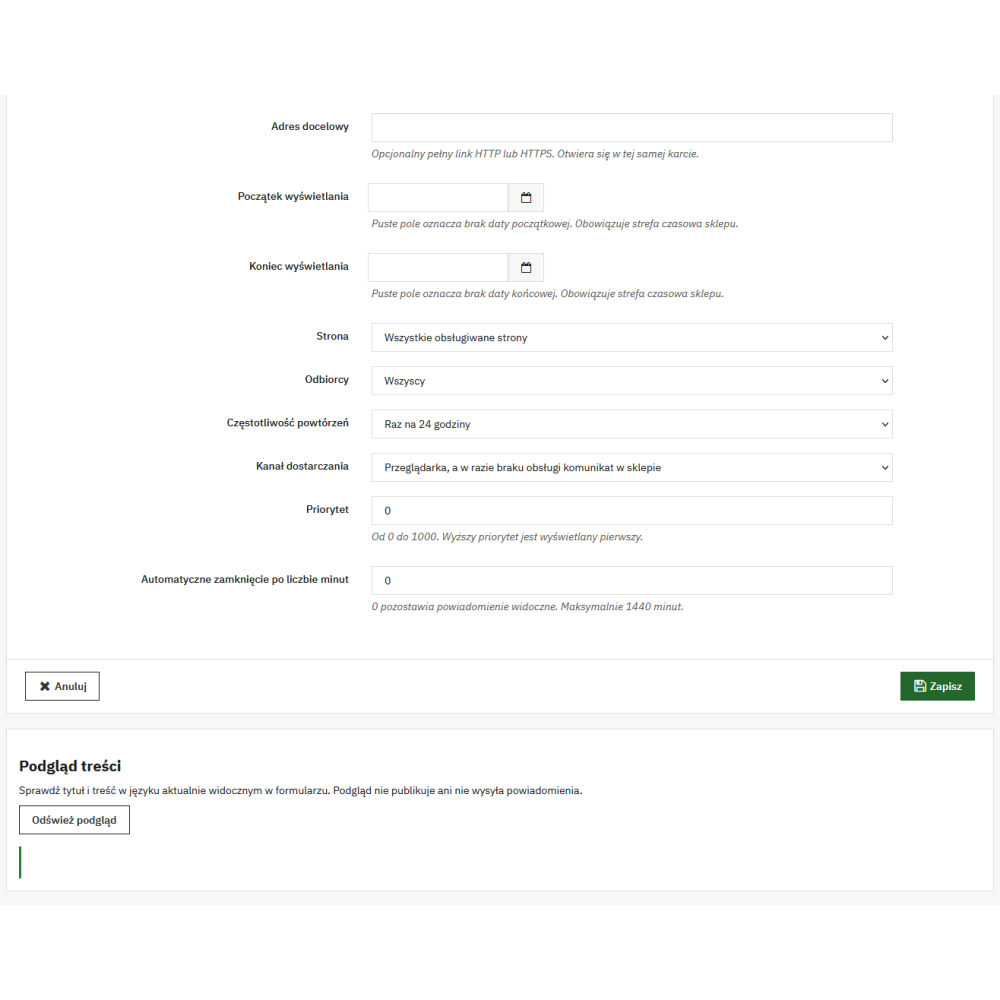
- Content preview: checking the title and message in the form without publishing the message.
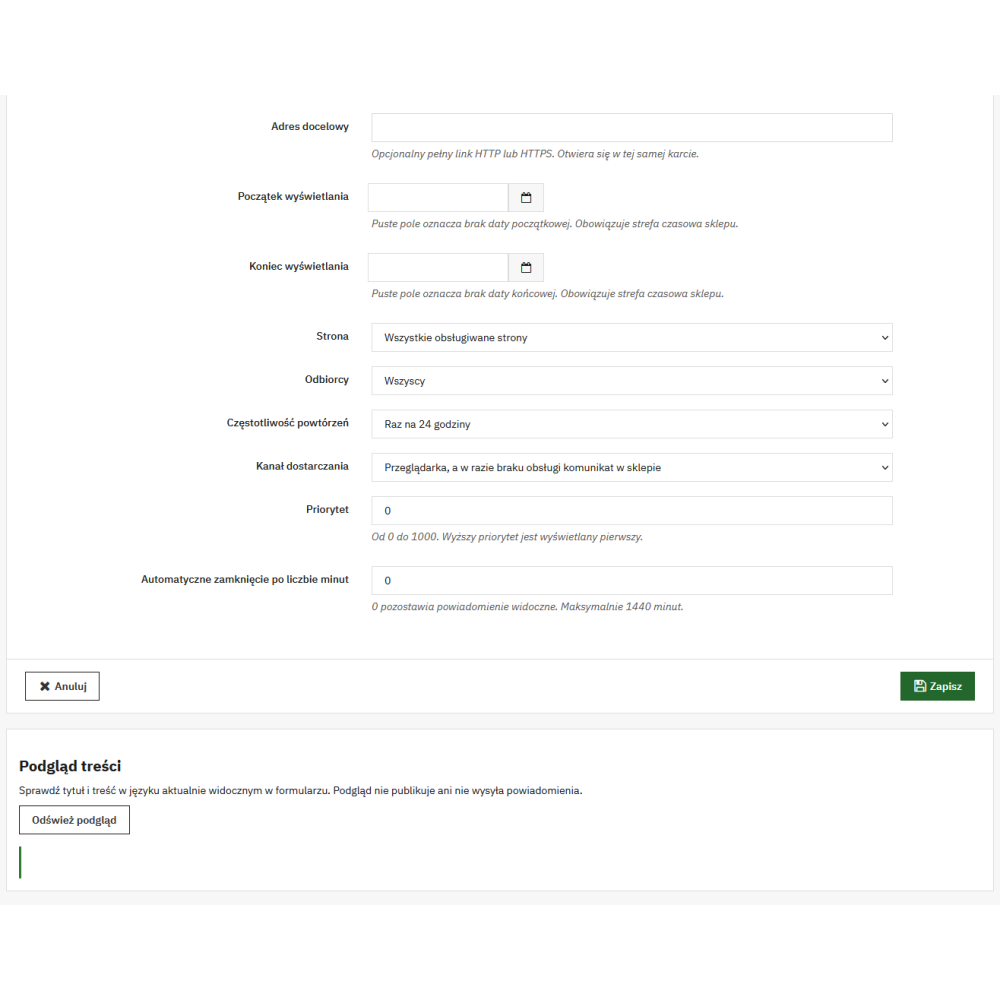
- Schedule: optional start and end date and time of availability, according to the store's time zone.
- Priority from 0 to 1000: more important messages are selected first; with the same priority, the newer entry takes precedence.
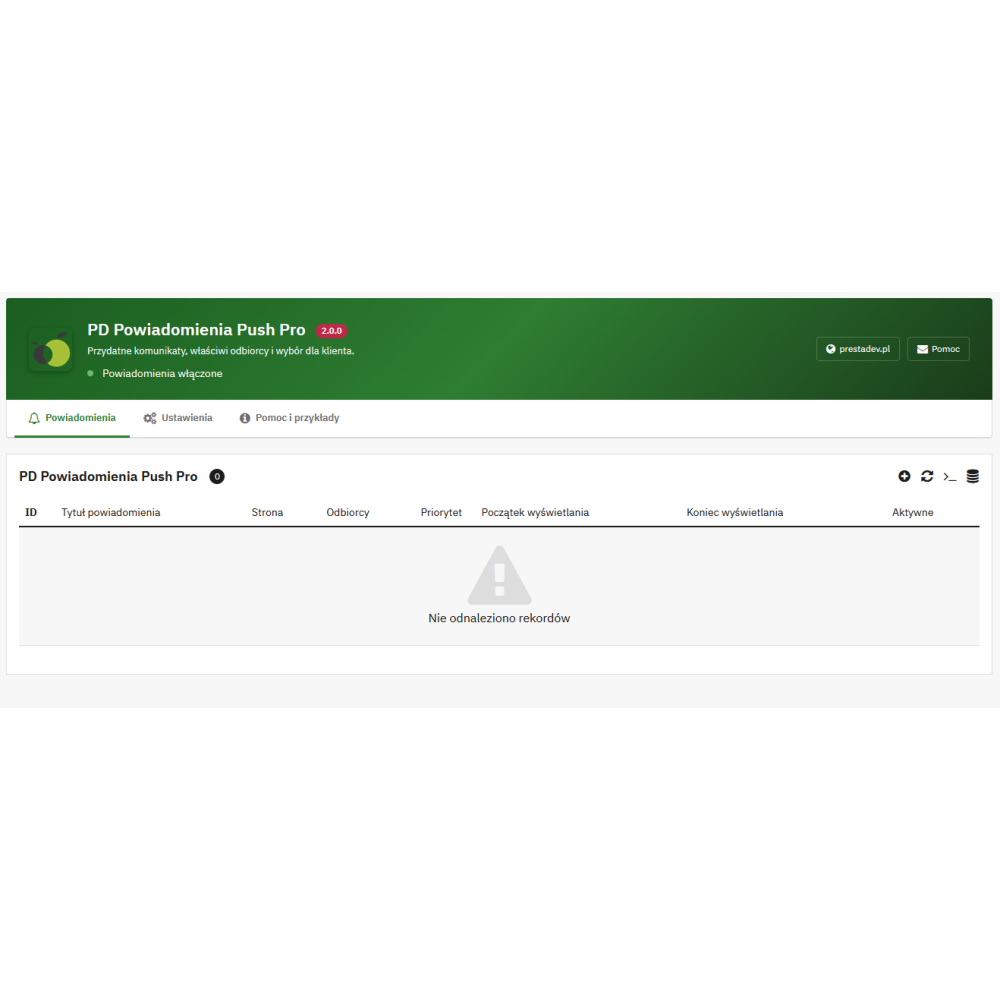
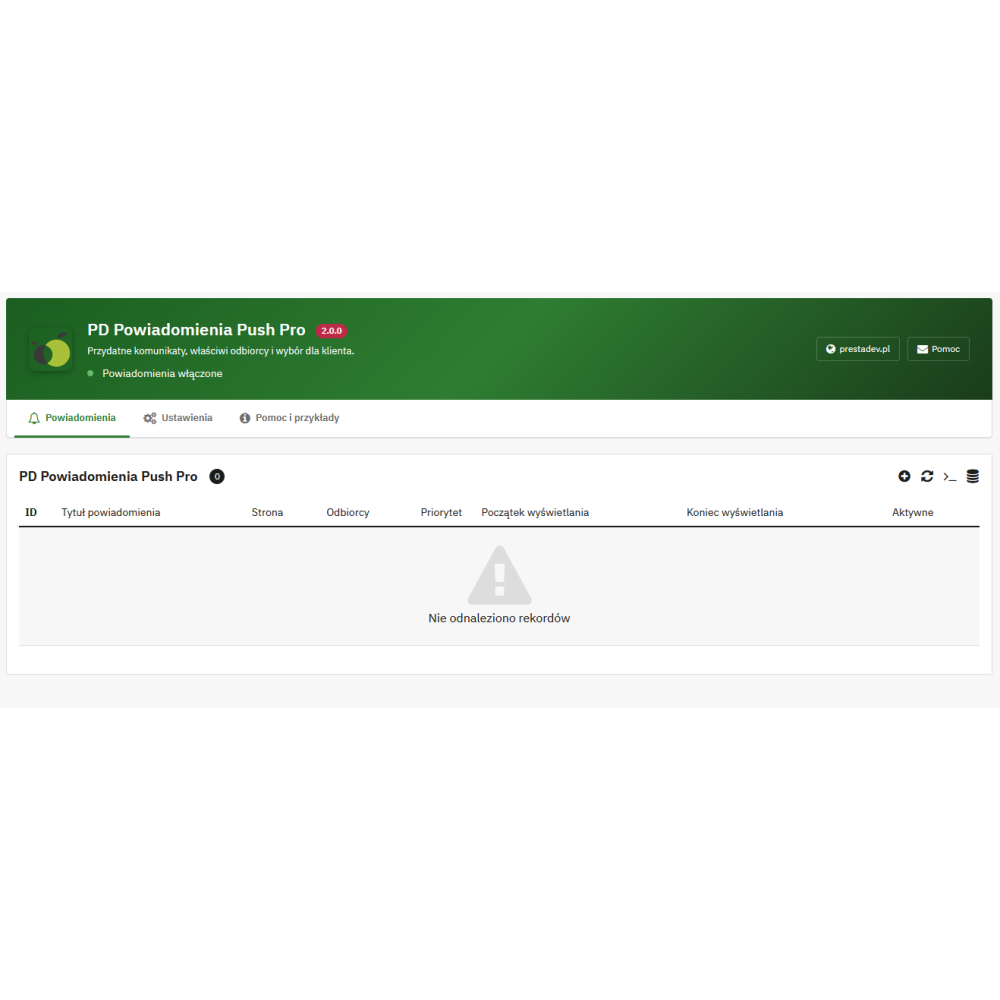
- List in the store panel: filtering and sorting messages, editing, deleting, and changing activity status.
- Bulk operations: enabling, pausing, or deleting selected messages.
Selecting recipients and publication location
The message may be intended for all visitors, for visitors and customers purchasing as guests, or for logged-in customers with an account. There is no need to limit communication to logged-in users.
In the form, you will choose the homepage, product pages, category pages, cart, or all supported pages. The last option also includes information pages, search results, and manufacturer and supplier pages. The setting applies to the page type, not to an individual product or a specific category.
The module skips checkout, login, payments, and order confirmation. Messages are not displayed at these stages.
Three delivery modes and customer choice
- In-store: the message appears in the notification center in the footer, with the option to close it and go to details if a link was added.
- Browser only: the notification uses the browser function when the customer has chosen this channel and granted permission; if the channel is unavailable, such a message is skipped.
- Browser with in-store variant: the module can deliver the message in the browser or in the notification center, according to the customer's choice and the availability of the browser channel.
The customer opens the “Notifications and offers” section and chooses in-store messages or browser notifications. The browser permission request appears only after clicking the appropriate button. If the browser channel is blocked, the customer can choose in-store messages. The pause button stops further messages in this browser.
Frequency, number, and display time
- Once per tab session: the message is not repeated on subsequent page loads in the same browser tab session.
- Once every 24 hours: the next display is possible after 24 hours have passed since the previous one.
- One-time until edited: the message is not repeated for the same saved version; saving an edit allows it to be displayed again.
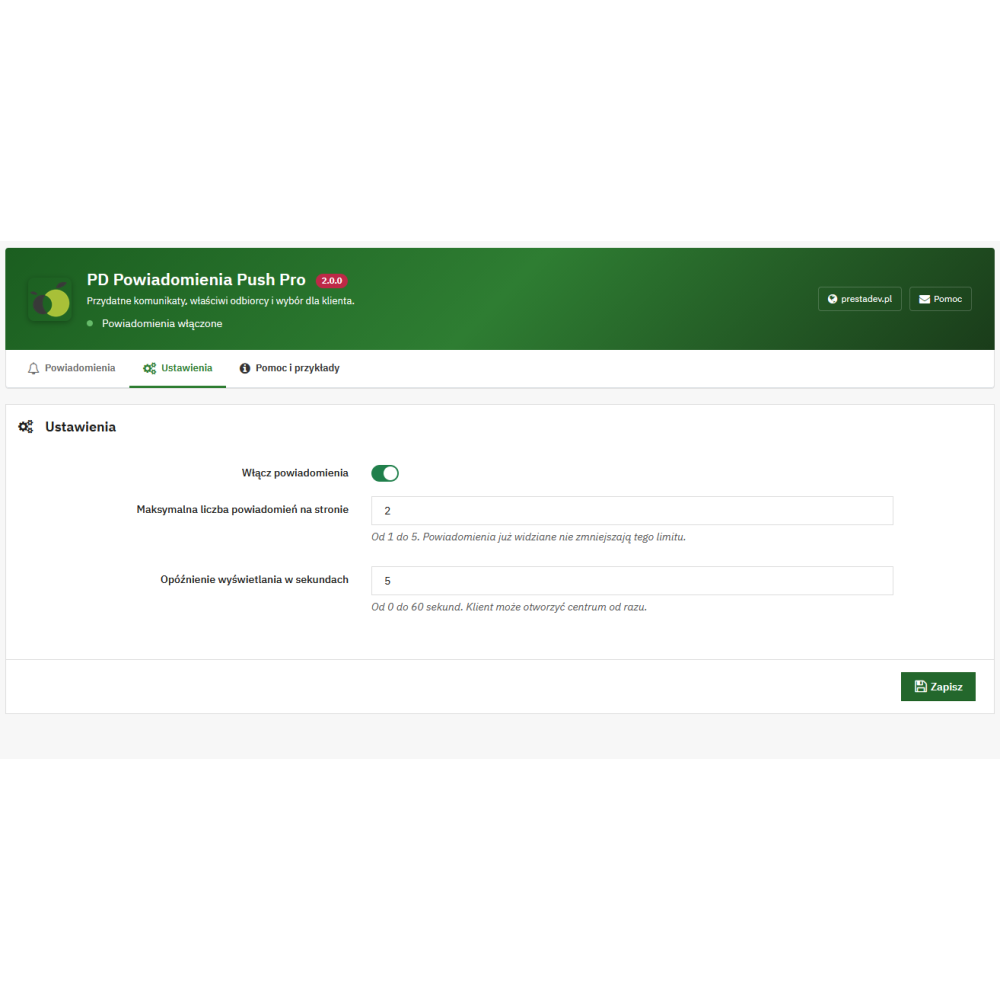
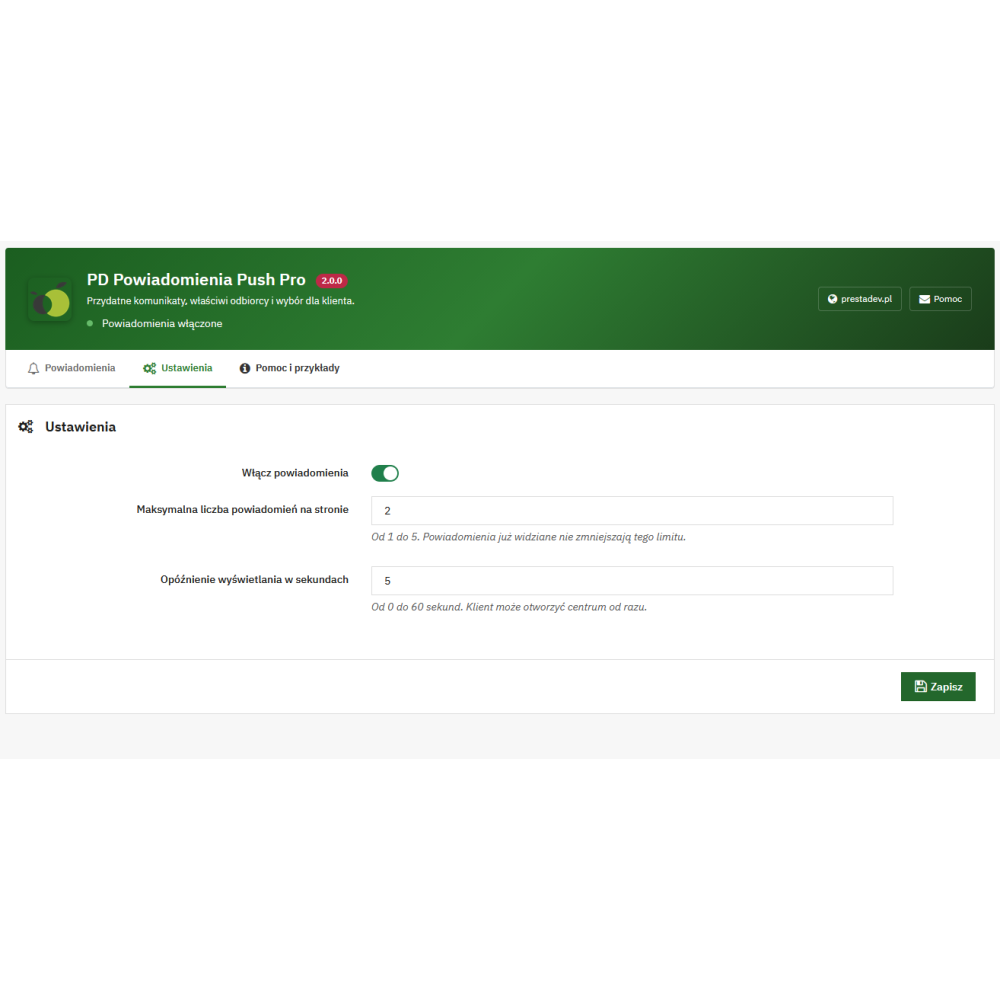
- Limit from 1 to 5 messages: defines the maximum number of delivered messages in a single fetch; messages already seen do not reduce this limit.
- Delay from 0 to 60 seconds: applies to fetching messages after the page loads when the customer's choice has been remembered earlier; manual channel selection starts fetching immediately.
- Automatic closing: time from 1 to 1440 minutes or value 0 with no automatic closing by the module.
The customer's choice and display history are stored locally in the browser, separately for each store. Clearing its memory resets this information. The history is not a shared customer profile across all devices.
Multiple languages and multistore shops
The title, message, and link can be prepared separately for the languages installed in the store. An empty translation of a given field uses the value in the store's default language. The module has Polish and English interface translations; you enter the message content yourself.
In multistore, each campaign belongs to a specific store, and you save activity, limit, and delay settings in its context. Before managing messages, you must select a single store.
Benefits for store staff and customers
- Preparing communication in advance: drafts and scheduling allow you to plan the availability of information without manually enabling it at a specific time.
- Matching the message to the situation: selecting the page type and login status allows you to separate cart information from an offer for customers with an account.
- Priority for more important messages: priority and limit help organize several active messages.
- Reducing repetition: display history takes frequency and the saved message version into account.
- Customer-side choice: the recipient decides on the channel and can pause messages without creating an account.
- Communication in your own store: the module does not require configuration of an external notification delivery provider.
Example uses in an online store
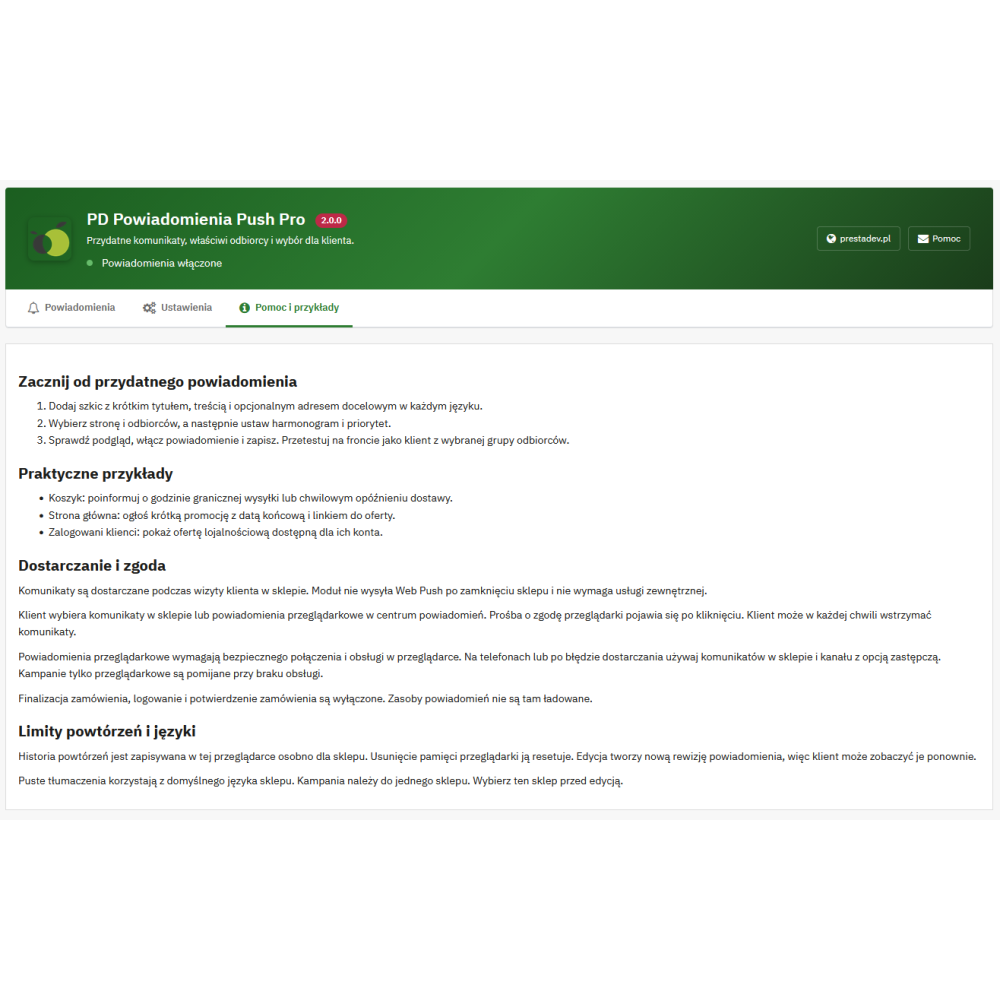
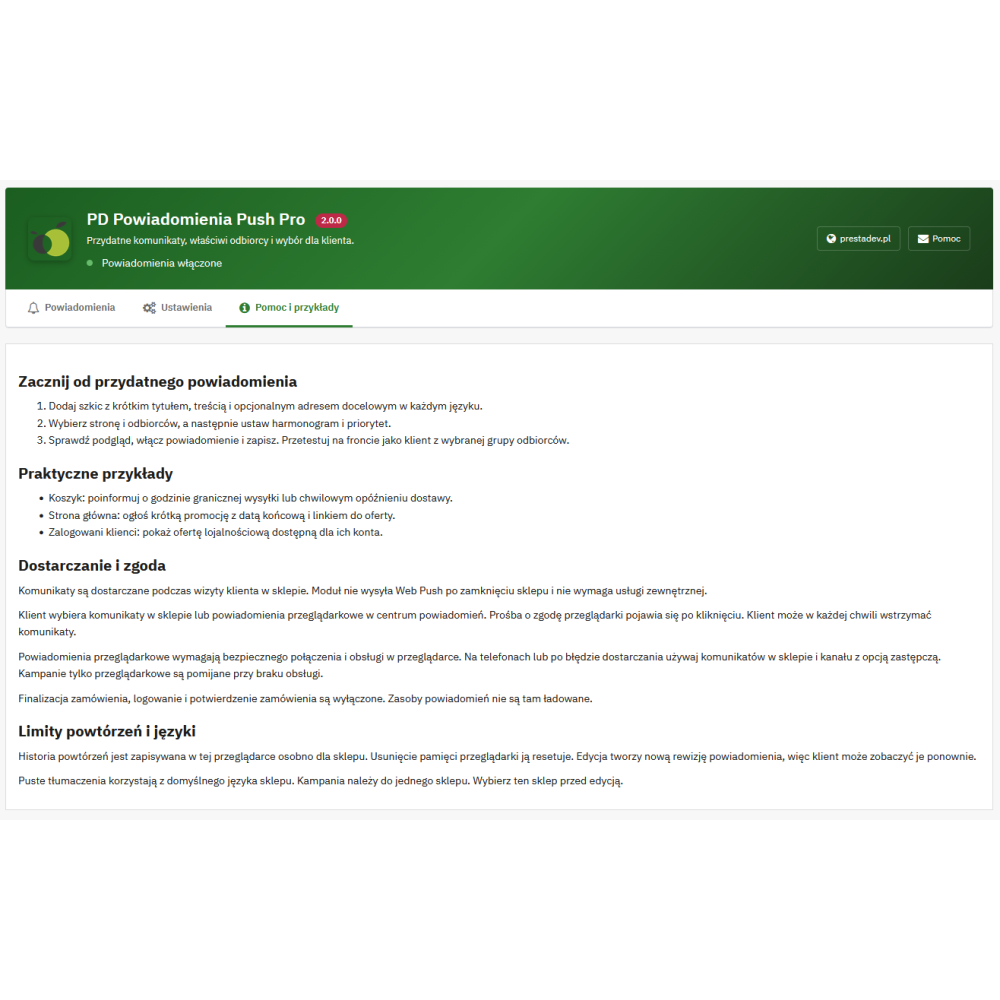
- Information in the cart: a message about the shipping cut-off time or a temporary fulfillment delay, with content prepared by the store staff.
- Offer on the homepage: a message about a promotion with an end date and a link to the relevant page.
- Message on category pages: information about a store campaign, available while browsing categories.
- Information for logged-in customers: a message about an offer aimed at customers with an account.
The module delivers the prepared information and an optional link. It does not create a discount or calculate the shipping date based on the cart contents.
How to prepare your first notification
- Open the “PD Push Notifications Pro” panel in the “Customers” section or through the module configuration; in multistore, select a specific store.
- Add a message and fill in the title and message in the default language, then the required translations and optional links.
- Select recipients, page type, channel, frequency, priority, and any schedule and closing time.
- Check the title and content preview, enable the message and save it; in the settings, define the limit and delay.
- The customer chooses the delivery method in the “Notifications and offers” section on a supported store page.
Requirements and operating principles
The module is intended for PrestaShop 1.7.x, 8.x and 9.x. Notifications require JavaScript to be enabled, and the theme must call the PrestaShop footer hook supported by the module. The browser channel requires HTTPS, browser notification support, and customer consent. On devices where the browser channel is unavailable, in-store messages can be used.
The schedule is checked when notifications are fetched, without the need to set up a cron job. The module does not perform continuous delivery to an open page or to a customer who has left the store. Pausing in the module does not revoke the browser's system permission — that consent is changed in its settings.