What the module is used for
- Sales to individual and business customers. The customer indicates in the order whether they want an invoice or a receipt, so the store does not need to ask after the order is placed.
- Invoices with complete details. The invoice can depend on the company name and tax ID in the invoice address, and validation rejects a tax ID with an incorrect checksum before the order is placed.
- Small business purchases with a receipt with tax ID. A third option for businesses, available only up to the configured amount and only with a valid tax ID in the invoice address.
- Preparing invoices for KSeF. B2B invoices are marked in orders, and the CSV export gives accounting or invoicing software a list of orders with buyer details and amounts.
- Continuous PrestaShop invoice numbering. Orders with a receipt may not receive an invoice number, so invoice numbers do not have gaps caused by receipts.
Document selection in the order process
- “Choose sales document” block. Invoice and Receipt options, and when enabled – also Receipt with Tax ID. Works for purchases with an account and without registration (as a guest).
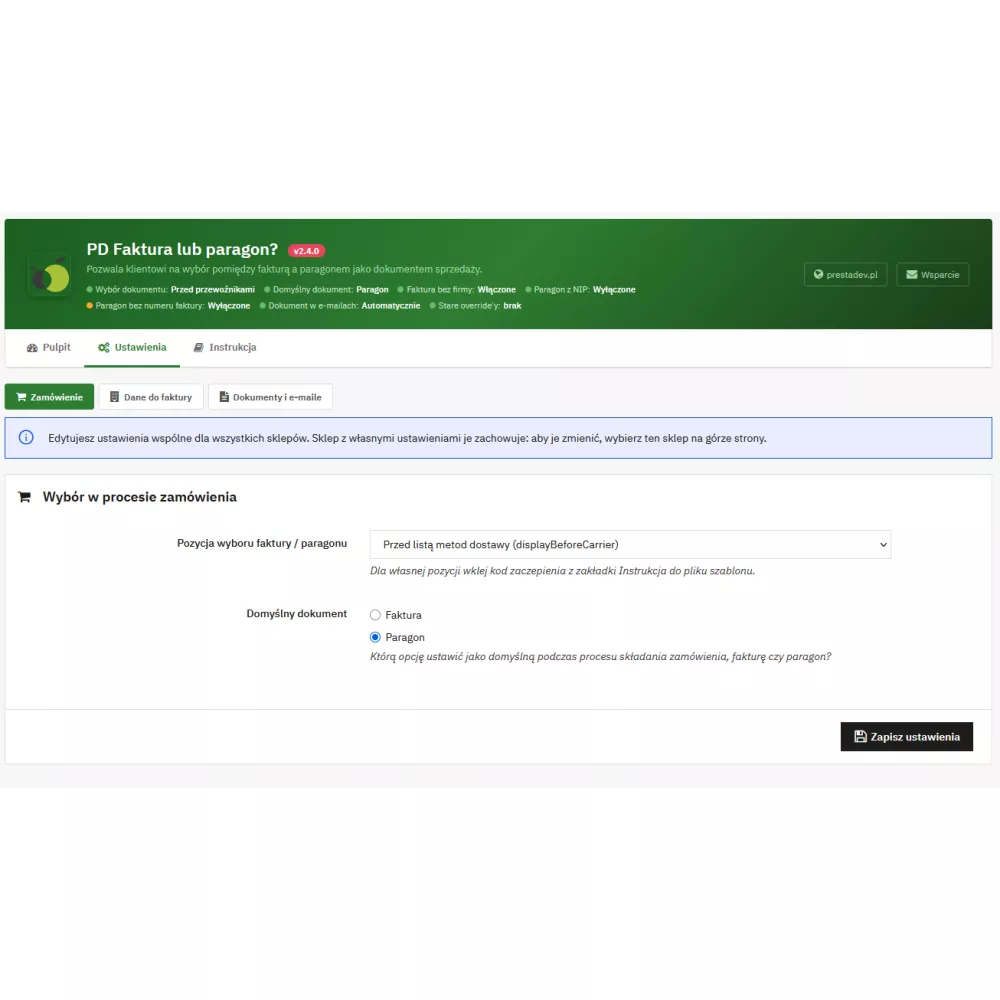
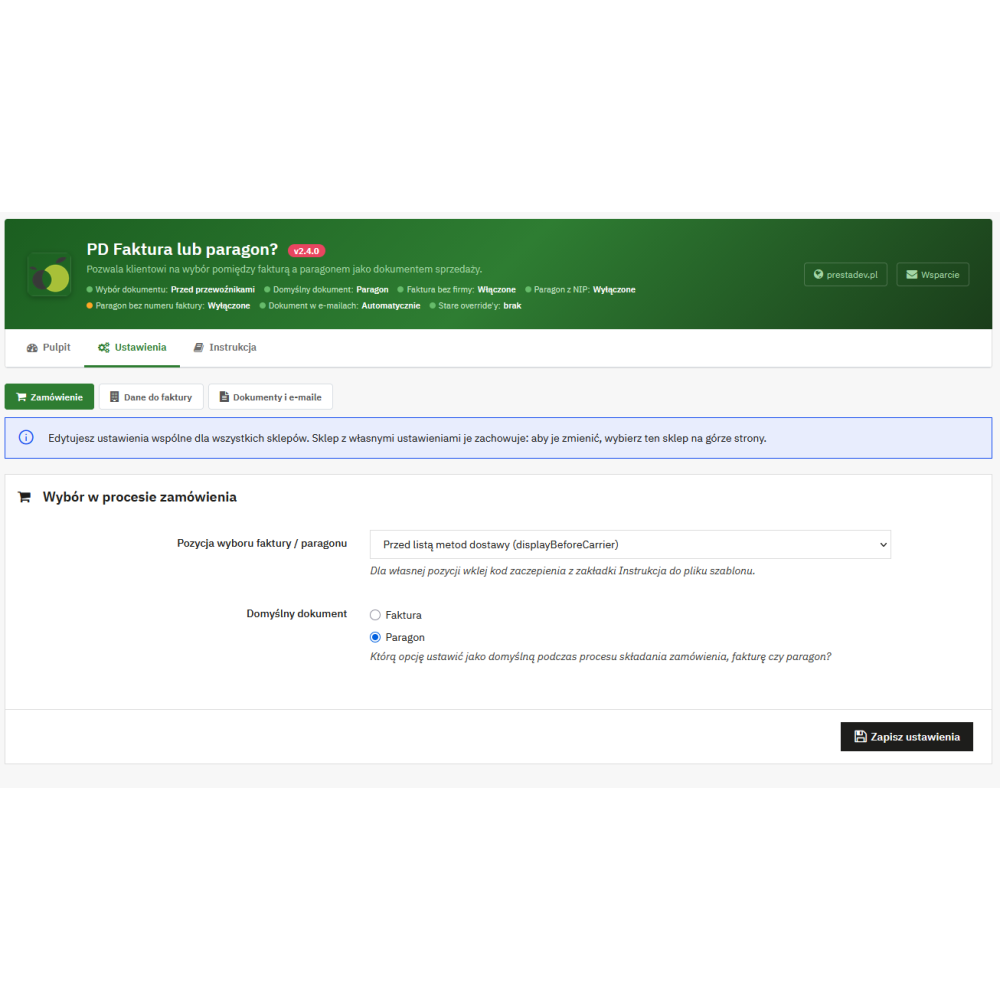
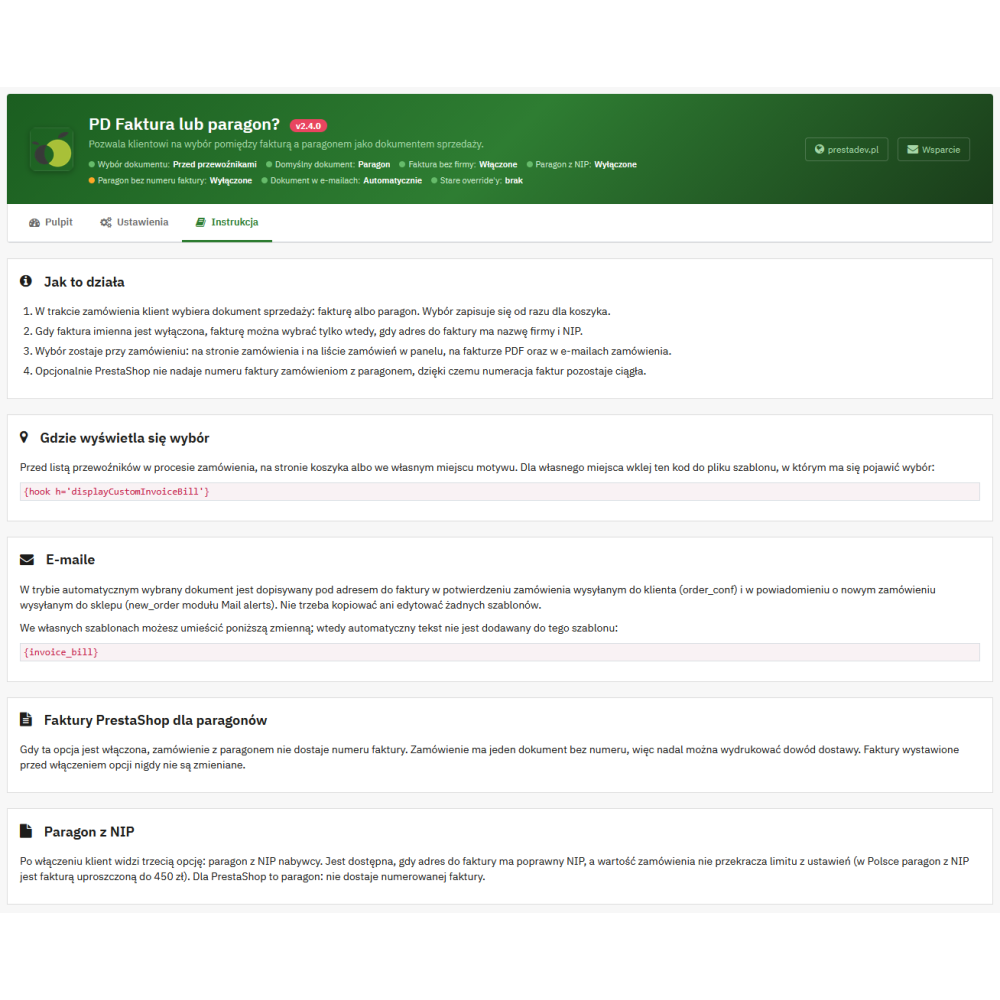
- Three display locations. Before the delivery methods list (displayBeforeCarrier), on the cart page (displayShoppingCartFooter), or anywhere in the theme – after pasting the code
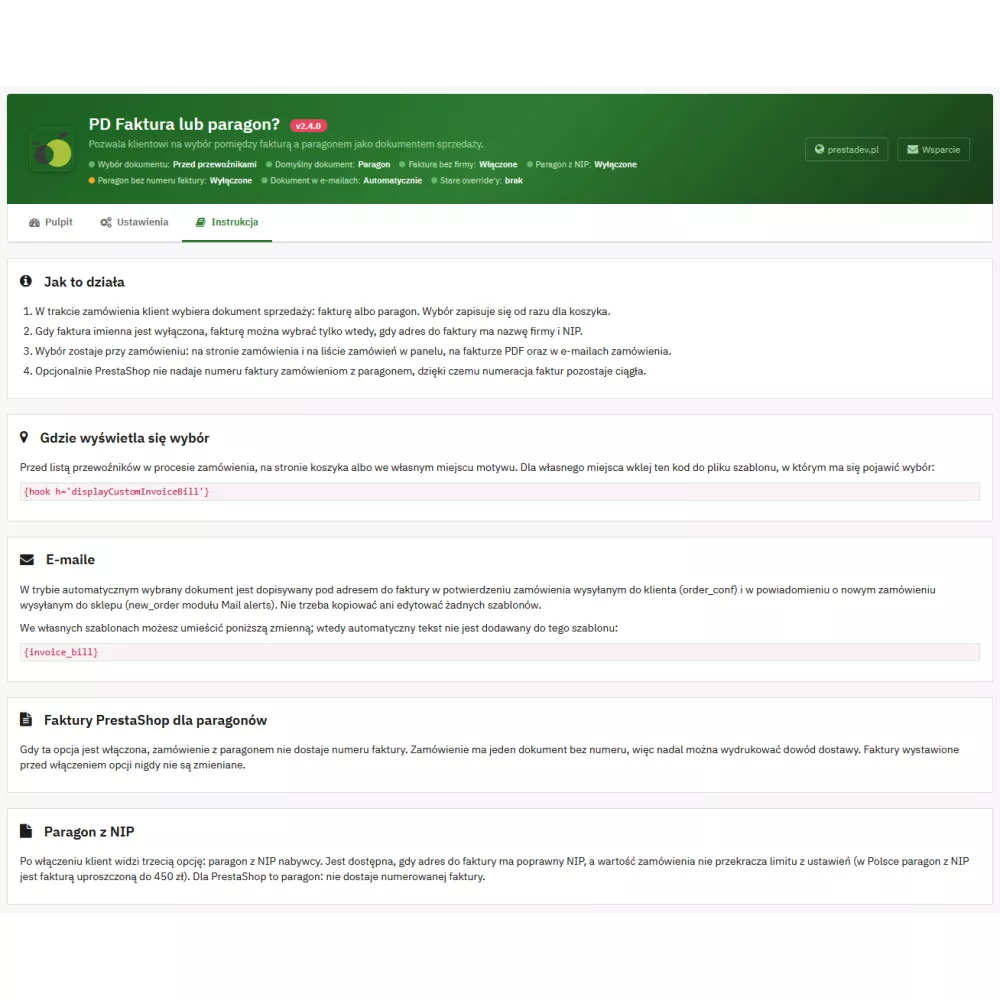
{hook h='displayCustomInvoiceBill'} into the template file.
- Save without page reload. The clicked document is saved immediately (AJAX) with the confirmation “(saved)”. The server applies the same rules as the form, so an unavailable document cannot be saved.
- Default document. Invoice or receipt – applies until the customer chooses something else, and is saved with the order with the note “default document (no selection)”. This also applies to orders created in the back office and via API.
- Clear messages. An unavailable option is disabled, and the reason appears below the block, e.g. “Invoice is unavailable. Enter the company name and tax ID in the invoice address.” or “Receipt with Tax ID is available for orders up to PLN 450.00; for a higher amount choose an invoice.”
- Change of conditions after selection. If the selected invoice or receipt with tax ID becomes unavailable (e.g. the customer changes the invoice address or the cart value exceeds the limit), the order gets a receipt.
- Company and Tax ID fields in the address form. On the order page they are shown for an invoice (for a receipt with tax ID – the Tax ID field) and hidden for a receipt. If the address format for a given country does not include these fields, the module adds them to the form.
Personal invoice and company data verification
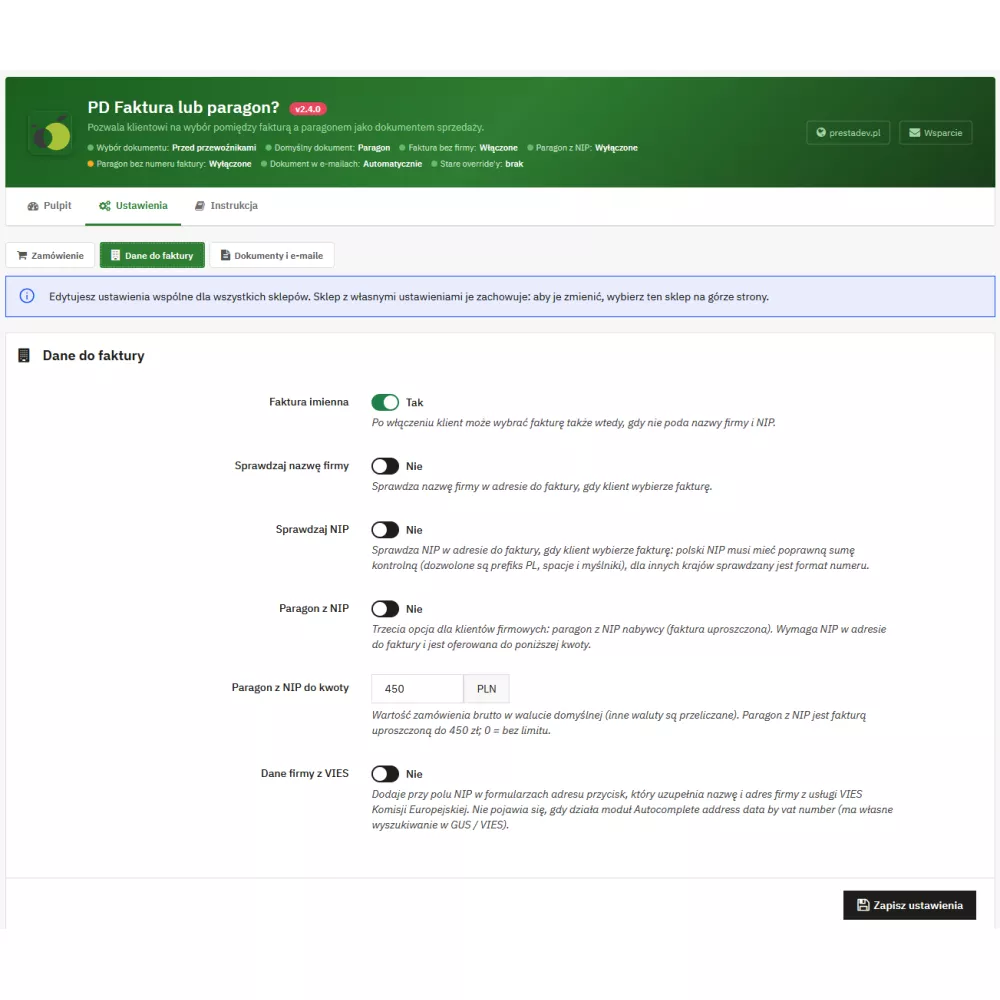
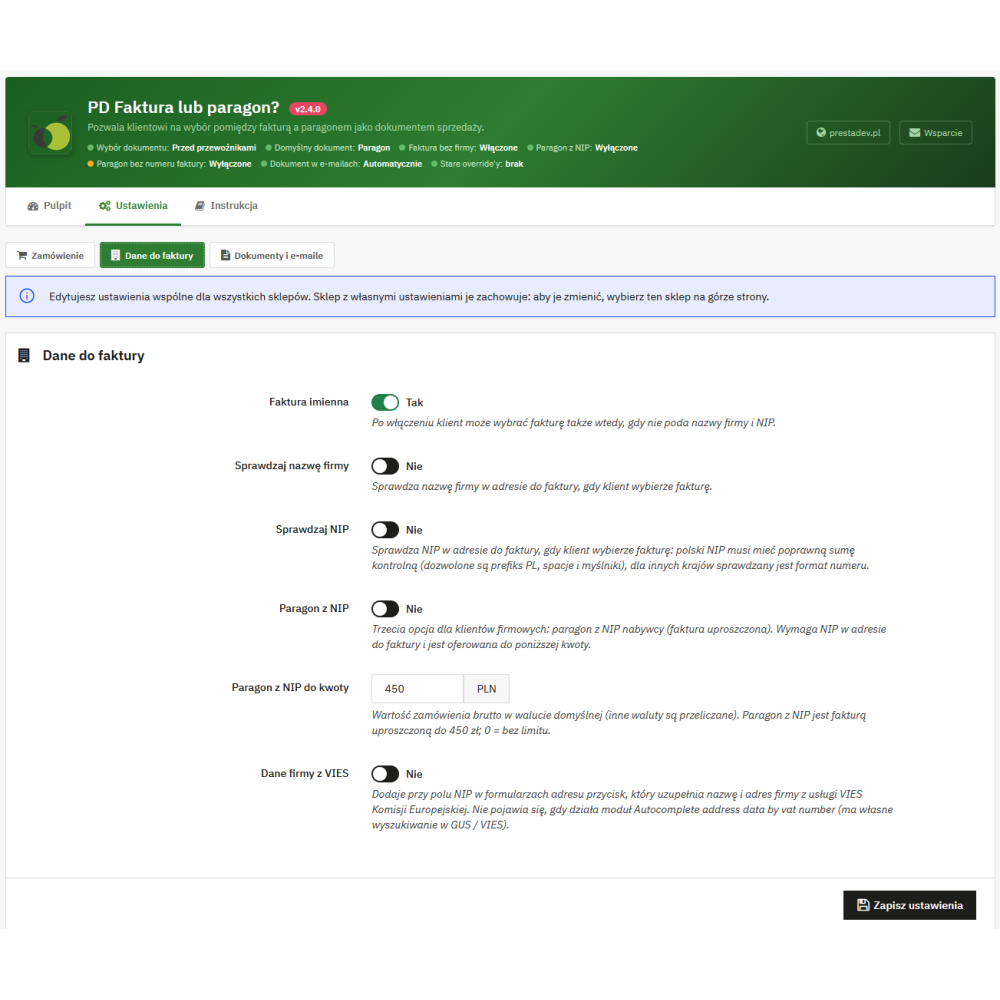
- Personal invoice (enabled by default). The customer can also choose an invoice without a company name and tax ID.
- Invoice for businesses only. After disabling the personal invoice, the invoice requires a company name and tax ID in the invoice address. An invoice address without these details will not be saved if the customer selected an invoice.
- The requirement applies only to the invoice address. A separate delivery address and other addresses in the customer account are not blocked, and a private customer can save their first address without obstacles.
- Check company name. Rejects a company name with characters not allowed in PrestaShop when the customer selected an invoice.
- Check tax ID. A Polish tax ID must have a correct checksum (PL prefix, spaces, dots, and hyphens are allowed). A foreign company with an address in Poland may provide an EU VAT number with its country prefix, and for other countries the number format is checked.
Receipt with Tax ID (simplified invoice)
- Third document for businesses. Option disabled by default. When enabled, the customer sees a receipt with the buyer’s tax ID, which in Poland is a simplified invoice up to PLN 450.
- Amount limit. Gross order value in the store’s default currency (default 450, 0 means no limit). For a cart in another currency, the limit is converted using the store exchange rate, and when placing the order it is checked again against the order total including fees added by payment modules.
- Always valid tax ID. A receipt with tax ID requires a tax ID in the invoice address, and a Polish tax ID is checked by checksum regardless of validation settings.
- Tax ID next to the document. In emails, on the PDF invoice, and in the back office, the document is described with the number, e.g. “Receipt with Tax ID: 5260250274”.
- For PrestaShop it is a receipt. With the “Receipt without PrestaShop invoice number” option enabled, an order with a receipt with tax ID does not receive a numbered invoice.
PrestaShop invoice numbering for receipts
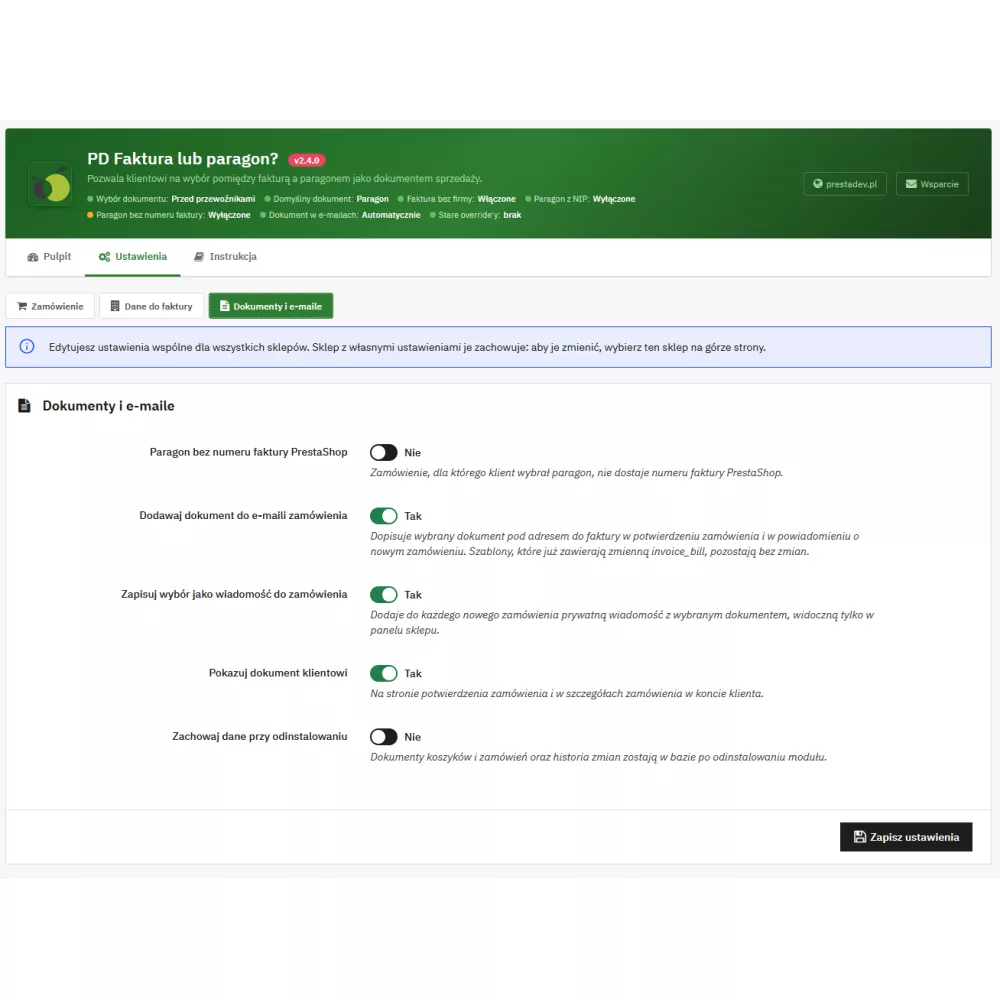
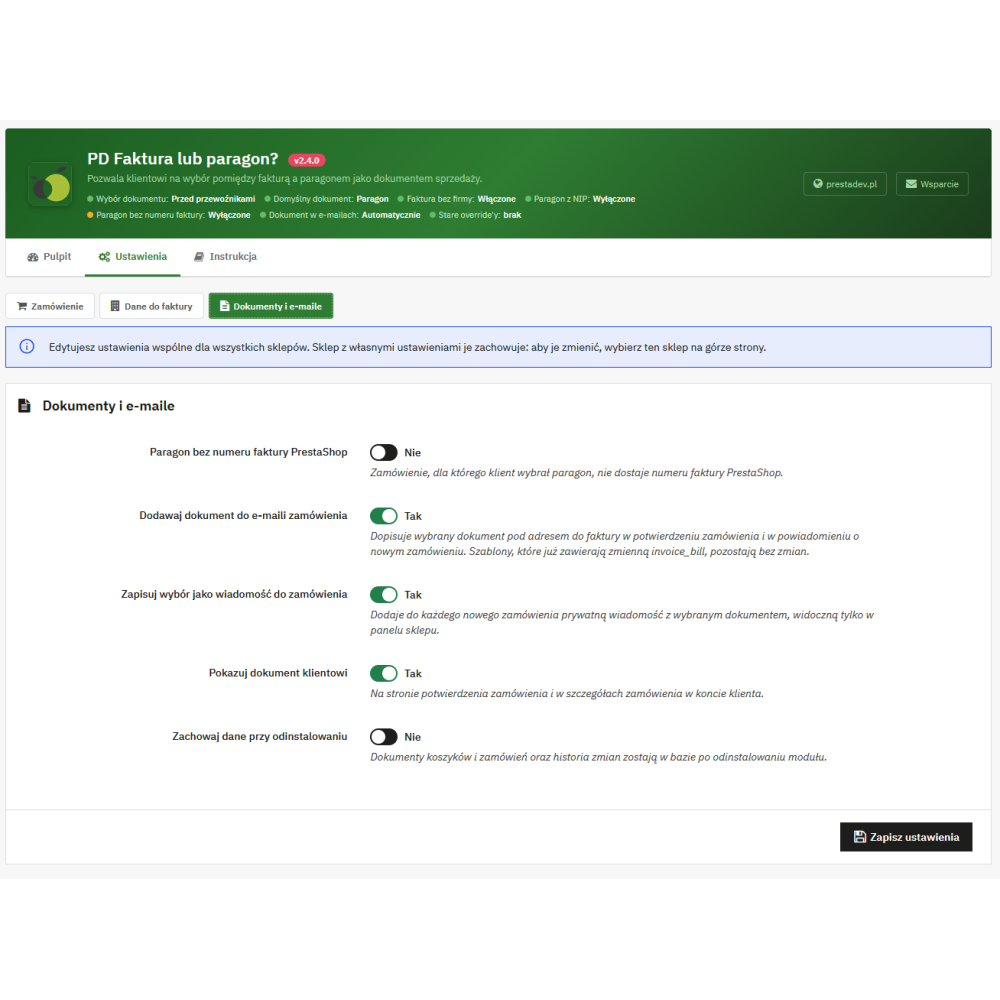
- Receipt without PrestaShop invoice number (option disabled by default). An order with a receipt, when its status changes to a status with an invoice or delivery slip, gets one document without a number. The invoice number and invoice starting number are not used up, and the delivery slip can still be printed.
- Payment recorded as for an invoice. An order with a receipt paid by status change (e.g. bank transfer, cash on delivery) has the payment recorded in the same way as an order with an invoice.
- Invoice on request. The “Generate invoice” button in the order documents issues a numbered invoice, which takes over the unnumbered document and its payments.
- No retroactive changes. Invoices issued before enabling the option are never changed.
- No “invoice” for a receipt. The customer of an order with a receipt will not download the unnumbered document as a PDF invoice – they will see the PrestaShop message that the invoice is not available.
Emails, PDF invoice, and order message
- Document in emails without editing templates. The line “Sales document: …” is added below the invoice address in the order confirmation for the customer (order_conf) and in the new order notification for the store (new_order of the Mail alerts module). Templates are not copied or modified.
- Variable {invoice_bill}. In your own templates you can place the variable in any chosen location. A template that contains it does not get the automatic line.
- PDF invoice. Below the store legal text from the invoice settings, “Sales document selected by the customer: …” appears. The store legal text is preserved.
- Order message. A private message with the selected document can be added to each new order, visible only in the store back office.
What the customer sees
- In the order process. The document selection block, messages about unavailable options, and – when enabled – the VIES button next to the Tax ID field.
- After placing the order. The selected document on the order confirmation page and in the order details in the customer account (the “Show document to customer” option, enabled by default).
- In the email. The selected document in the order confirmation.
Administration panel
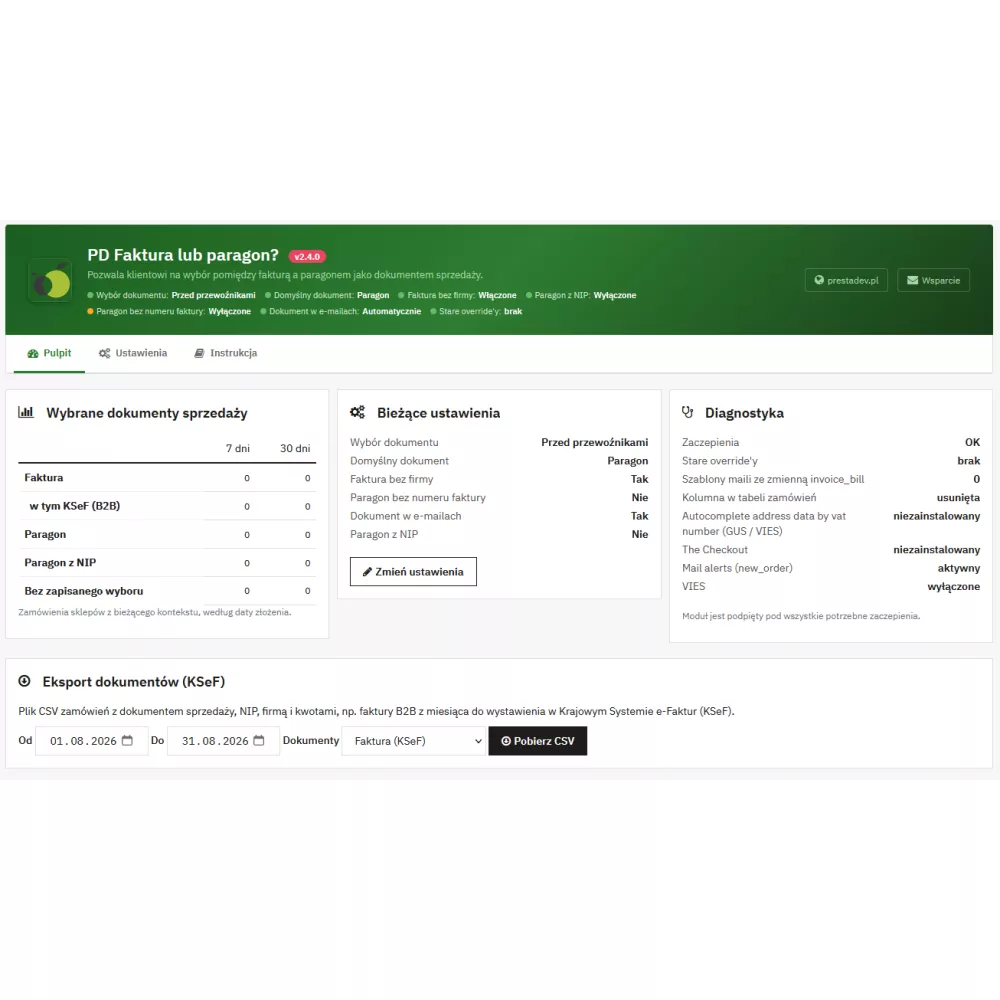
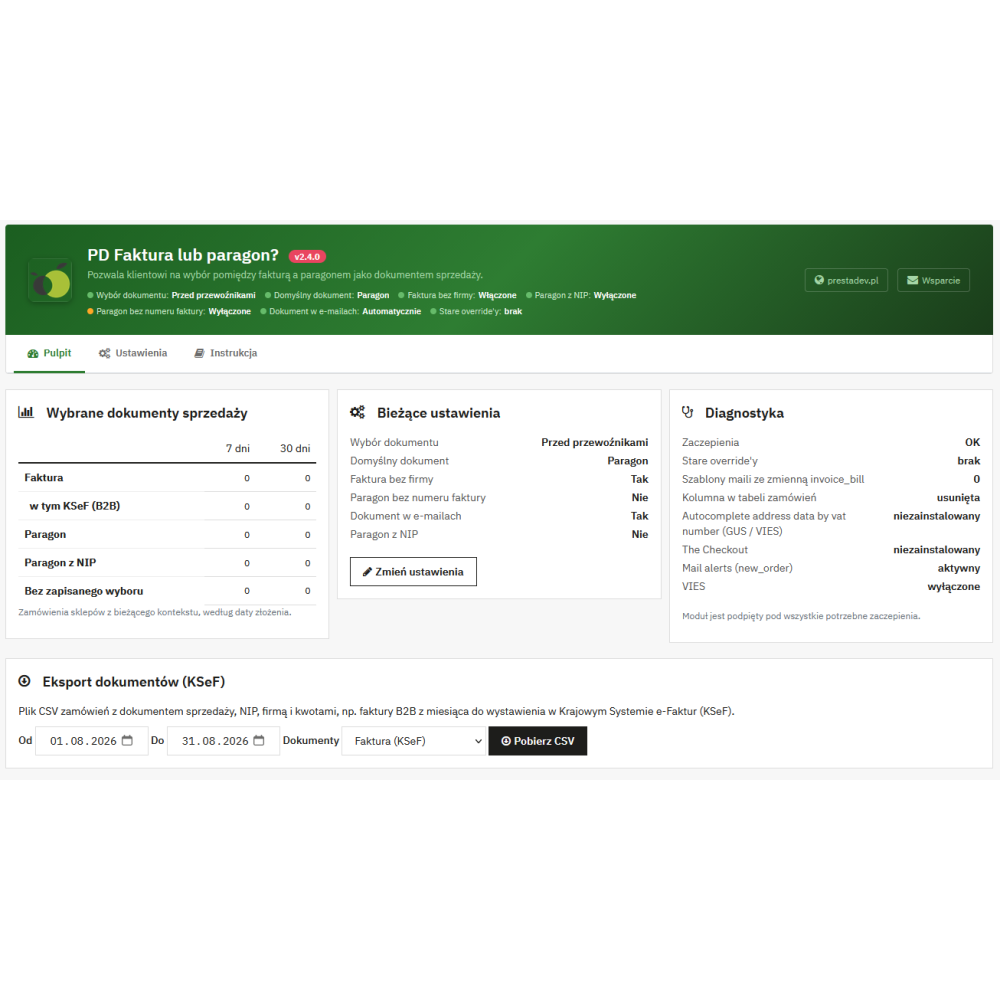
- Header with status controls. Document selection position, default document, invoice without company, receipt with tax ID, receipt without invoice number, document in emails, and old overrides – all on one bar.
- Three tabs. Dashboard, Settings (sections: Order, Invoice details, Documents and emails), and Manual describing each option.
- Dashboard. Number of invoices (including KSeF), receipts, receipts with tax ID, and orders without a saved selection from the last 7 and 30 days, current settings, diagnostics (missing hooks with a repair button, old override code, email templates with the invoice_bill variable, column in the orders table), and the status of cooperating modules.
- “Sales document” panel on the order page. Document, company name, tax ID, KSeF marking, and information about where the document comes from: selected by the customer, default, changed in the back office, or transferred from a previous module version.
- Changing the document after the order. E.g. when the customer asks for an invoice after purchase. Every change goes to the history with the date, previous and new document, and employee. The panel warns when the order already has a numbered invoice or when a receipt with tax ID has an invoice address without a tax ID.
- Changing the invoice address in the back office. Updates the tax ID, company name, and KSeF marking of the order document.
- Order list. “Sales document” column with a filter (Invoice, Invoice (KSeF), Receipt, Receipt with Tax ID, No saved selection) and the document in the order preview expanded on the list (PrestaShop 1.7.7+). In PrestaShop 1.7.0–1.7.6 the list has a column and filter with invoice, receipt, and receipt with tax ID, and the document panel is on the order page.
- Permissions and security. Saving settings requires permission to configure the module and the right to edit the modules page, changing the order document additionally requires the right to edit orders, and export requires the right to view orders and customers. Each module form has its own CSRF token.
KSeF and document export to CSV
- KSeF marking (B2B). An invoice for a buyer with a tax ID in the invoice address is marked when placing the order as a B2B invoice to be issued in the National e-Invoice System. The marking is visible on the order page, in the preview on the order list, in the list filter (from PrestaShop 1.7.7), and on the dashboard.
- CSV export from the dashboard. Date range (default previous month) and document type: Invoice (KSeF), Invoice, Receipt, Receipt with Tax ID, or All documents.
- File columns. ID, order number, date, sales document, KSeF, tax ID, company, buyer, invoice address, net total, gross total, currency, PrestaShop invoice number, and customer email.
- File ready for spreadsheets. UTF-8 with BOM and semicolons (opens in Excel), RFC 4180-compliant format, and protection against formulas in cells. Large date ranges are written row by row, without loading all orders into memory.
Company data from VIES
- “Fill company data from VIES” button. Appears next to the Tax ID field in address forms (in the order process and in the customer account) and retrieves data from the European Commission’s VIES service. Option disabled by default.
- What is filled in. Company name and – if the fields are empty – street, postal code, and city. The customer is asked to check the data before saving.
- European Union countries. Number with country prefix (e.g. DE123456789) or without prefix – then according to the country selected in the form.
- Query limits counted on the server. 20 per hour per visitor, 100 per hour per connection address, and 500 per hour per store.
Cooperation with other modules
- The Checkout. Selecting the “I am a company” field chooses an invoice, and clearing it chooses a receipt. An invoice or receipt with tax ID selected in the block checks this field, and a receipt does not clear it, so The Checkout keeps the company data in the address.
- Get company data by Tax ID Pro. When this module is active, its GUS / VIES search appears for invoice and receipt with tax ID, and this module’s VIES button is hidden.
- BaseLinker and SellAsist. The modules of these integrations for PrestaShop read from the module table whether the customer wants an invoice. Changing the document in the back office also updates this read selection.
- Mail alerts. The selected document is included in the new order notification sent to the store.
- For developers. The actionPdInvoiceBillDocumentChanged hook allows other modules to react to a change of the order document in the back office.
Multiple stores (multistore)
- Settings for each store. Each store can have its own settings or use shared ones. The form indicates whether you are editing the settings of the selected store or shared settings for all.
- Statistics and export in store context. The dashboard and CSV file include orders from the stores selected at the top of the panel.
- Employee access. Changing the order document of a store to which the employee does not have access is rejected.
Compatibility, installation, and update
- PrestaShop 1.7.0–9.x, PHP 7.0–8.5. The selection block works with Classic, Hummingbird, and Warehouse themes.
- No overrides. The module works exclusively on hooks and does not override PrestaShop classes.
- Cleanup after older versions. Versions up to 2.2.x installed overrides of the Mail, PaymentModule, and Order classes. The update removes methods that PrestaShop marked as installed by this module, as well as the unchanged PaymentModule.php file copied by old versions. A copy of each file goes to the module backup directory, and merged or manually changed code is only listed on the dashboard.
- Documents in its own table. The document of each order is saved in the module table. The column that older versions added to the orders table is migrated and removed when no other module or override reads it. Otherwise it remains and is updated, and the dashboard shows the files that read it.
- Repair of data from version 2.2.x. Orders with several unnumbered documents can be merged into one document, and orders with payment higher than the order value are listed for checking.
- Keep data on uninstall. Cart selections, order documents, and change history can remain in the database for reinstallation purposes. Before uninstalling (also with the “Reset” button), the panel displays a warning.
- Languages. Module interface in Polish and English.
Important operating limits
-
- The module saves the document selection and passes it on – it does not print fiscal receipts and does not send invoices to KSeF. PDF invoices are issued by PrestaShop.
- The KSeF marking does not distinguish countries: every invoice with a tax ID in the invoice address, including one with a foreign VAT number, is marked as B2B.
- The CSV file includes orders with a document saved by the module.
- BaseLinker and SellAsist only read whether the customer wants an invoice – for them, a receipt with tax ID is an order without an invoice.
- Changing the document in the back office does not remove a numbered invoice that the order already has.
- In the customer’s order history, PrestaShop may show an invoice link also for a receipt when the order has an unnumbered document. The module then blocks PDF download.
- The VIES button requires the PHP cURL extension and a server connection to the VIES service. Some countries (e.g. Germany and Spain) confirm in VIES only the validity of the number, without the company name and address.
Choosing the package and checkout
The current offer list indicates 2.2.7 for PrestaShop 1.7.x, 8.x and 9.x and older packages for PrestaShop 1.5.x and 1.6.x. Match the file to the exact store version. A declaration of support for the order process in one or several steps is not confirmation of compatibility with every external One Page Checkout module.
Before purchase, provide the PrestaShop version, PHP version, theme name and version, and checkout name and version. Check whether the form is visible, whether the selection remains correct after changing the address, and whether it reaches order handling. You can find a broader checklist in the PrestaShop checkout acceptance guide.
Acceptance scenarios on a store copy
The list below defines the proposed checks before deployment; it is not a test report for your store.
- Private individual. Check the receipt and the invoice for a private individual according to the selected setting. Repeat the selection as a guest and as a logged-in customer.
- Business. Check an address with company name and tax ID, and then the absence of one of these fields. Record the expected result and messages for your configuration.
- Address change. Use different delivery and invoice addresses; change the country and return to the previous step. Check the visible selection and the saved document type.
- Order handling. On an isolated copy, compare the selection in the back office, email confirmation, and any connector. Separately check document generation by the system you use and the operation of the option to disable PrestaShop invoices on status changes.
Content verification: PrestaDev.pl, 28.09.2026. Basis: current offer and package list; additionally development code 2.3.0. Operation of package 2.2.7 was not confirmed in this analysis and we do not attribute version 2.3.0 changes to it. Perform the test on a copy with controlled sending of messages, payments, and connections to external systems.