
Shopping Cart





What the module is for
- Winter and holiday store decoration without a designer’s work. The falling snow effect appears over the existing theme – with no changes to theme files and no need to prepare additional graphics.
- A season that turns on by itself. You set the first and last day of snow once, and with the “Every year” option, the snow returns in future seasons without reconfiguration.
- Snow where it fits. You choose the types of pages where it falls. Cart and checkout are disabled by default, so the animation does not accompany the customer during payment unless you change it yourself.
- Respect for the customer. A button in the corner of the page turns the snow off and on, and the module takes the system “reduce motion” setting into account.
- A separate setting for phones. On a small screen, you can show fewer flakes or disable snow there completely.
When it snows: switch, dates, and every-year season
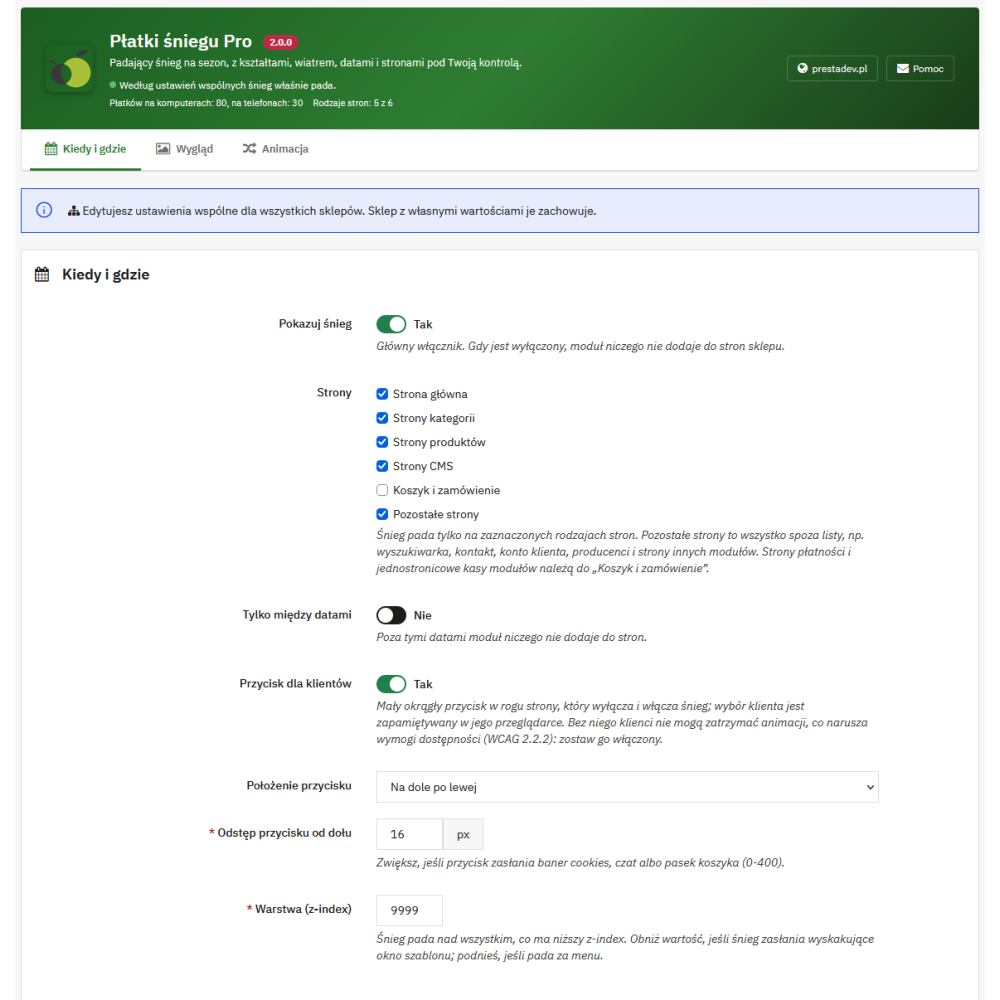
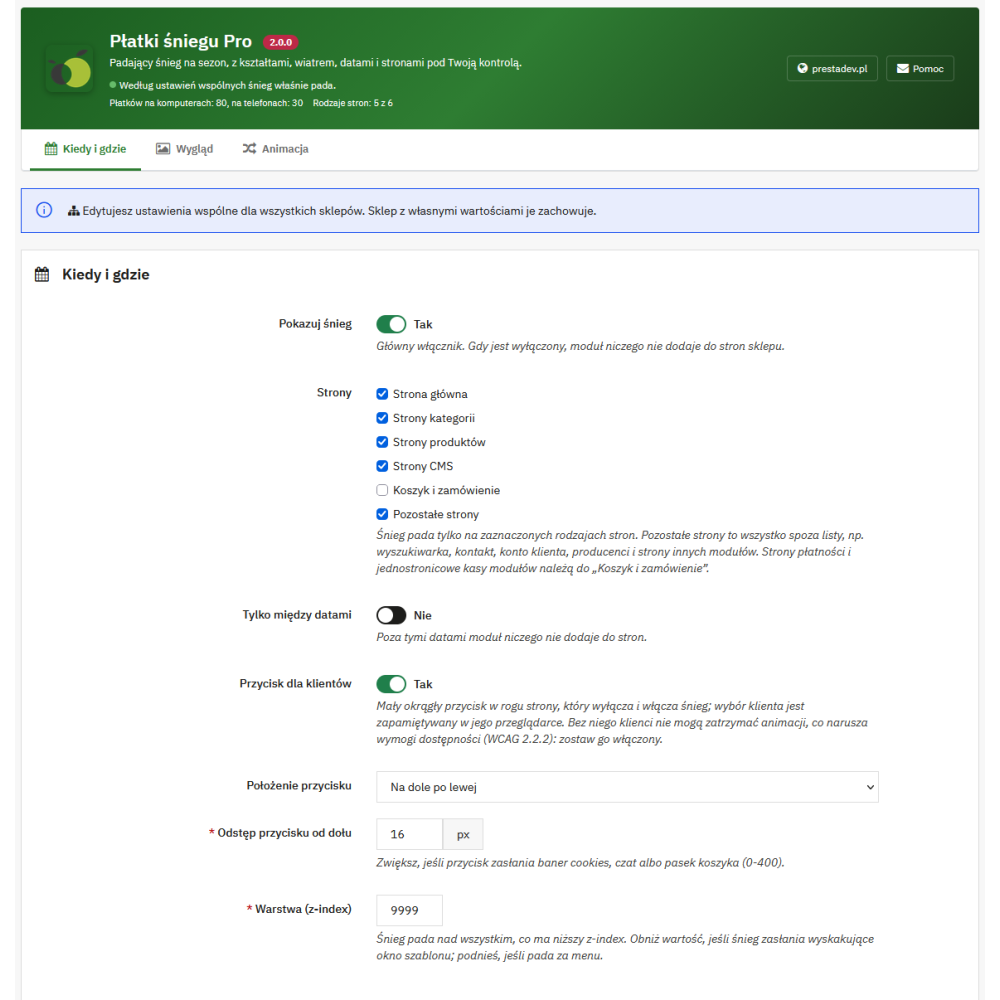
- Main “Show snow” switch. When it is off, the module adds nothing to the store pages.
- “Only between dates” date range. The “First day” and “Last day” fields are selected from a calendar; snow also falls on the last day of the range. Outside the range, the module adds nothing to the pages.
- “Every year” season. The year in the dates is ignored, and the snow returns every season, including when the range spans the turn of the year – for example from 1 December to 6 January.
- One-time range. Without the “Every year” option, snow falls only during the specified period. When the dates have already passed, the panel reports this and asks for new dates or for the range to be disabled.
- Store date. Whether today is a snow day is determined by the store’s current date.
- Dates described in words. In the panel header, the range is given in words, for example “Every year from 1 December to 6 January”, and outside the season, information appears about when the snow will start falling.
Which store pages have snow
- Six page types to select. Home page, category pages, product pages, CMS pages, cart and checkout, and other pages.
- Other pages. This includes everything outside the list, for example search, contact, customer account, manufacturers, and pages of other modules (also a module page whose name resembles a store page, for example a blog category page).
- Cart and checkout. These include the cart, checkout process, order confirmation, payment module pages, and checkout pages of modules whose controller name contains the word “checkout”, for example one-page checkouts.
- Default settings. After installation, snow falls on all page types except cart and checkout.
Flake appearance: shapes, dots, color, and glow
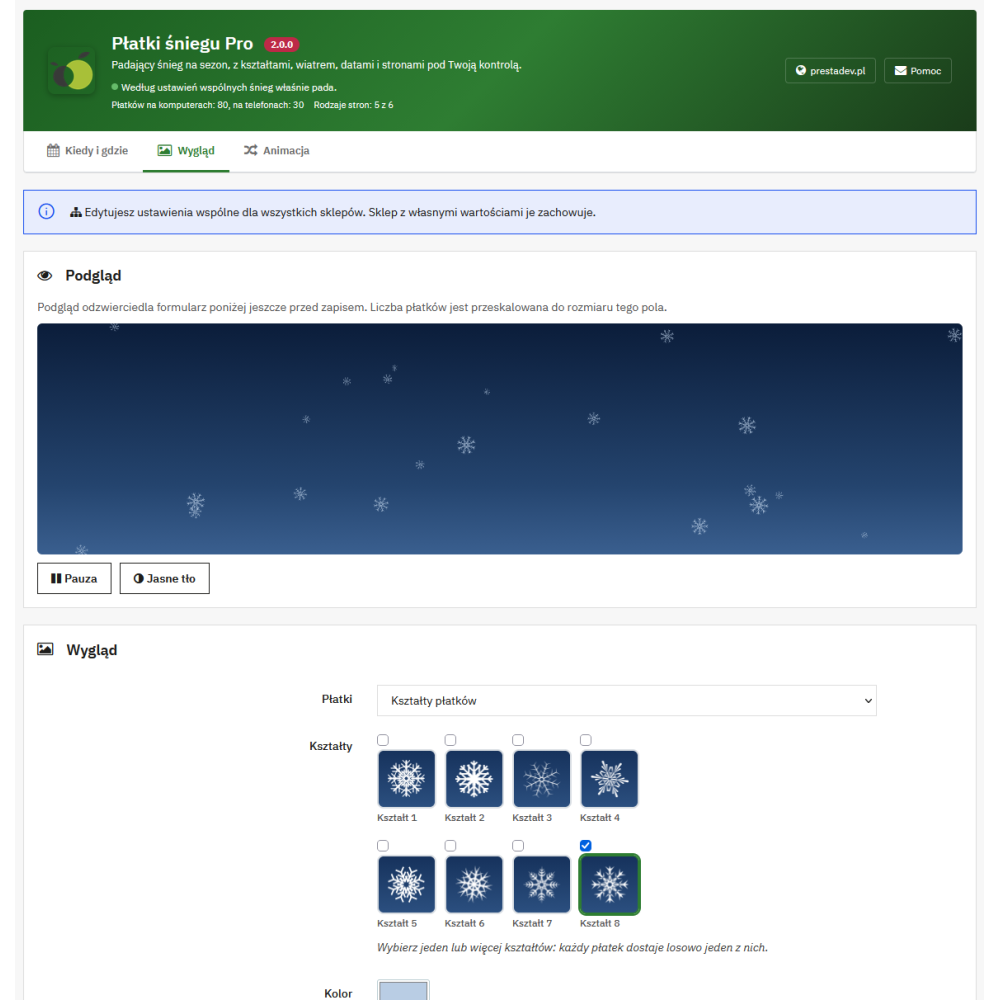
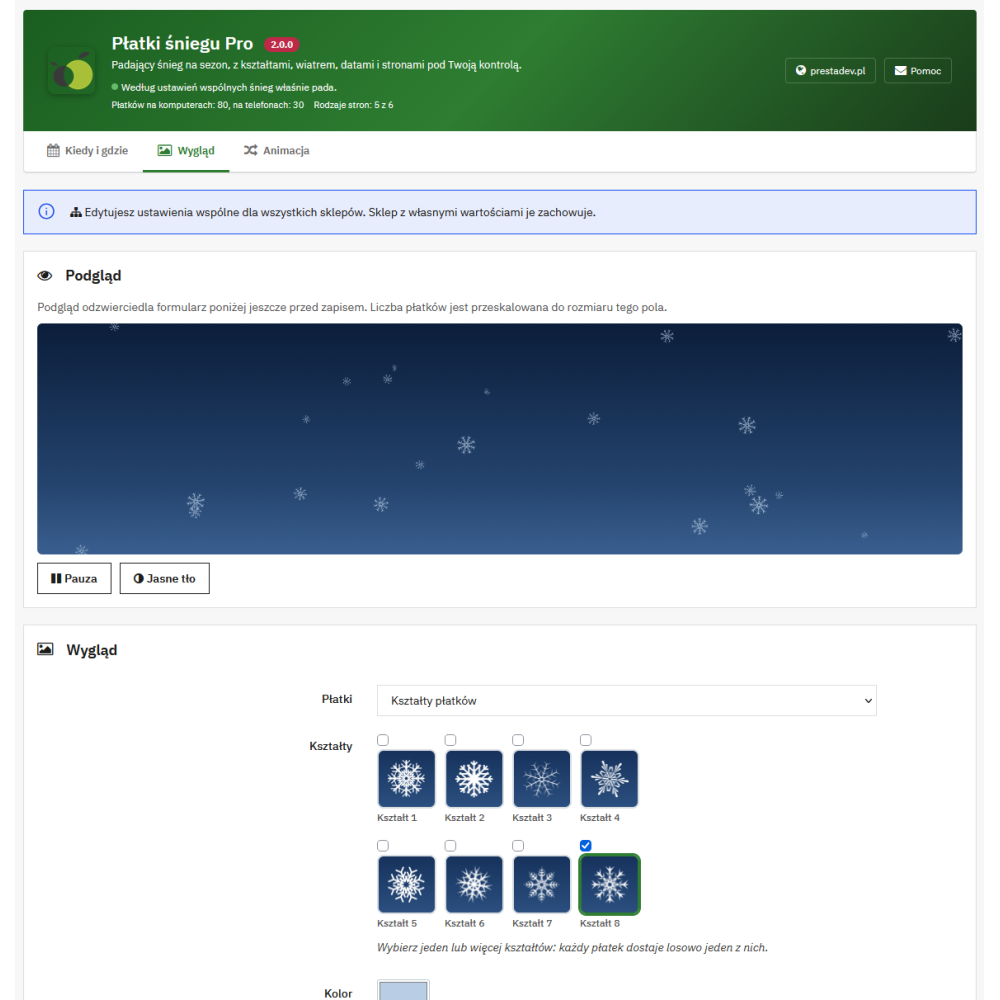
- Three snow styles. Flake shapes, round dots, or shapes and dots together.
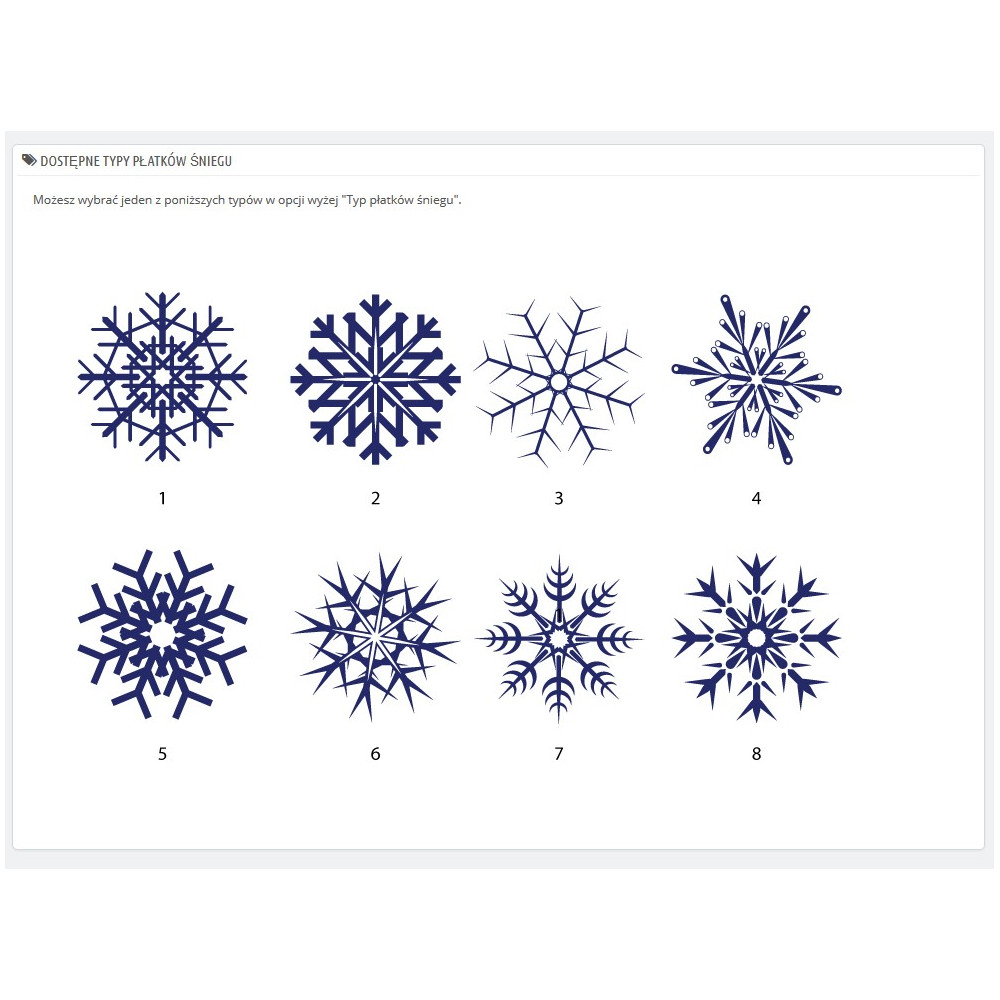
- Eight flake shapes. You choose one or several; each flake is randomly assigned one of the selected shapes.
- One color for all snow. The color in #RRGGBB format colors both dots and shapes (default light blue #b9cde4).
- Opacity from 10 to 100. From barely visible snow to full opacity.
- Size from 2 to 80 px. Each flake gets a random size between the smallest and the largest.
- Subtle glow. Helps white snow stand out on a light page.
- Shape rotation. Flake shapes slowly rotate while falling.
- Depth effect. Larger flakes fall slightly faster and are more distinct, as if they were closer.
Number of flakes on computers and phones
- Computers and tablets. From 1 to 400 flakes at the same time (default 80).
- Phones. A separate number from 0 to 400 (default 30); a value of 0 disables snow on phones and hides the customer button there.
- Phones rotated horizontally. The module treats as a phone a window up to 767 px wide or a touch screen whose shorter side is up to 767 px, so a phone rotated horizontally still gets the number of flakes for phones.
Snow movement: speed, wind, sway, and duration
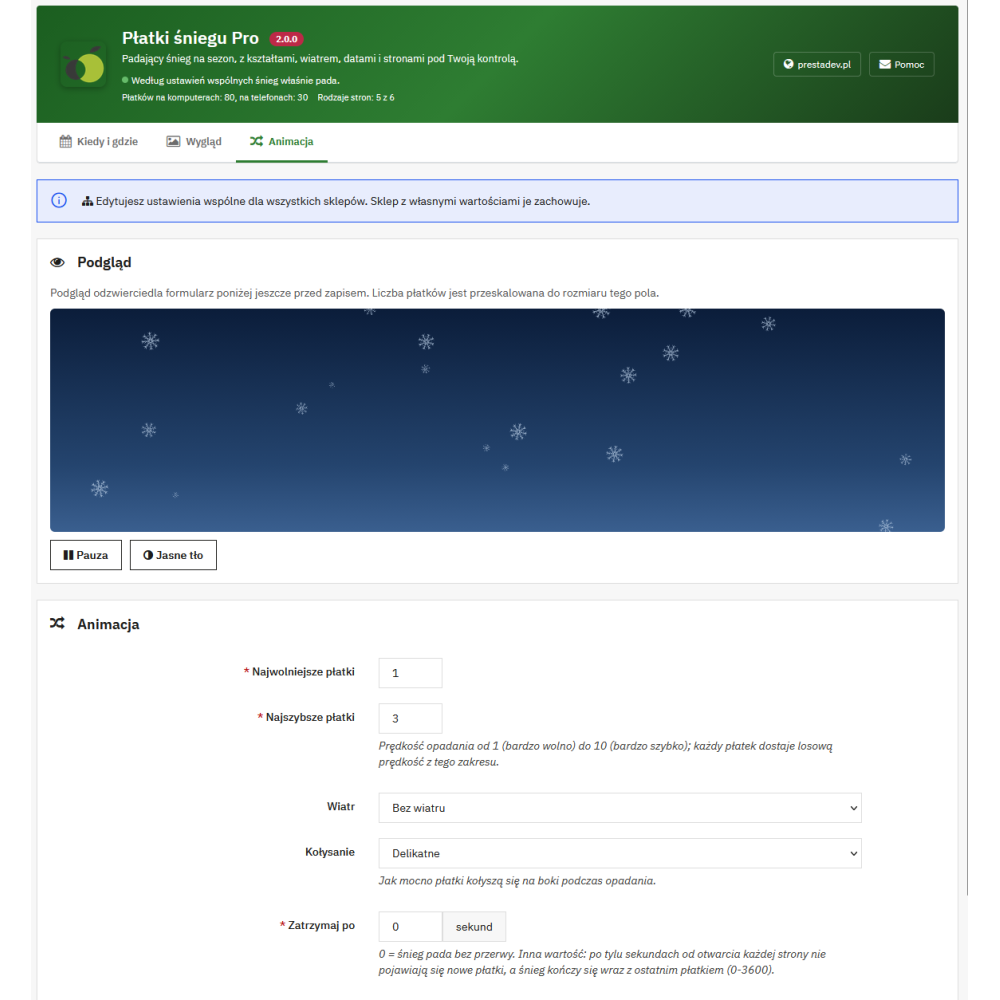
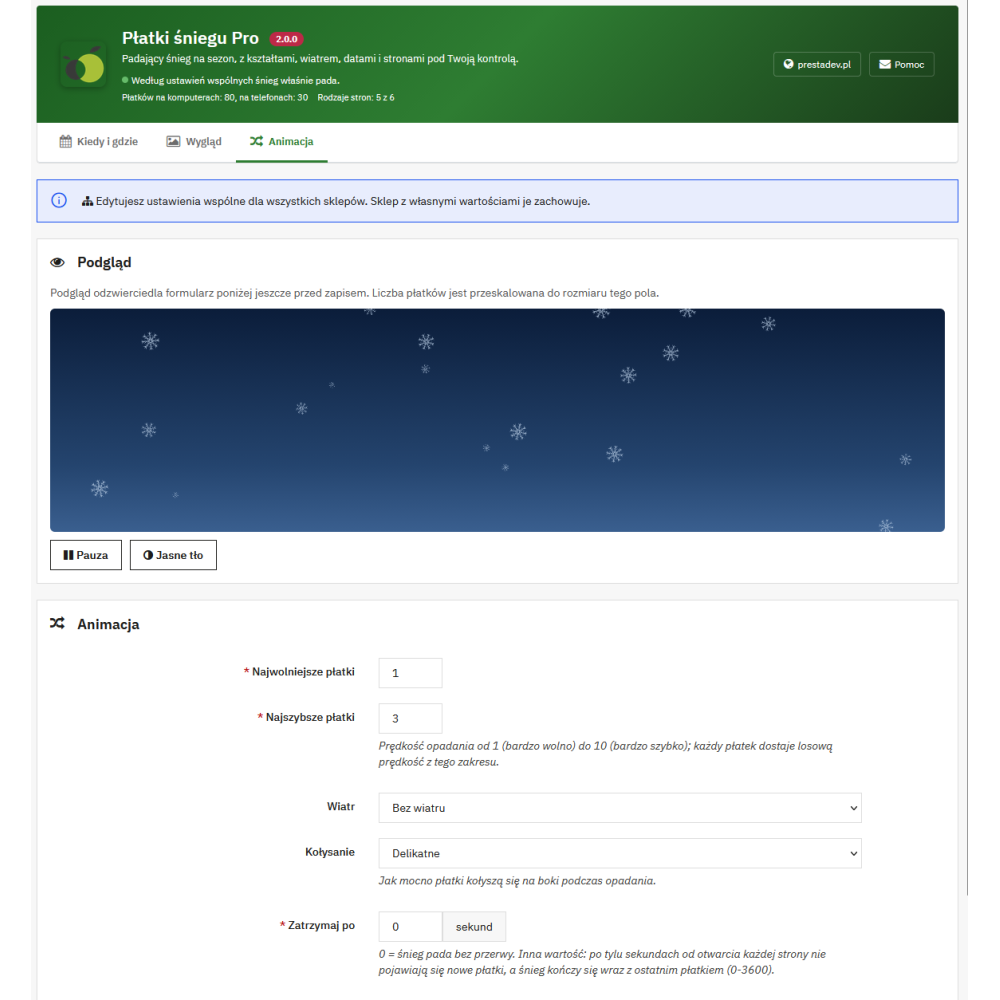
- Speed from 1 to 10. The slowest and fastest flakes define the range; each flake gets a random speed from that range.
- Wind. No wind, or light or strong wind to the left or right.
- Sway. No sway, gentle, medium, or strong side-to-side swaying of the flakes.
- Stop after a time. A value of 0 means continuous snow. Any other value (up to 3600 seconds) means that after that many seconds from opening each page, no new flakes appear, and the snow ends with the last flake.
Customer button and accessibility
- “Turn snow off” / “Turn snow on” button. A small round button with a flake icon, at the bottom of the page on the left or right. It works with the keyboard, has a clear focus outline, and a label for screen readers.
- Adjustable bottom offset. From 0 to 400 px – useful when the button is covered by a cookie banner, chat, or cart bar.
- Remembered choice. The customer’s decision is saved in their browser for 90 days, so next season the snow returns. The module does not use cookies for this.
- Reduced motion. With the “Respect ‘reduce motion’” option, customers whose system asks to reduce animation do not see snow until they turn it on with the button.
- WCAG 2.2.2 requirement. The button allows motion lasting longer than 5 seconds to be stopped. If you disable it, the panel header warns that customers cannot stop the snow.
- A layer that does not interfere. The snow does not capture clicks, is hidden from screen readers, and does not appear in page printouts.
Lightweight script that does not burden the store
- No jQuery. The script does not need jQuery, so it also works with the Hummingbird theme from PrestaShop 9.
- One canvas layer. All snow is drawn on a single element above the page; the store content, URLs, and layout do not change.
- Files only where snow falls. When snow is disabled, outside the dates, or on an unselected page type, the module does not add any script, style, or settings to the page.
- Pause in the background. The animation stops when the browser tab is not visible and adapts to window resizing.
- Sharp flakes on high-density screens. The layer is drawn with the screen pixel density taken into account (up to double), so the flakes remain sharp.
- No external services. The script, styles, and flake images come from the module directory on the store server.
- Snow as decoration. An error on the module side does not interrupt the display of the store page.
Configuration panel with live preview
- Three tabs. “When and where”, “Appearance”, and “Animation”.
- Header with store status. It says whether snow is currently falling, and if not – why: module disabled in the module manager, not hooked to displayHeader, snow disabled, no pages selected, waiting for dates, or dates that have already passed. It also shows the number of flakes on computers and phones and the number of selected page types.
- Live preview. On the “Appearance” and “Animation” tabs, the preview reflects the form even before saving; it can be paused and switched to a light background. The number of flakes is scaled to the size of the preview area.
- Only the necessary fields. Date fields, button position, and shapes are hidden when they are not relevant for the current setting.
- Clear messages. An invalid field is highlighted, and the message says which range or format is allowed. Before switching to another tab with unsaved changes, the panel asks about them.
- Safe saving. Settings can only be changed by an employee with permission to configure the module, and every value is validated before saving.
Multistore
- Shared, group, and store settings. You can edit shared settings for all stores, settings for a store group, or settings for a single store.
- Only what you change becomes custom. In a store or group, only a changed field becomes a custom value; the rest still follows the parent settings. Related settings – smallest and largest flake, slowest and fastest flakes, and dates – are saved together.
- Full scope information. The panel states which scope you are editing, how many settings have a custom value, and which stores or groups have custom settings.
- Return to parent settings. The “Use shared settings” or “Use group settings” button removes custom values after confirmation.
- Employee permissions. An employee with access only to some stores cannot change the settings of stores they do not have access to.
- Stores without snow. The header states in how many stores the module is disabled or not hooked, which means snow does not fall there.
Update from version 1.0.x
- Settings migration. Number of flakes, layer (z-index), sizes, speeds, opacity, color, shadow (as glow), choice of shape or dots, and the setting to display snow only on the home page are carried over to the new version – including values set for individual stores and groups.
- Cleanup after the old version. Old hooks to header, footer, and displayFooter are replaced with the displayHeader hook, and version 1.0.x files that the new version does not use (including the jQuery plugin and generated styles) are removed from the module directory if file permissions allow it.
Requirements and compatibility
- PrestaShop 1.7.0–9.x and PHP 7.0–8.5.
- Themes. Classic and Hummingbird; the script does not require jQuery.
- No dependencies. No Composer and no additional libraries.
- No custom tables. Settings are saved in PrestaShop configuration; uninstalling removes them, together with the settings from version 1.0.x.
- Languages. The module panel and customer button in Polish and English.
Important operating limits
- All snow has one color; there are no flakes in several colors at once.
- There are eight included shapes to choose from; the panel does not support uploading custom flake images.
- Snow is enabled for page types, not for selected categories, products, or individual CMS pages.
- Other pages are one group – it is not possible to enable snow separately, for example only in search.
- The “Stop after” time starts counting again on each opened page.
- The customer’s choice is saved in their browser; in private mode or with browser storage blocked, it applies only on the current page.
- A tablet gets the number of flakes for computers when the window is wider than 767 px and the shorter side of its screen is more than 767 px.
- Snow falls above everything with a lower z-index; if it covers a theme popup or falls behind a menu, the layer value must be adjusted (default 9999).