The order exists in PrestaShop, the payment has been accepted, and Google Analytics 4 does not show the purchase. Before you consider the campaign ineffective, check whether the store is sending the correct events to GA4 and when it does so. The tracking code on the site alone is not enough to measure sales. The order completion method, transaction identifiers, customer consent, and the amounts sent to reports also matter.
Why does GA4 show visits but not sales?
A page view and a purchase are separate events. For GA4 to receive sales information, the integration must send a purchase event with transaction and product data. Google describes this mechanism in the purchase event setup guide. The presence of users in the real-time report therefore confirms only part of the implementation.
Another common trap is comparing different data. In the store panel, you may count all created orders, while in analytics, you may register a purchase only after a specific status. Start with one specific transaction: determine its number, status, value, and the moment when it should be sent to GA4.
What should be measured between entering a product page and making a purchase?
E-commerce events make it possible to check at which stage the purchase path breaks off. A practical set includes:
| GA4 event |
What it describes |
How it helps |
view_item |
Product view |
Assessment of interest in the offer |
add_to_cart |
Adding a product to the cart |
Comparison of browsing with the purchase decision |
begin_checkout |
Starting the checkout process |
Verification of the transition from cart to completion |
add_shipping_info, add_payment_info |
Providing shipping and payment information |
Analysis of subsequent order steps |
purchase |
Recording a purchase |
Transaction and revenue analysis |
Such events are provided for in the GA4 e-commerce documentation and are supported by Google Analytics 4 Pro. You prepare the report or path exploration in Google Analytics. A large drop between stages is a clue to check the store: it may result both from customer behavior and from a missing event in a custom checkout.
The customer did not return from payment. Will the purchase be sent to GA4?
If measurement is triggered only on the order confirmation page, the customer must open it. Closing the tab after payment may interrupt this scenario, even though the order exists in the store. Therefore, the method of sending the purchase must be adapted to the actual payment flow.
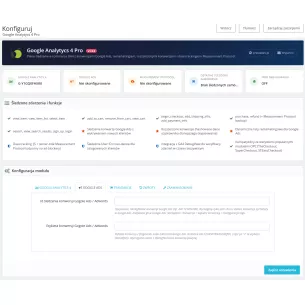
Google Analytics 4 Pro for PrestaShop provides three modes:
- Order confirmation page. The event is prepared after the customer enters the confirmation page. With a configured API Secret, the module can additionally send the purchase from the server.
- Order status change. The module sends the purchase via Measurement Protocol after switching to one of the selected statuses. This mechanism does not require the customer to reopen the page; it requires API configuration and a previously saved GA4 client identifier.
- Clicking the order confirmation button. This is a variant dependent on how the checkout form works. The click itself does not confirm receipt of payment, so the failed payment scenario must also be checked.
If you want to measure paid orders, select statuses corresponding to payment acceptance. For cash on delivery, establish a separate rule: order acceptance and later settlement of the amount due are different moments.
Does Measurement Protocol solve the problem of ad blockers?
Measurement Protocol makes it possible to send events from the store server directly to Google Analytics. It can reduce the dependence of purchase measurement on the browser script. Google presents it as a supplement to standard data collection.
In Google Analytics 4 Pro, server-side sending also requires the client_id identifier to be saved with the order. The module retrieves it from the _ga cookie. If such an identifier is not available, the code skips sending via the API. Additionally, fallback sending in confirmation page mode still requires opening that page. Therefore, for the issue of not returning from payment, the status change mode is what matters. None of these mechanisms provides grounds for promising measurement of every order.
Why does the amount in GA4 differ from the order amount?
Check what you are comparing. According to the purchase event specification, the value parameter should correspond to the sum of product prices multiplied by their quantities, excluding tax and shipping. The tax and shipping fields are separate. When sending values, a currency is also required, e.g. PLN.
Example: two products at 100 PLN net each give value = 200. The amount paid by the customer will be higher if VAT and shipping were added. Comparing those 200 PLN with the full gross order amount does not in itself prove revenue loss.
During implementation, also check the discount, coupon, quantities, and currency. A cart with a discount covering the entire order requires separate verification: the transaction value and the sum of item values must be aligned with each other.
Where do duplicate purchases and unaccounted refunds come from?
Check whether purchase is being sent simultaneously by the module, Google Tag Manager, and additional code in the theme. For the web stream, GA4 uses transaction_id to deduplicate purchases from the same user. Each transaction should have its own non-empty identifier, preserved when the same purchase is resent.
In confirmation mode and server-side sending, Google Analytics 4 Pro uses the order reference as the transaction_id. Even so, after combining several integrations, check the actual events: different identifiers for the same purchase may distort the result.
The module also supports refund after changing the order to a selected refund status. This sending requires an API Secret and a saved client_id, and includes the full value and order items. In the case of a partial refund, e.g. one out of three units, separate handling of the correct amounts and quantities is required. Assigning a refund status in this module does not automatically account for any partial adjustment.
What about consent and Consent Mode v2?
Consent Mode passes information about user consent to Google tags. It requires cooperation with a banner or another mechanism for collecting decisions. Google documentation distinguishes between basic and advanced modes, in which data sending before consent and after refusal works differently.
The GA4 module does not replace consent configuration. In its integration with PD Cookie Pro, support for the advertising signals ad_user_data and ad_personalization for server-side sending has been implemented. However, the behavior of the entire measurement setup must be checked with the banner operating in the given store. Enabling API Secret does not mean the user has consented to analytics or advertising.
How to check measurement on a single order?
- Check the data destination. The
G-… identifier in the module should correspond to the web stream you are viewing in GA4. Also determine which other integrations are sending events.
- Go through the purchase path. Open a product, add it to the cart, and start the order. The module has a browser event debugging mode; you can view the parameters in DebugView. Perform the check with analytics consent granted, and verify behavior after refusal separately.
- Verify the purchase. Compare
transaction_id, value, currency, and items with the order. Include products with variants and discounts.
- Check the selected sending moment. In status mode, change it to the configured purchase status. Separately go through a payment without returning to the store and a failed payment.
- Check repetition and refund. Refresh the confirmation, inspect the number of transactions, and verify a full refund. Confirm the result of server-side events separately in GA4: the debugging switch in the module applies to the browser tag.
Standard reports need time to process data. Google states that this may take 24–48 hours. The absence of a purchase in the report shortly after the test does not yet determine that there is an error.
GA4 in PrestaShop: frequently asked questions
Is Google Tag Manager required?
No. Google Analytics 4 Pro loads the Google tag and sends events via gtag.js. If the store already uses GTM, define the scope of both implementations so that they do not send the same purchases independently.
Should all orders match one to one?
First compare the same period, statuses, currency, and method of calculating amounts. Differences may also result from consent, blocked measurement, and processing delays. GA4 is used for analyzing behavior and sales; base order settlement on store and payment data.
Where should you start if the reports are empty?
Start by checking the GA4 identifier and one purchase. Determine whether the event is generated, contains products and value, and reaches the correct stream. Only then compare aggregate campaign reports.
Google Analytics 4 Pro makes it possible to implement e-commerce events in PrestaShop and choose a method of recording purchases suited to how the store operates. Start with this configuration and one verified transaction: then it is easier to determine whether a low campaign result is due to sales or to gaps in measurement.


Comments (0)