The list of products for the weekend promotion is already in the spreadsheet. Mugs are to get a 10% discount, backpacks 15%, and selected shoes 20%. Now these arrangements need to be transferred to PrestaShop, the dates need to be checked, and the prices previously prepared for other customers must not be affected. With a larger number of products, manually opening each product page becomes a separate task.
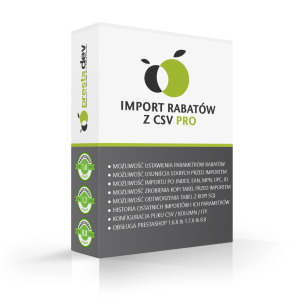
Importing discounts from CSV into PrestaShop consists of matching products or combinations to the file rows and saving specific prices for them. The Import discounts from CSV Pro module supports percentage discounts, net amount discounts, gross amount discounts, and fixed net prices. The result therefore depends both on the number in the spreadsheet and on the selected way of interpreting it.
When should you use specific prices in PrestaShop?
Specific price is a built-in PrestaShop feature. It allows you to set a product price valid for a specific period, for a selected customer group, currency, country, or from a specified quantity. These conditions are described in the official guide to creating specific prices.
Import is useful when the list of products included in the campaign and the discount amounts are created outside the store. Examples include a sale of selected SKUs, a price list for a wholesale group, or a quantity promotion from 5 units. The module saves such conditions in bulk, based on a file.
If, on the other hand, a new supplier price list is meant to permanently change the basic catalog prices, that is a different task. We described it in the article about updating prices in PrestaShop from CSV. Importing specific prices does not overwrite the product’s base price and does not create cart discount codes.
Percentage discount, amount discount, or fixed price? Check what the number means
Let us assume the product costs PLN 100 net, which is PLN 123 gross with 23% VAT. The CSV contains the value 20. The results below apply to this single rule, without other discounts or additional charges.
| Selected mode |
What does the value 20 mean in CSV? |
| Percentage discount |
A 20% reduction. Price after discount: PLN 80 net, i.e. PLN 98.40 gross. |
| Net amount discount |
Subtracting PLN 20 from the net price. In this example, also PLN 80 net and PLN 98.40 gross. |
| Gross amount discount |
Subtracting PLN 20 from the gross price. The customer will pay PLN 103 gross. |
| Fixed net price |
Setting the specific price to PLN 20 net, i.e. PLN 24.60 gross. This is the price, not the discount amount. |
In percentage mode, enter 15 if you want to grant a 15% discount. The value 0.15 means 0.15%. The “discount” header itself does not choose the calculation method: you set the value type in the import configuration. For amounts and fixed prices, also check the selected currency.
How to prepare a CSV with discounts?
For a basic import, two columns are enough: identifier and value. A sample file for three products may look like this:
reference;value
MUG-001;10
BAG-002;15
SHOE-003;20
For this example, choose matching by product reference, semicolon separator, skipping the first row, and percentage discount. Assign the reference column to the identifier and value to the value. The remaining export columns can be skipped during mapping.
Identifiers must match the data in the store. The module supports, among others, reference, EAN-13, UPC, and the corresponding product or combination identifiers; MPN is available when it exists in the given store version. In the spreadsheet, keep codes as text so that leading zeros are not lost. Before import, remove accidental duplicates and check whether the same code does not point to several items.
Promotion dates and customer group are shared for the run
In this module, the CSV provides the identifier and the value. Customer group, country, currency, quantity threshold, and validity dates are settings for the entire import. Therefore, it is not possible to assign a different promotion period to each row by adding a date column.
You can prepare one run for retail customers with discounts from 1 unit, and another for the wholesale group with prices from 5 units. If some promotions are to end earlier, split them into a separate import. For recurring campaigns, saved setting profiles are helpful.
Setting dates allows you to upload a promotion before it starts. PrestaShop then checks later whether a given price falls within the validity period. CRON is not needed solely for a specific price to stop applying after the saved end date.
Promotion for a product or for a specific variant?
The module allows import for products, combinations, or in mixed mode. However, a discount for the entire shoe model and a discount only for size 42 are two different scopes. In the second case, the file must indicate the correct combination, not just the parent product.
With a fixed net price, there is one more important difference: the price assigned to a specific combination defines the entire net price of that variant. It is not a surcharge to the base product. In turn, with a fixed price saved at the product level, PrestaShop may add the price impact of its combinations. Therefore, it is worth testing both on a simple product and on a variant with a surcharge.
What will happen to promotions that are already active?
The module distinguishes specific prices created by itself from others. If you re-import your own discount for the same product or variant and the same conditions, it can update its value. If an identical set of conditions is occupied by someone else’s entry, it skips such a record instead of taking over a foreign promotion.
Changing the customer group, currency, country, quantity threshold, dates, or store may mean creating a separate rule. Therefore, re-import itself is not a command to “replace all previous promotions”.
In addition, several specific prices may match a single purchase. PrestaShop selects the rule according to the priority mechanism, as described in the price priority management documentation. Do not assume that two percentage discounts will automatically be added together. An entry in the import report confirms the operation on the data; check the final price for the correct customer, variant, and quantity.
How to run a bulk discount import without mixing up the conditions?
- Prepare a small sample. Choose a few products, including a variant with a surcharge and an item that already has a promotion. Compare their identifiers with the file.
- Determine the value type and recipients. Check net or gross, percentage or fixed price, currency, group, country, quantity, and dates. These settings apply to the entire run.
- Set safeguards. The module offers a discount limit and a zero or negative price lock. The limit refers to the catalog price, not the lowest price from the last 30 days. Purchase price control covers base products with a known positive cost; it does not replace margin calculation for variants.
- Keep the option to roll back changes. Before saving, enable a snapshot, i.e. saving the data needed to restore replaced entries. Do not delete the required import history.
- Run a simulation. Trial mode analyzes the data without saving specific prices. Explain missing matches, skips, and exceeded limits before the actual import.
- Check the store after saving. Compare the price on the product page and in the cart. For a wholesale offer, use a customer from the correct group and check the quantity below and above the threshold.
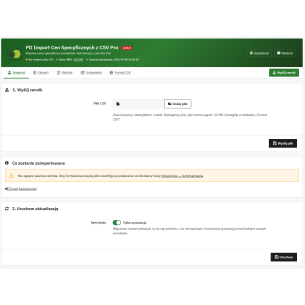
When the same CSV format returns regularly, you can use a profile and file download from an external source. Automatic download and import require calls from an external CRON scheduler. The frequency of these calls determines how often the store receives new data; changing the spreadsheet does not update the store immediately.
Promotion import and the lowest price from the last 30 days
When announcing a discount to consumers, the obligation to inform about the lowest price from the 30 days before its introduction must be taken into account. For products sold for a shorter period, a correspondingly shorter period applies; details and exceptions are explained by UOKiK in its information on price reductions.
Import discounts from CSV Pro saves specific prices. It does not keep a history of the lowest prices for the purposes of this obligation and does not display the required information on the product page. The snapshot for rolling back an import serves a different purpose. If you use a separate solution for price history, check whether it also records promotions introduced through import.
Frequently asked questions about importing discounts from CSV
Does entering zero in CSV remove the discount?
No. A zero or negative value is skipped as invalid. In percentage mode, a discount of 100% or more is also skipped. The absence of a product in the next file also does not remove its previous specific price.
Can an incorrect import be rolled back?
The module has a rollback function: it removes its own entries created by the run and can restore replaced data from the saved snapshot. The result depends on the available history and later changes. If the place of the restored entry has been taken by another promotion, the rollback may skip that item; check the operation report.
Does uninstalling the module end promotions?
No. Imported specific prices remain in PrestaShop after uninstallation, while the module history is removed. If you want to withdraw the import, do it before uninstalling. For planned campaigns, set an end date.
Can discounts be imported only for the B2B group?
Yes, by selecting the appropriate customer group in the run settings. You can also specify the quantity threshold and period. The conditions are shared for all rows of this import, and the correctness of the price must be checked after logging in as a customer belonging to that group.
Bulk import makes sense when the product list is ready and the promotion rules are clearly defined. Import discounts from CSV Pro for PrestaShop transfers values from the file into specific prices, allows you to run a simulation beforehand, and reports the result. For the first campaign, start with a few SKUs: this test will show whether the spreadsheet, the conditions, and the price visible to the customer all say the same thing.


Comments (0)