
Shopping Cart

WebP in the store — package selection and requirements
The current offer separates packages: 2.1.5 for PrestaShop 8.x/9.x and 1.0.5 for PrestaShop 1.6.x/1.7.x. The configuration details below were verified in the code of version 2.1.5. The scope of the older 1.0.5 package should be checked separately before implementation.
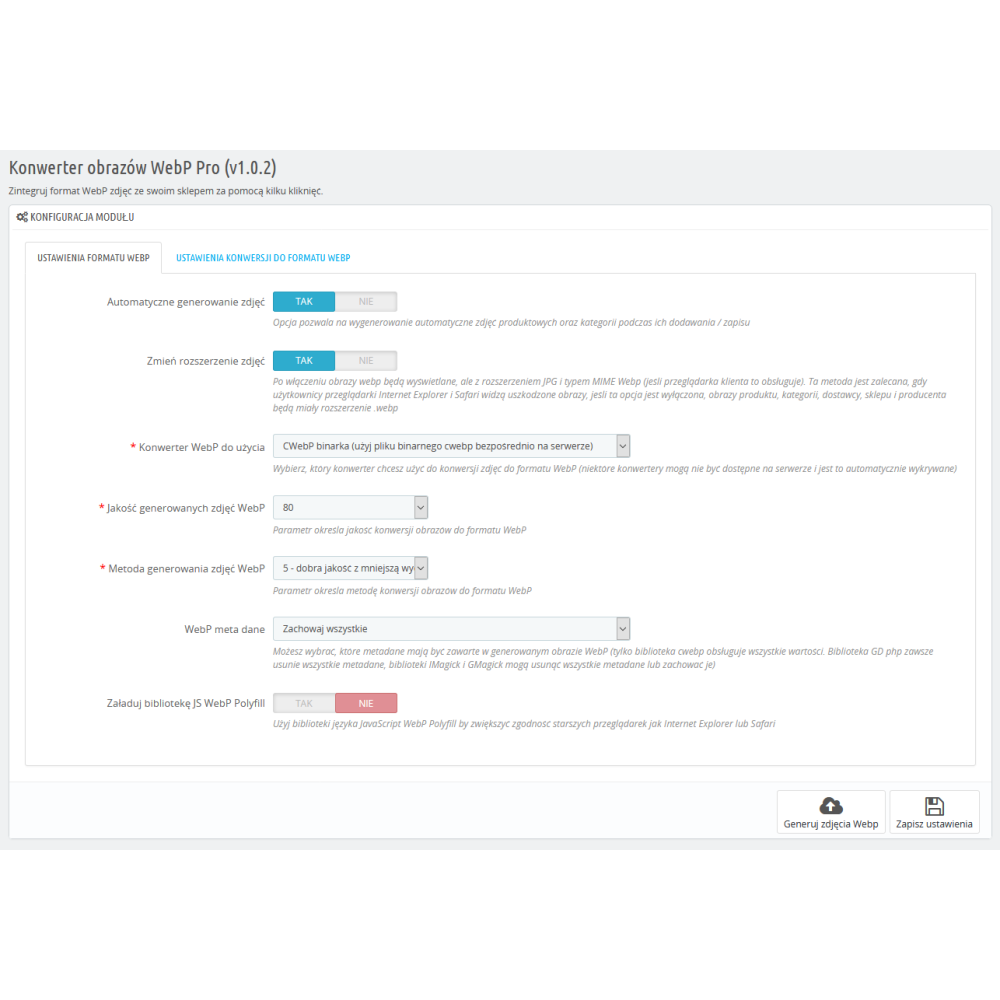
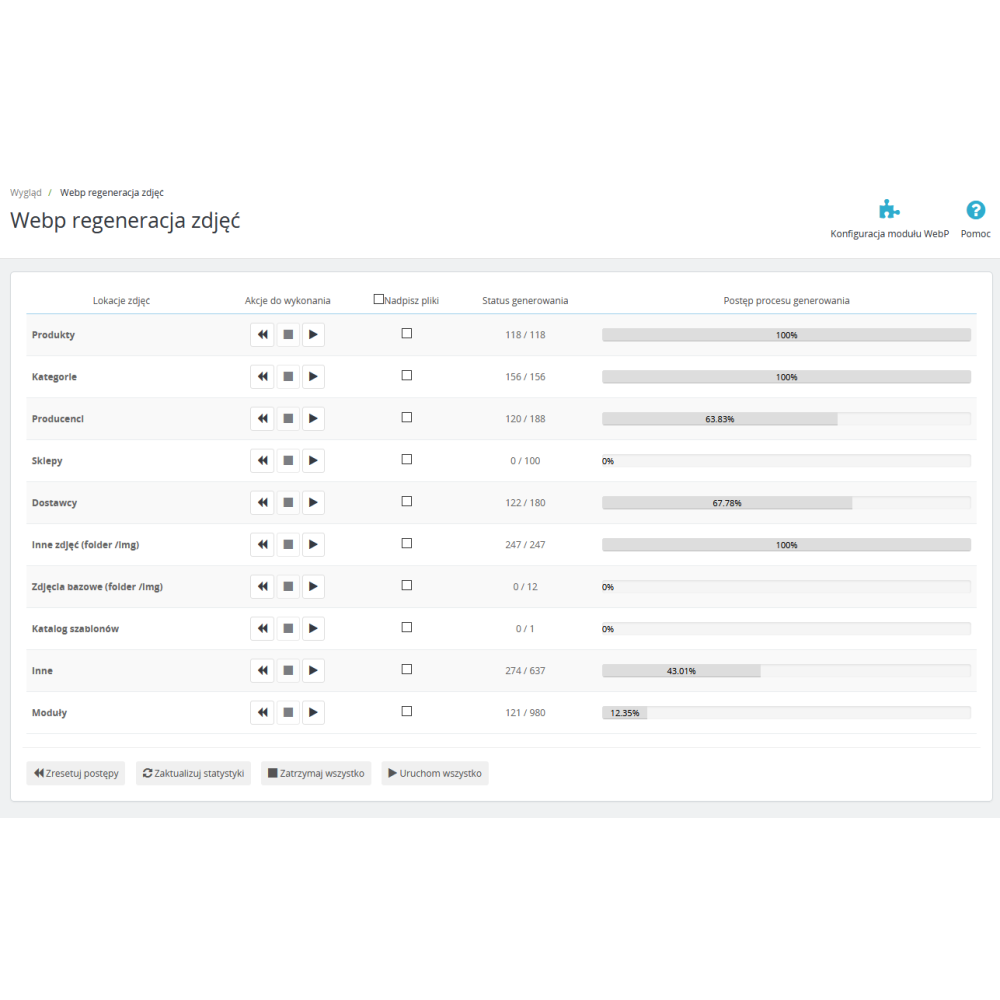
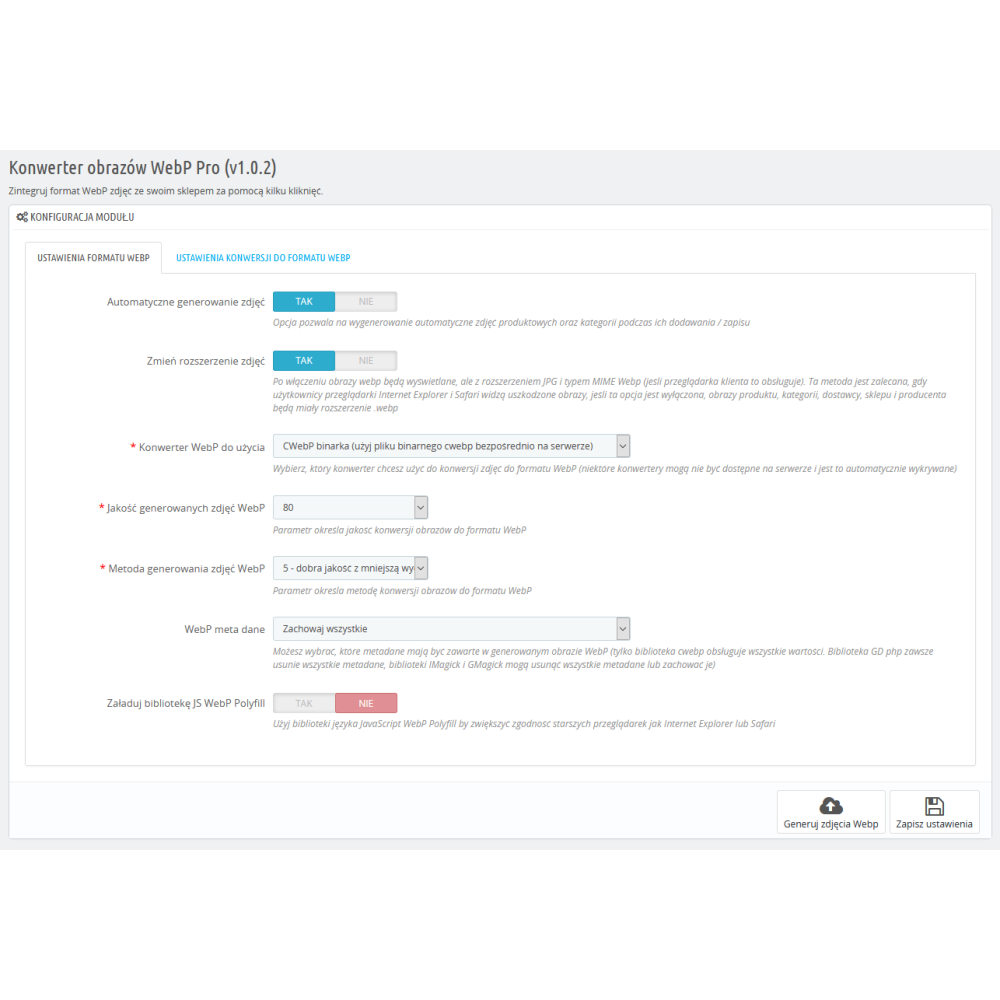
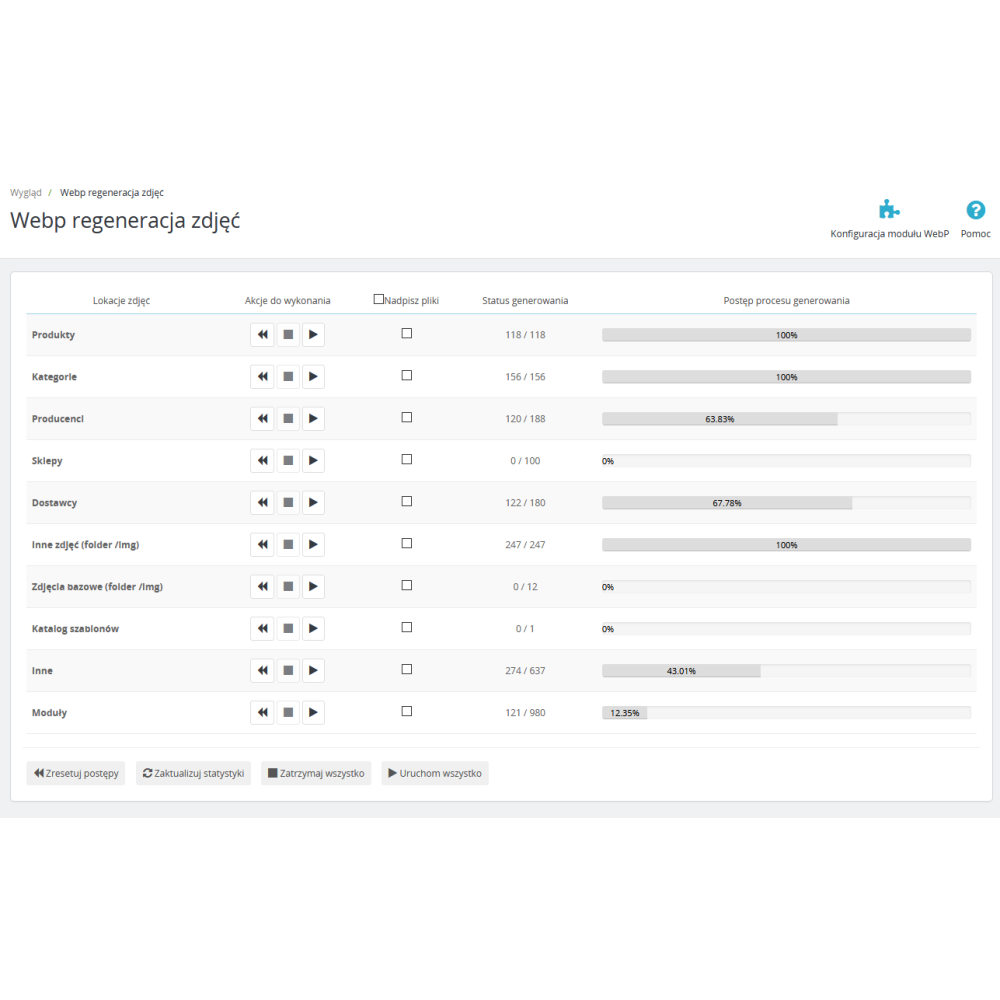
- Automatic handling of added images. In version 2.1.5, you can enable handling of product and category images when they are added. After PrestaShop creates the image, the module adds a task to the queue; obtaining the WebP file requires processing this queue. Saving the product alone does not confirm that the conversion has finished.
- The converter depends on the server. The availability of cwebp, Imagick, Gmagick or GD is checked in the store environment. The included cwebp program also requires the ability to run on the given server. Including the file alone does not ensure compatibility with every hosting environment.
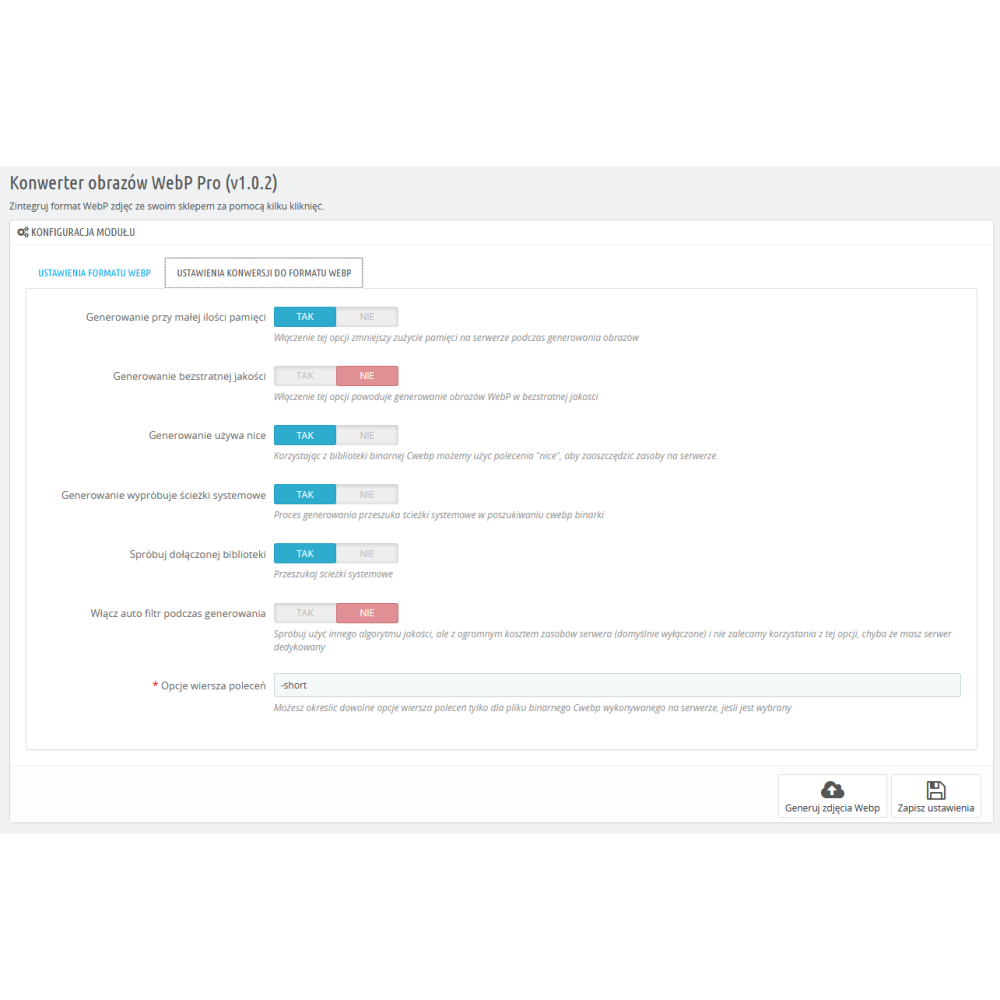
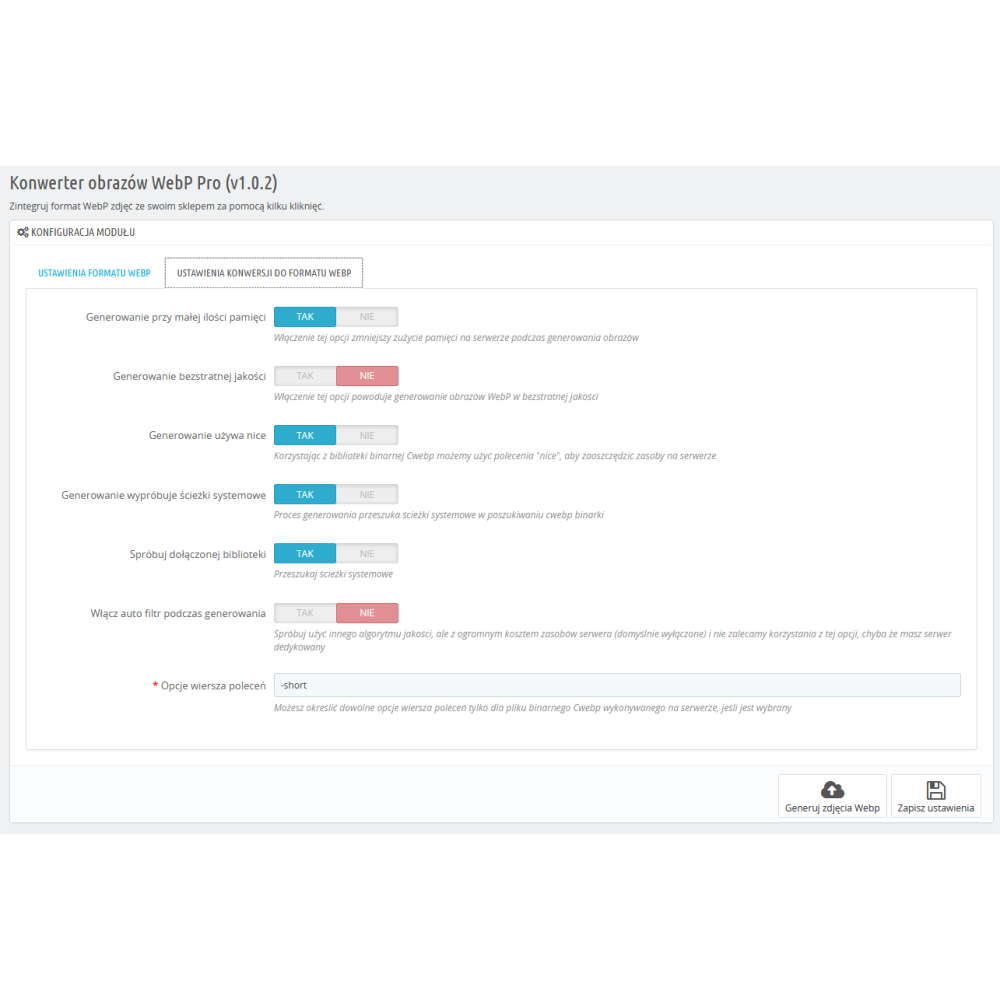
- Quality and compression method are separate settings. In the 2.1.5 panel, quality is selected in the range 10–100, in steps of 10. In the module panel, the cwebp method is selected in the range 1–6 and controls the computational effort during encoding; it is not a six-level image quality scale. In lossless mode, the cwebp quality parameter controls compression effort, not quality loss.
- Lossy and lossless mode. Compare the result with the source file. WebP does not have to be smaller in every case, and conversion time and memory usage depend on the image, settings and converter.
- Metadata and memory saving. The available options should be evaluated for the selected converter. In cwebp, the low_memory option applies to lossy mode with method at least 3; it may extend encoding time.
- Image handling and multistore. Before full conversion, check the scope of the selected images, the store context, write permissions and free space. Test product and category images in the sizes used by the theme.
- Browser and theme. The optional WebP polyfill requires separate verification in the target browser. It does not replace testing image delivery and does not guarantee compatibility with all older browsers.
Example and acceptance criteria
In the WebP guide, we show our own sample of three images: input and output files, settings and response sizes. This is a sample that allows the comparison to be reproduced; the result for your own catalog must be measured separately.
- On a copy of the store, select a small sample of images and save the conversion settings and file sizes before the change.
- After conversion, check the quality, the thumbnails used and the actual response Content-Type in the browser, taking cache and CDN into account.
- Only after the sample produces a correct result should you determine the conversion pace for the remaining images appropriate to the hosting limits.
Technical verification of the description: PrestaDev.pl, 28.09.2026. Basis: module code 2.1.5 and the package list in the offer; cwebp parameters are described in the Google documentation. Verification of the description is not a performance test of your store.
Link to the module demo:
Admin panel demo:
https://moduly-prestashop.eu/pdwebppro/admin-dev
Front office demo:
https://moduly-prestashop.eu/pdwebppro
Image conversion and delivery are two separate stages
After generating WebP, check the specific image in the browser tools. The selected variant, server rules and cache determine what reaches the client. The control steps are described in the WebP in PrestaShop guide.
What should be checked before launch?
- Check currentSrc, Content-Type, dimensions and response size on mobile and desktop.
- Compare image quality and the presence of the thumbnails used. The conversion counter does not confirm all theme sizes.
- Separate file size reduction from server response time and other causes of a slow store.