Enabled WebP conversion does not determine which image the browser downloads. Check the actual request in the Network tab: the selected URL, the Content-Type header, the dimensions, and the response size. Only then can you determine whether the issue is a missing proper variant, a server rule, cache, or an image that is too large.
This guide is for PrestaShop store owners who already have WebP enabled but still see heavy images or poor performance results. It includes a real, controlled test of three illustrations and a way to separate file conversion from delivery to the client.
1. Start with the image visible on a specific page
Choose one image on a product page or product listing. Do not start with a random file in the server directory: the theme may use a different thumbnail, a variant for a higher pixel density screen, or a CDN URL. A WebP version of the original does not automatically replace all required sizes.
Open the developer tools, go to Network, disable cache for the duration of the test, and refresh the page. Select the image filter. For lazily loaded images, scroll to the area being examined. Record the URL, response type, size, and whether the data was actually fetched from the network. These options are described in the Network documentation in Chrome DevTools.
Do not compare a full JPEG download with a WebP row marked as memory cache. Such a result describes different conditions. Likewise, a small transfer with a 304 response does not mean that the image file itself suddenly has only a few bytes.
2. A .jpg URL may return WebP
In the WebP Pro 2.1.3 sources, image delivery may work through Apache rules: a JPG or PNG request is rewritten to an existing WebP variant if the browser declares support for it. So the URL visible in the HTML may still end with .jpg, while the response has the type image/webp.
That is why viewing the page source alone is not enough to conclude “WebP is not working.” Check the format of the received response. On the other hand, a .webp entry in the settings or the existence of a file on disk does not prove that the proper rule is being executed on the server handling the store.
How to interpret an observation from the browser
Observation
Possible conclusion
Next step
URL .jpg, Content-Type image/webp
The server delivered WebP while keeping the original source URL.
Check the dimensions and bytes of that variant.
URL .jpg, Content-Type image/jpeg
JPEG was delivered in this test.
Check the presence of the exact WebP variant, server rules, and cache.
WebP exists, but it applies to a different size
The conversion does not correspond to the file selected by the theme.
Add the required thumbnail type or the proper queue scope.
The image comes from a CDN
The response is not delivered directly by the main store server rule.
Verify the format, cache key, and refresh on the CDN side.
WebP has a high resolution
The format may be correct, but the selected image is still too large.
Compare the natural dimensions with the display size.
3. Check srcset, picture, and the selected variant
With responsive images, the browser selects a resource based on the page and device conditions. Check the img element, any srcset and sizes, and for picture, also the source elements. The currentSrc property helps identify the actually selected URL instead of relying on the first entry in the code.
The picture element allows alternative sources to be delivered, for example by format or media condition; the selection rules are presented in the picture element documentation. Not every theme uses this mechanism, and not every store needs HTML changes if format negotiation works correctly on the server side.
Repeat the test for mobile. An image 2000 px wide used in a small thumbnail remains an unnecessary burden, even after conversion. Size selection and format selection are two separate settings.
4. Our own measurement: three JPEG and WebP illustrations
For the controlled test, we used three existing blog illustrations at 700 × 400 px. Each JPEG was converted through PHP 8.1.34 and GD 2.3.3 to WebP with a quality parameter of 80. We did not change the dimensions or crop. Chromium downloaded six files from a local HTTP server with cache disabled and without a CDN.
The source of the thumbnails was a local copy of PrestaShop 8.2.8 with Warehouse 4.7.2. The measurement itself was carried out on a separate comparison page, so it does not measure the opening time of a product page or the effect of deploying the module. We provide the content bytes of the received responses, without transport headers. All six requests ended with HTTP 200 and the correct image type.
Measured response size for the same three illustrations
The result shows the sizes of specific files. It does not prove that every WebP will be smaller by the same amount or that both encodings have identical visual quality. Quality parameters of different formats are not a shared scale. View the images at their actual usage size, paying attention to text, fine textures, and sharp edges.
5. Check the queue first, and only then rerun the conversion
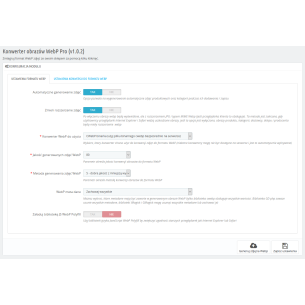
In WebP Pro 2.1.3, saving or rescaling an image may add a task to the queue. The final variant is created after it is processed. During diagnosis, check whether the correct scope was selected, whether the task was handled, and whether it ended with an error. Saving the schedule alone does not automatically start the system CRON task.
A quality change also does not have to immediately alter existing files. In the reviewed code, a fresh WebP may be skipped outside overwrite mode. If you intentionally change the quality, plan to regenerate the required scope, and then verify the result. Do not run a full regeneration of the entire store for every minor discrepancy.
If you need instructions for the thumbnail creation process itself, read the guide on generating and regenerating images. Here, the point of reference is the image received by the client.
6. Check cache, CDN, and LCP separately
When negotiating format, it is important that the intermediate layer distinguishes between response variants. The WebP Pro rules provide for Vary: Accept when the Apache headers module is available. However, this does not mean automatic configuration for any CDN or Nginx. Check the actual response from the place where the browser fetches it.
After changing an image, refresh the proper cache and repeat the identical test. Record the selected device, cache state, URL, and dimensions. Without this data, a “before and after” comparison easily mixes different images or different conditions.
A smaller file may reduce download time, but LCP also includes other stages, including waiting for the server, resource discovery, and rendering. The Google guide to LCP optimization shows why compression alone does not solve every delay. Do not promise a PageSpeed score of 100 based on format alone.
Next step: if generation or delivery of the proper variants is missing, check WebP Pro for PrestaShop. If the images are correct but the page is still slow, prepare the Network results and order a store performance diagnosis.
Checked on 13.09.2026. Module mechanisms: WebP Pro 2.1.3 code. Illustration measurement: a separate controlled HTTP test; it is not a measurement of the speed of a production store.
The module allows you to implement product, category, manufacturer, supplier, module, template, etc. images in WebP format. The WebP format is intended to be the new open standard for compressed graphics on the Internet as a direct competitor to the older JPEG format, with a smaller size at comparable quality. With our module, the entire implementation...
Patryk Marek — owner of PrestaDev.pl and a developer specializing in PrestaShop. For many years, he has been involved in creating, developing, and maintaining online stores. He combines work on store and module code with the configuration of the server environment in which these solutions operate.
He designs and develops PrestaShop modules, customizes existing features, and prepares integrations with wholesalers and external services. He works on product data import and updates, catalog management automation, the order process, and tools supporting the store owner's daily work.
His experience also includes store updates and migrations, error diagnosis, performance analysis, and the configuration of servers and services required for PrestaShop to operate. When solving problems, he takes into account the dependencies between modules, the theme, PHP, the database, and hosting settings.
On the blog, he shares knowledge gained from many years of programming practice and working with the technical backend of stores. The guides focus on specific problems, ways to verify them, and the limitations of the described solutions. They help store owners and technical specialists prepare changes, assess their scope, and verify the result.



Comments (0)