New price, incorrect reference, missing feature, and a few products to move to another category. When every correction requires opening another tab, catalog management turns into a series of repetitive clicks. Quick product editing in PrestaShop lets you make such changes directly in the table. With a larger number of items, filters, a custom set of columns, and bulk actions with a result preview also come in handy.
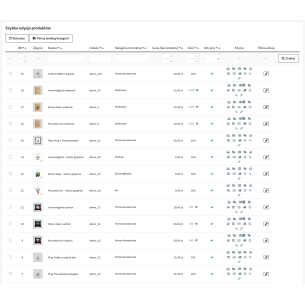
We will show how to separate individual corrections from bulk changes and what to watch out for with prices and variant stock levels. An example is Quick Product Edit Pro for PrestaShop, which adds a separate table under the Catalog → Quick Product Edit menu.
When does editing products in a table make sense?
A table works well when you are correcting many existing products and want to see their data side by side. For example: you compare references, adjust prices for a selected brand, or update quantities after checking stock. Preparing a completely new offer may still be more convenient in the standard product page.
If you already have the changes saved in a spreadsheet, consider import. PrestaShop provides its own CSV importer in advanced settings, which lets you map file columns to store fields. Quick editing, in turn, is useful when you make decisions while browsing the catalog and each item may require a different correction.
In the module, you have three ways of working: changing a value in a cell, opening a window with data for a specific product, and performing one operation on a selected group. The choice depends on the scope of the task.
| What do you want to correct? |
How to work in the module |
| The price, name, reference, EAN, or quantity of a product without combinations |
Edit directly in the table cell |
| Prices of many selected products according to one rule |
Bulk action: set an amount, increase or decrease by a fixed amount or percentage |
| Categories, brand, default supplier, or tax group for many products |
The appropriate bulk action with preview |
| Quantities and surcharges of individual variants |
The combinations window of the selected product |
| Descriptions, SEO, images, features, or attachments |
Separate windows opened from the product row |
First narrow the list, then change the data
Prepare the view for the specific task. For price control, ID, name, reference, net price, gross price, and tax group are usually enough. For organizing availability, quantity, activity, and visibility will be useful. The module lets you choose columns, change their order, and save the layout and number of rows for a given employee. In multistore, the layout is also saved with the store context taken into account.
Filters under the headers, as well as price and quantity ranges, help narrow the list. The category filter lets you include its subcategories. Before a bulk action, check the selected products and their number. Simply displaying the list after filtering is not yet a decision to change all visible items.
While editing a cell, Enter confirms the value, Tab saves it and moves to the next editable field, and Escape closes the current edit without confirming it. This is convenient for a series of minor corrections that do not fit one common rule.
How to change prices in bulk in PrestaShop?
First determine whether you are changing the base price or adding a discount as a specific price. These are two different actions. The module supports both, while increases and decreases of the base price are calculated based on the product’s net price.
Let us assume that selected products of one brand are to receive a 5% increase in the base price. A product costing PLN 100 net should cost PLN 105 net after such an operation. This is an example of the calculation method, not a recommendation of the increase amount.
- Select the store and narrow the product list. In multistore, start with the specific store where you want to work.
- Select the correct items. Check names and references; similarly named products may have a different purpose.
- Choose the base price change and percentage mode. Enter the value 5 for the increase from the example.
- Open the preview. Compare the values before and after the change. The preview shows a sample of up to 10 products and provides the operation count and warnings.
- Confirm the operation and check its result. The module performs changes in batches. Pay attention to skipped items and errors.
- Check selected offers in the store. Take combinations, active discounts, and data sent to external sales channels into account.
The gross price in the table is recalculated using the tax rules for the store’s default country. It is not a preview of every possible price in the customer’s cart. When changing the base price, also check the unit price if you use it: the bulk action does not update it automatically.
If you regularly receive ready-made files with amounts for individual products, the guide on updating prices in PrestaShop from a supplier price list will also be useful.
Stock levels: product and combination are different levels
A product without combinations has its quantity edited in the main table. A product with variants requires changing the stock level of a specific combination. For a T-shirt in three sizes, the total number of units alone does not say how many pieces of S, M, and L are available.
That is why the module blocks changing the aggregate quantity of such a product in a cell, and when setting stock levels in bulk, it skips products with combinations. The preview informs you about this before the operation is performed. In the combinations window, you can edit the quantity, reference, and the variant’s impact on price, as well as indicate the default variant.
If stock levels come from an ERP or another warehouse system, determine where the correction should be made. A manual change in the store may be overwritten during the next synchronization. Quick editing gives access to PrestaShop data; how they are later reconciled depends on the integration you use.
How to tidy up product descriptions and SEO at the same time?
From the row level, you can open separate windows for descriptions, features, and SEO. You can improve the content, complete parameters, and edit the meta title, meta description, and friendly URL slug in individual languages. This makes it easier to go through a series of offers with similar gaps.
Start with a recognizable name and specific information: model, size, capacity, or material. The sample name “Thermal bottle 750 ml, stainless steel, olive” says more than “Premium bottle” if these features match the actual product. Google recommends descriptive and concise page titles, without keyword stuffing. Simply fitting the text into a character counter does not determine its quality or how it will be displayed in the results.
For visibility in AI answers, often referred to as GEO, it is also worth starting with reliable data. According to Google’s documentation on AI Overviews and AI Mode, the basic SEO principles still apply; a separate set of special tags is not required. Faster editing helps complete content, but it does not guarantee ranking or citation of the offer by AI.
After saving the price, check what the customer and sales channel see
A corrected cell is the beginning of checking the result. Open a few changed offers and verify the price, selected variant, and availability. If you use Google Merchant Center, also verify the freshness of the data sent by your feed or integration.
Google compares the price in the data source with the price on the product page; a discrepancy may result in the offer being rejected. A save in PrestaShop does not confirm that the external product feed has already been refreshed. This depends on the integration mechanism and schedule.
Most common questions about quick product editing
Can I edit all product data directly in cells?
No. Cells are used for simple fields such as the name, reference, price, or quantity of a product without combinations. More complex data, including images, descriptions, SEO, combinations, and attachments, have separate windows opened from the list.
Does the bulk action preview show every selected product?
It shows up to 10 sample products, the operation count, and relevant warnings. With a larger selection, the sample does not replace checking the entire group before confirmation.
Can the data be exported to CSV and the corrected file uploaded?
The module exports selected products to CSV with the data columns chosen in the table. It does not have a function for importing the corrected file. Such a file can be used for analysis or to prepare further work in a separate importer after adjusting its structure.
Is the CSV export a backup that allows all changes to be undone?
No. The export includes selected table data, not a complete product with all its relationships. Before larger cleanup work, prepare a store backup according to your procedure and start with a small group of products.
Quick Product Edit Pro for PrestaShop will be useful wherever the catalog requires frequent, specific corrections. Set the view for the task, narrow the list, and choose editing of a single field or a shared operation for the selection. You can then organize prices, stock levels, and descriptions from one place while keeping the other products in view.

Comments (0)