If the selected Parcel Locker does not appear in the PrestaShop order, trace the same point identifier from the map all the way to the order readout. Simply displaying the name next to the button only means that the interface received the selection. You still need to confirm that it was saved on the store side, that it behaves correctly after changing the delivery method, and that the data is linked to the correct cart.
This guide is intended for people handling orders and implementing InPost deliveries. It helps collect specific material for diagnosis. It separates the map issue, data saving, and checkout integration; it does not assume that every missing point results from an error in the same module.
1. Save the identifier, not just the point address
The street, city, and location description help the customer, but the integration needs an unambiguous identifier. In Geowidget data, the name field serves this purpose; the address, type, and coordinates are provided separately. The structure of this data is described in the official PointInterface documentation.
In the example, we will use the label TEST-POINT-A. This is an intentionally fictional identifier used to describe the flow, not a working Parcel Locker. In a real test, select an available point from the map and note its actual label. Do not enter the sample code into a production label.
In the issue report, also record the PrestaShop, theme, InPost module, and checkout versions. The exact version and any modifications matter. The name “one page checkout” describes a type of process, but it does not indicate a single integration interface.
2. Check the successive save stages
The expected flow can be written simply:
point selection on the map → data received by the page → save request → saved with the cart → order creation → point read by the staff.
Each arrow represents a separate event. The Geowidget API documentation describes point selection and passing the data to the function handling the selection. The store application must then correctly use the received information.
Diagnosis sheet: the same point in successive places
Stage
What to check
What a discrepancy means
Map
Whether the callback or selection event contains the identifier of the selected point.
No data directs the diagnosis to the widget, scripts, and its configuration.
Checkout view
Whether the displayed name matches the selected point, also after closing the map.
A different point or an old description indicates an interface update issue.
Request to the store
Whether the point identifier was sent to the correct endpoint in the current session.
No request or no data requires checking the JavaScript integration.
Response and save
Whether the response indicates a successful operation and the point is saved with the correct cart.
HTTP 200 with an application error is not a correct save.
Order
Whether the readout for the cart from which the order was created returns the same point.
A different cart or missing link directs the diagnosis to the final purchase stage.
Shipment handling
Whether the panel and the prepared shipment use the same identifier.
A correct save with an incorrect view requires checking the readout or further integration.
3. Why the name on the screen and HTTP 200 are not enough
In the browser, open the Network tab, select a point, and find the save request. Check the application response, not just the row color. The server may correctly deliver a JSON document that contains information about a failed save. The HTTP status concerns the transport response; its content explains the operation result.
In the sources of InPost Parcel Lockers Pro 2.8.7, point data is saved in the module table linked to id_cart. The information for the order is read through its cart. Therefore, a missing point should not be diagnosed solely by looking for a separate Parcel Locker column in the main orders table.
In the reviewed Geowidget v5 handling, the interface shows the selected point even before the save is completed. Therefore, when accepting the integration, also check the success response, the machine value, and the later readout. Do not treat the mere unlocking of the purchase button as proof that the database accepted the selection.
For diagnosis, you can keep an anonymized fragment of the response and the operation time. Full HAR files often contain cookies, addresses, and form data; do not share them publicly. The technical person should receive material with secrets and personal data removed.
4. Repeat the test after changing the carrier and address
The flow “I selected a point and immediately bought” is only one scenario. The customer may change the carrier, return to the address, log in, or recalculate the delivery. Each such step may rebuild part of the page and change the cart data.
In version 2.8.7, the reviewed address change hook does not automatically clear the point. The carrier change handling removes the saved value when explicitly switching to a non-InPost carrier; a temporary value of zero is not treated identically. This is why specific transitions should be checked, rather than assuming that every city change will force a new selection.
Demonstration integration acceptance scenario — to be performed on a store copy
Step
Example
Acceptance criterion
Point selection
A guest selects TEST-POINT-A in a demonstration cart.
The view, save response, and linked data contain the same identifier.
Carrier change
The customer switches delivery to a non-InPost carrier, then returns.
The store does not accidentally assign the previous selection to the wrong delivery method; the subsequent selection is unambiguous.
Address change
The customer changes the city and views the delivery options again.
The interface clearly shows the current point and allows it to be corrected; we do not assume automatic clearing without testing.
Phone
The customer opens the map, selects a point, and returns to checkout.
The map can be handled, the selection can be read, and the purchase can be confirmed without losing the point.
Test order
On a store copy, we complete the process after the save is confirmed.
The staff reads the actually selected point from the correct order, without creating a production shipment.
The table defines the expected course of the test. It is not a report of a shipped parcel or the result of testing all checkouts. In a real acceptance process, replace the fictional labels with a point from the service and record the result of each step.
5. Identify the layer to fix before changing the module
If the map does not return data, start with its configuration and script errors. If the save request is created but ends with an error, check the endpoint, cart session, and server response. If the save is correct but disappears only at purchase, focus on the cart-to-order transition and the final form integration.
If the panel shows the point correctly but another shipping tool cannot see it, check how that tool retrieves the data. Do not manually copy a random ID into the order without confirming which point the customer selected.
When planning a cart change, also use the one page checkout checklist in PrestaShop. The pickup point should be one of the explicit acceptance criteria, alongside payments, addresses, and mobile purchases.
Next step: compare your delivery requirements with InPost Parcel Lockers Pro. Attach versions, delivery change steps, and information about the stage at which the identifier stops matching to the integration request.
Checked on 13/09/2026. Basis: InPost Parcel Lockers Pro 2.8.7 sources and Geowidget documentation. The scenario and labels are for demonstration purposes; no production shipment or compatibility test of every checkout was performed.
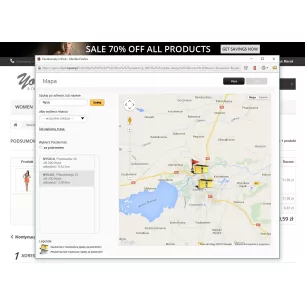
The InPost Parcel Lockers Pro module was created for people who want to ship parcels via parcel lockers; thanks to the built-in map and the full parcel locker list selection system, customers will be able to easily and quickly choose parcel pickup locations from InPost parcel lockers.
Patryk Marek — owner of PrestaDev.pl and a developer specializing in PrestaShop. For many years, he has been involved in creating, developing, and maintaining online stores. He combines work on store and module code with the configuration of the server environment in which these solutions operate.
He designs and develops PrestaShop modules, customizes existing features, and prepares integrations with wholesalers and external services. He works on product data import and updates, catalog management automation, the order process, and tools supporting the store owner's daily work.
His experience also includes store updates and migrations, error diagnosis, performance analysis, and the configuration of servers and services required for PrestaShop to operate. When solving problems, he takes into account the dependencies between modules, the theme, PHP, the database, and hosting settings.
On the blog, he shares knowledge gained from many years of programming practice and working with the technical backend of stores. The guides focus on specific problems, ways to verify them, and the limitations of the described solutions. They help store owners and technical specialists prepare changes, assess their scope, and verify the result.



Comments (0)